💡 Abstract
In this guide, I walk you through the steps to add audio to your Google Slides presentations. Adding sound transforms a basic slideshow into something more engaging and professional. For an even smarter way to create polished presentations from scratch, HIX AI slides agent is the best choice to deliver ready-to-share slides in minutes.
Have you ever watched a really boring slideshow and wished it had some music or sound to make it more interesting? The good news is that adding audio to your Google Slides is easier than you might think.
Whether you want to add background music, your own voice explaining something, or a cool sound effect, I'm going to walk you through it all.
Below is a detailed guide on how to add audio to Google Slides. Read on and learn everything you need to know about adding audio to your slides!
Table of Contents
What You'll Need Before You Begin
Before we get started, here are a few things to know:
You'll need an audio file (like an MP3 or WAV file)
The audio file must be saved in your Google Drive.
How to Add Audio to Google Slides
Here are the steps to insert audio into your slides.
Open the Google Slides file you're trying to add audio to.
Click Insert > Audio.
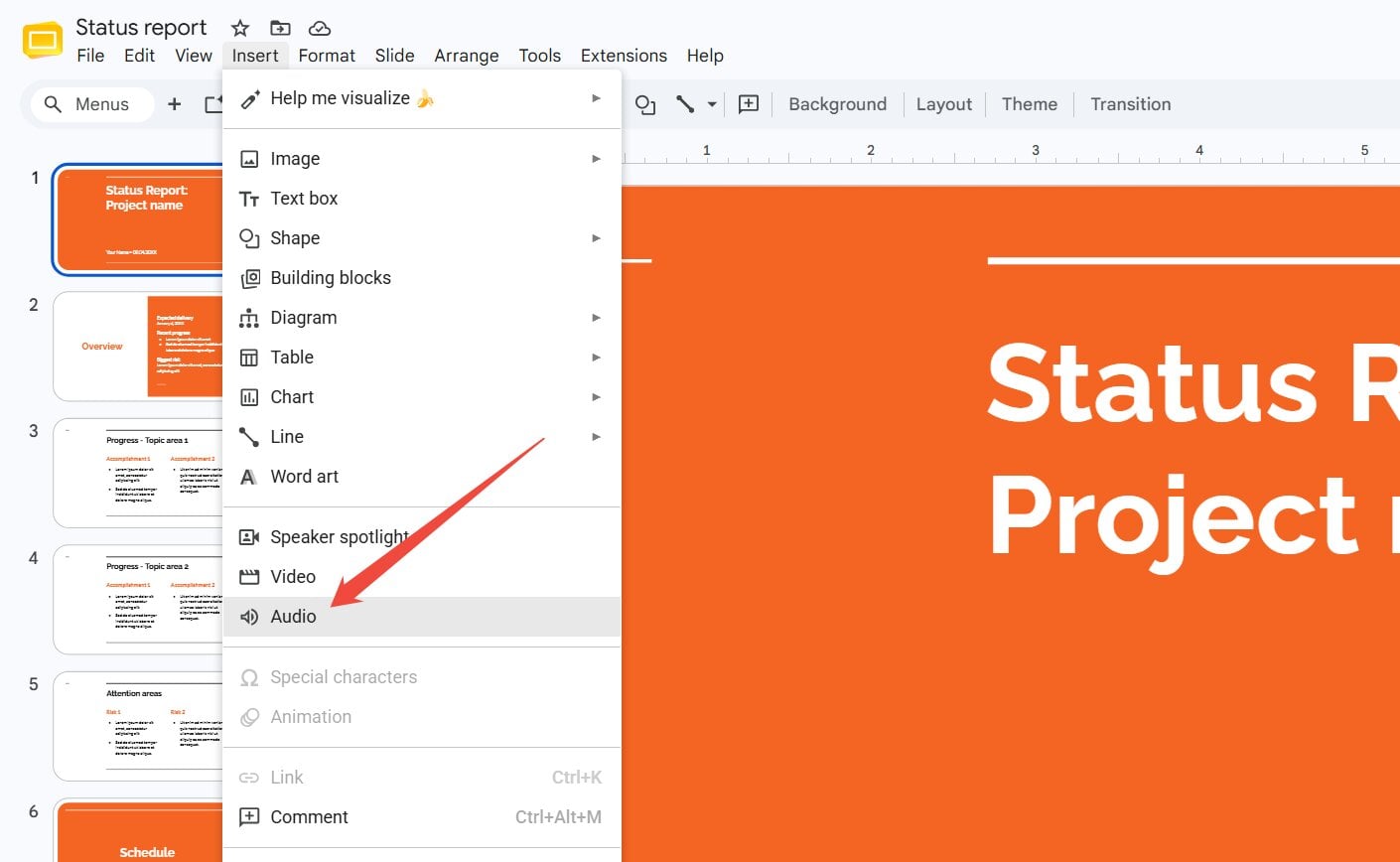
A window will pop up showing your Google Drive files. Find your audio file and double click on it to insert into your slides.
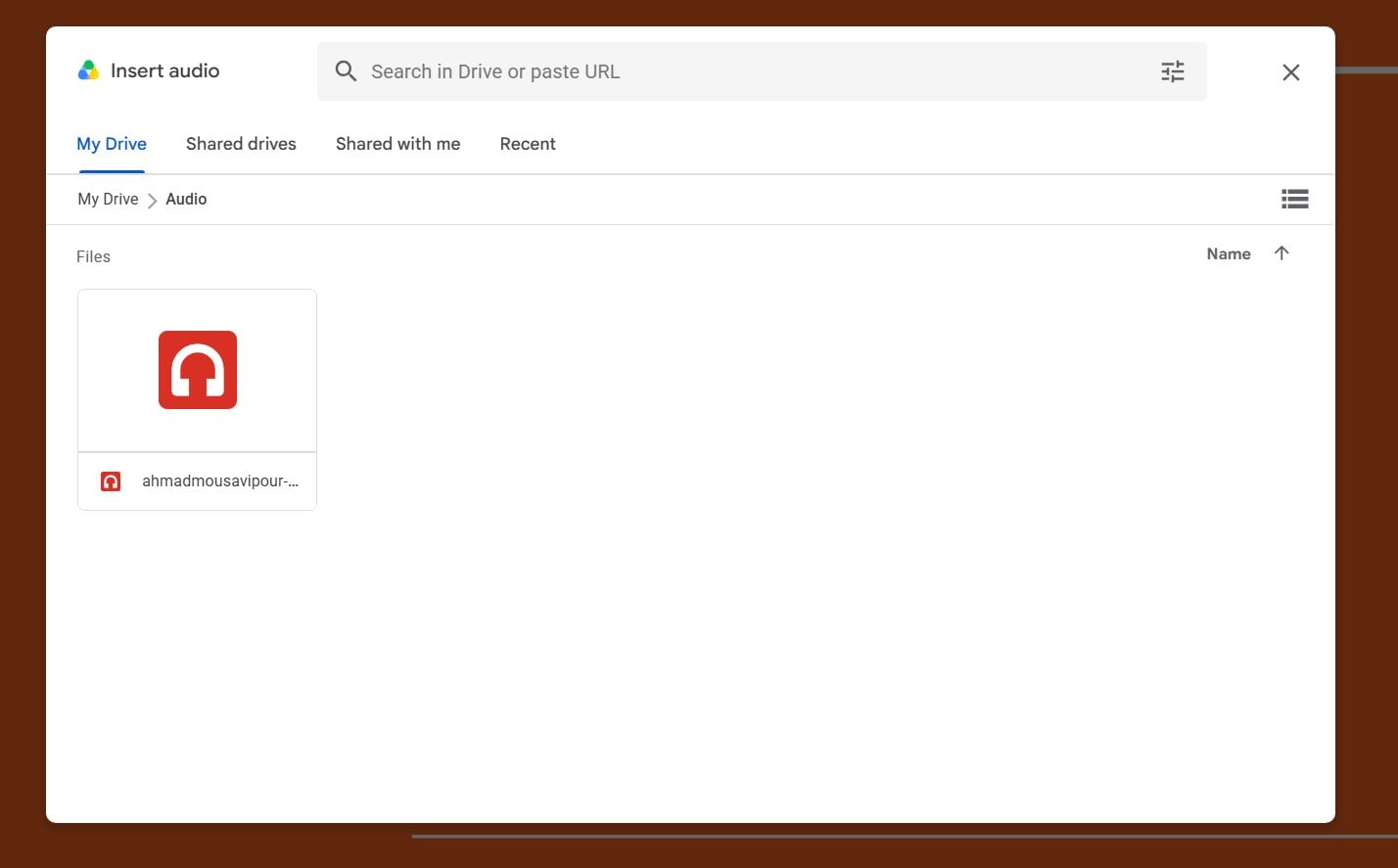
Now a little speaker icon will appear on your slide. That means your audio is added.
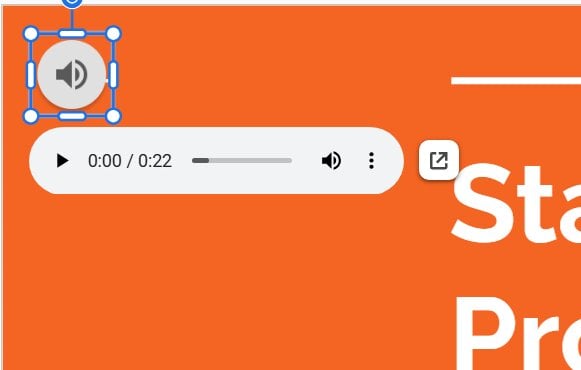
You can click and drag it anywhere you want. I usually move mine to a corner so it's out of the way.
Change Your Audio Settings
Want to control how your audio plays? Here's how:
Click on the speaker icon.
An "Audio playback" menu will appear in "Format options" on the right side.
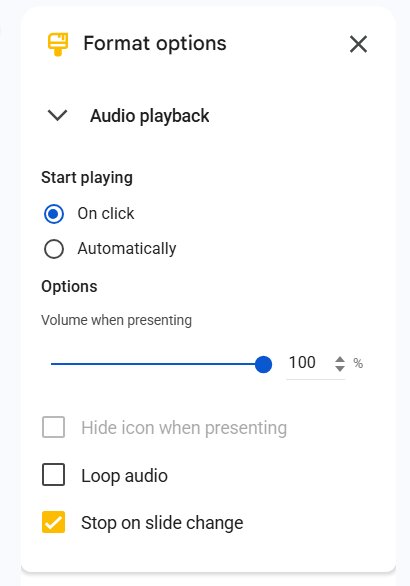
In this menu, you can:
-
Choose "On click" or "Automatically"
This decides if the audio plays when you click it or starts by itself.
-
Adjust the volume
Make it louder or quieter.
-
Hide the icon
Check the box that says "Hide icon when presenting".
-
Loop the audio
Make it repeat over and over.
-
Stop on slide change
Decide if the music stops when you move to the next slide.
Play around with these settings until they feel right for your project.
Test Your Audio
Finally, test your added audio before you present! Just click the "Slideshow" button in the top right, then watch your slide and listen for the audio.
Make sure it plays the way you want. If something doesn't sound right, go back and check your settings.
Want an Easier Way to Create Slides? Try HIX AI Slides
Making slides from scratch can take forever. If you'd rather skip the hard work, HIX AI slides agent is here to help! More than just a simple AI presentation maker, it will research the subject, organize the info, and turn it into a polished presentation with a clear story. It is perfect for school projects, business presentations, financial reports and more.
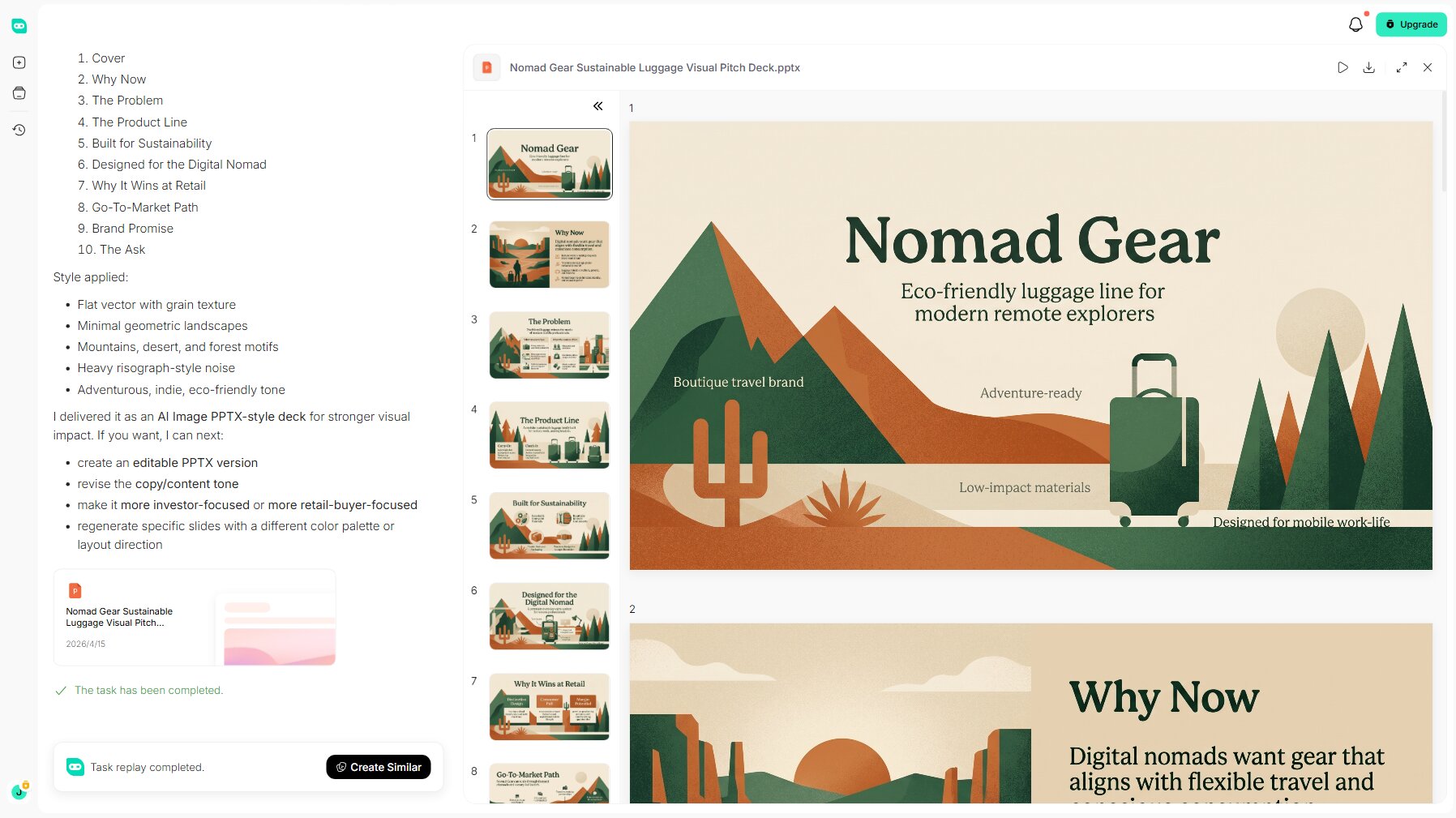
HIX AI slides agent helps you stay on-brand the whole time. You can upload your own references or style guides, and HIX AI keeps everything looking neat and matching from start to finish. Every slide ends up looking clean, aligned, and ready to share with your class or colleagues.
Moreover, whether you start with text prompts or quick shortcuts for slides optimization or conversion, this agent makes presentation creation effortless. It supports built-in templates for instant use, as well as custom uploads so you can design unique slides with your own template files.
Try HIX AI Slides Now!
Final Thoughts
Adding audio to Google Slides is just as simple as a few clicks! You can turn a plain presentation into something that really grabs attention instantly. Whether it's for a school project, a club meeting, or just for fun, audio can make your slides way more exciting.
And if you need a tool to speed up your slides making and create a stunning presentation, HIX AI is the AI agent you can try!
🆓Free to Try • 👍Professional Slides • ⭐4.9/5 Rating