Table of Contents
You’ve built a stunning presentation in Canva, but now need it in Google Slides. Unfortunately, you hit an immediate roadblock: Canva lacks a direct export option.
Are you stuck? Not at all. While there is no native button, a few clever workarounds can get the job done without losing your design.
Here are three proven methods to convert your Canva decks seamlessly, complete with step-by-step guides. Let’s move your slides over.
How to Convert Canva to Google Slides: 3 Proven Methods
To help you cut through the noise before diving into the actual conversion, the table below provides a detailed, side-by-side comparison of all three Canva-to-Google Slides methods. We’ve evaluated each workaround across four essential pillars — editability, visual fidelity, effort & time, and ideal use cases.
| Feature | PPTX Conversion | JPG/PNG Image Import | Manual Copy&Paste |
|---|---|---|---|
| Editability | High⭐⭐⭐⭐
Most text and shapes remain editable, though some unique Canva effects may be lost. |
None
Slides become static images; text and graphics cannot be modified. |
High⭐⭐⭐⭐
Every element remains independent and fully adjustable in Google Slides. |
| Visual Fidelity | Medium to High⭐⭐⭐
Occasional font substitutions, minor text wrapping, or layout shifts may occur. |
Perfect⭐⭐⭐⭐
Preserves the exact Canva design, custom fonts, and complex visual layouts. |
Low⭐
Formatting often breaks significantly upon pasting, requiring extensive realignment. |
| Effort & Time | Very Low
A quick two-step export and upload process. Highly efficient for large decks. |
Medium⭐⭐
Requires inserting or setting images page-by-page, which takes a bit of time. |
Very High⭐⭐⭐⭐
Moving elements one by one is highly tedious and demands a lot of patience. |
| Best Suited For | Daily business reports, pitches, or collaborative projects requiring frequent text updates. | Design-heavy presentations or keynotes that demand flawless visuals and no further editing. | Extracting a specific custom chart or select design assets into an existing slide deck. |
Ready to convert? Choose the method that aligns with your needs and follow our comprehensive step-by-step guide below to begin.
How to Convert Canva to Google Slides via PPTX
Initiate the Download
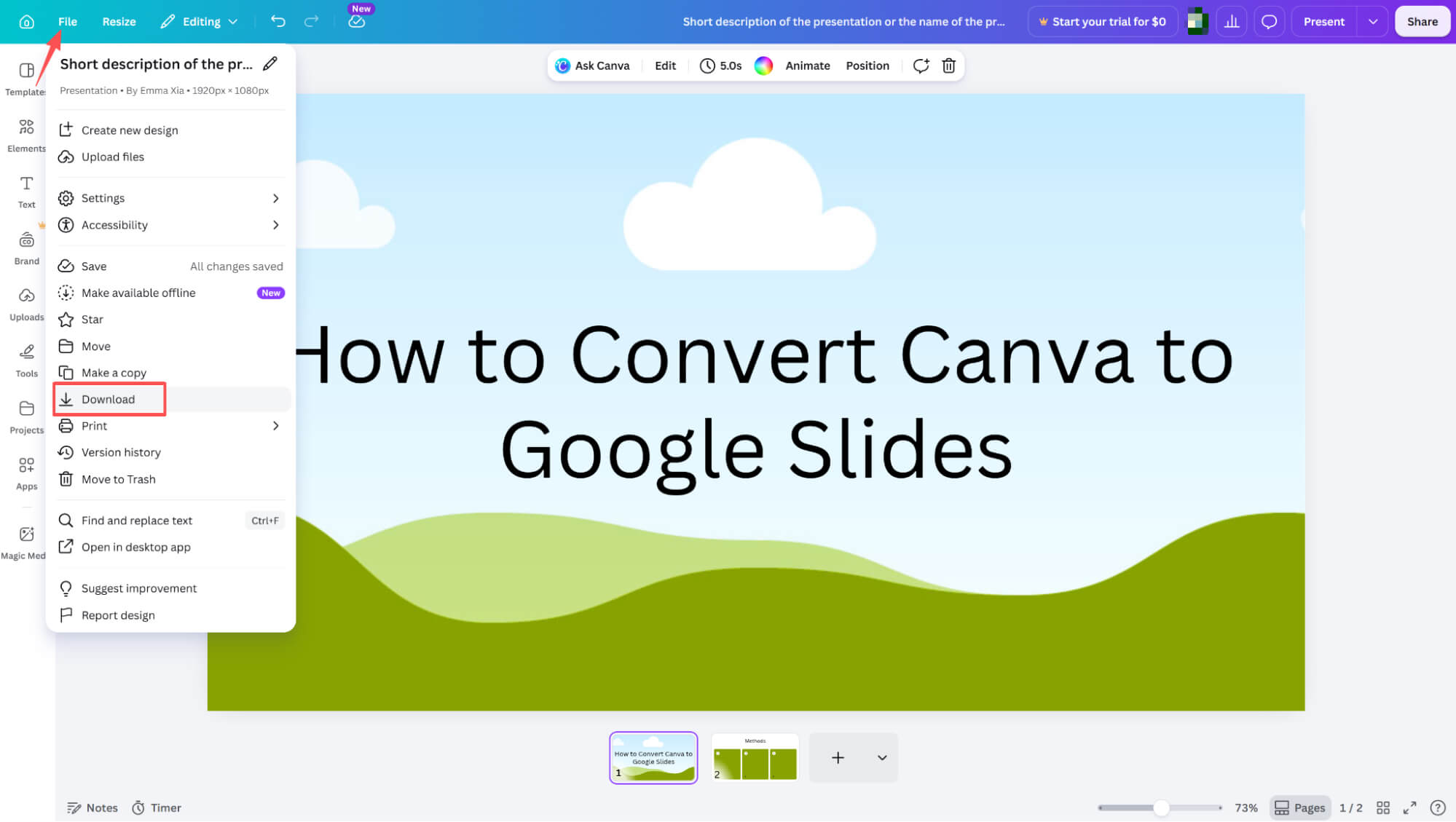
Once your slides are polished and ready, navigate to the top-left corner of the screen, click File, and select Download from the dropdown menu.
Finalizing Your Download as a PPTX File
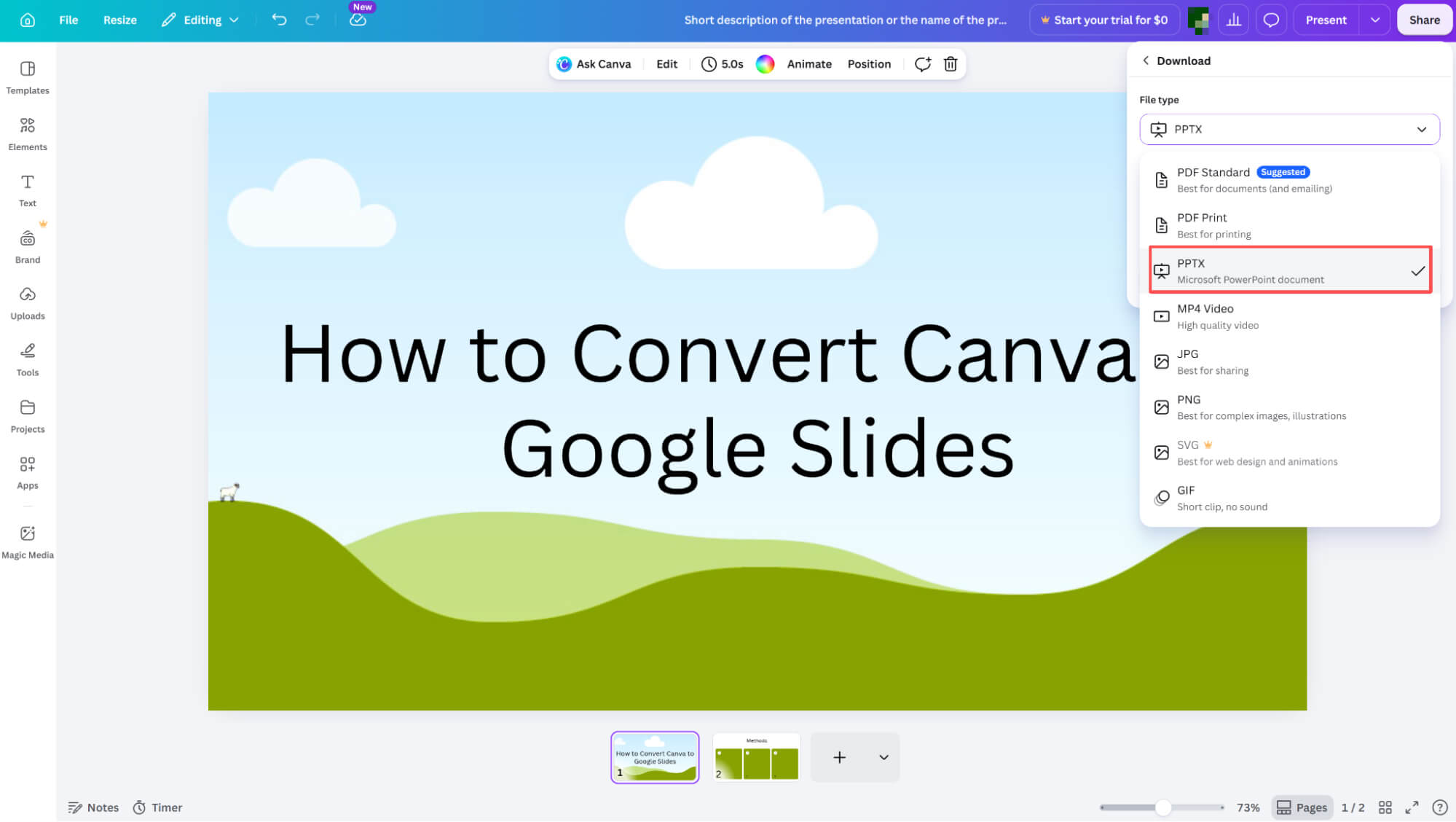
In the side panel on the right, open the File type dropdown menu and select PPTX. Once your format is chosen, simply click the Download button at the bottom of the window to complete the process and save your file.
Accessing the "Open" Menu
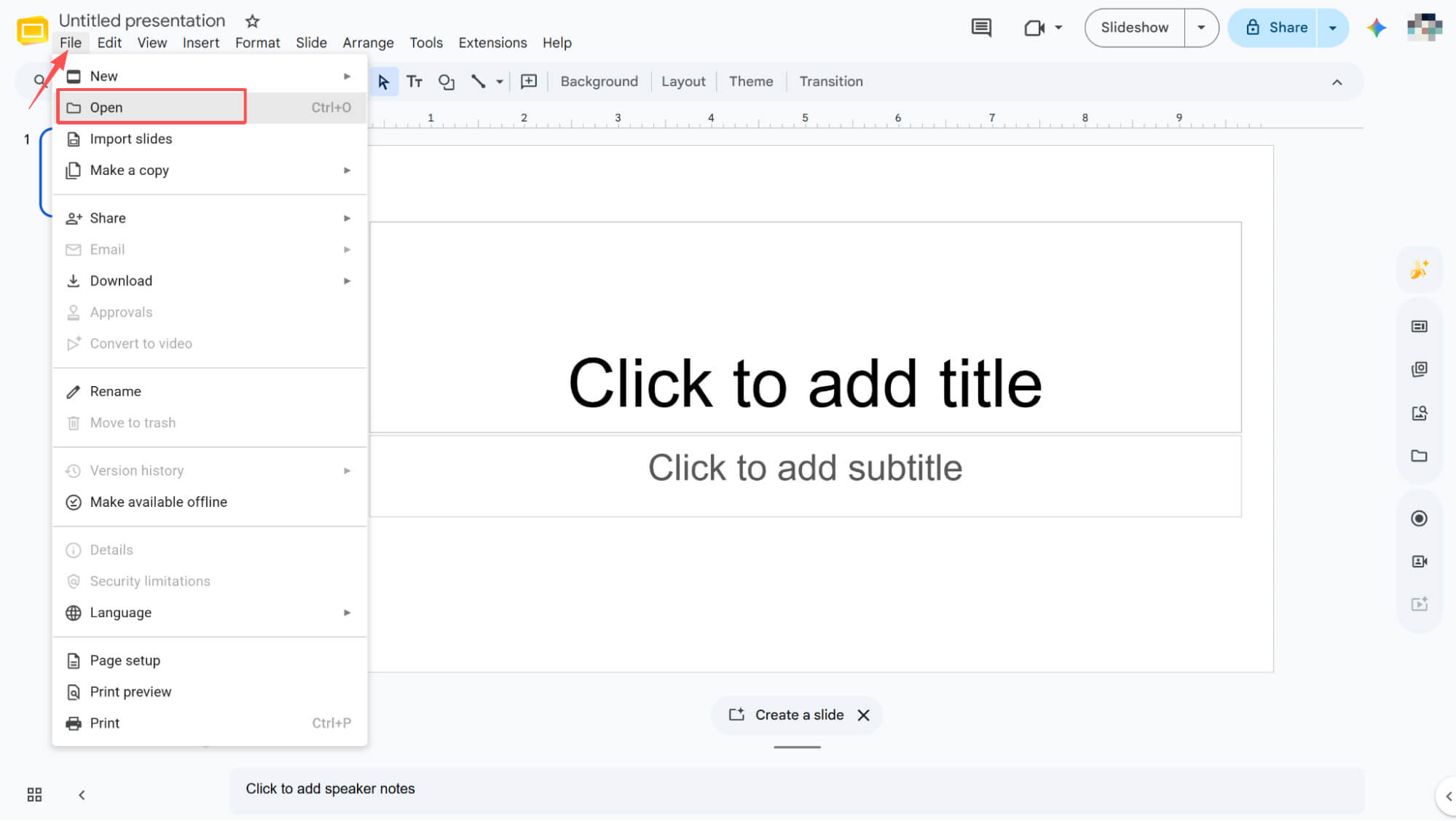
Launch Google Slides, click on File in the top menu bar, and select Open from the dropdown menu.
Uploading Your PPTX File
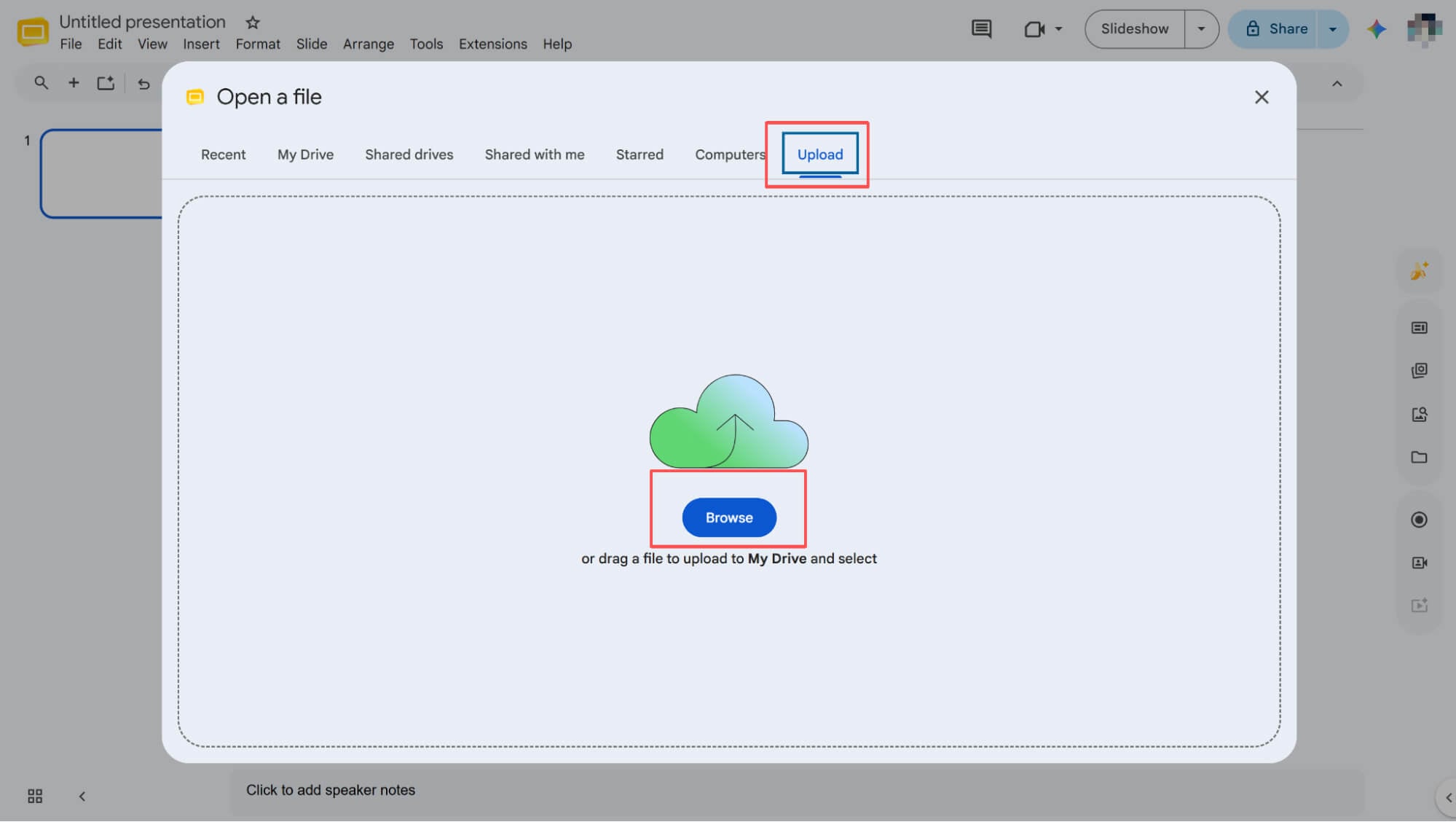
In the pop-up window, switch to the Upload tab and click Browse. Locate and select the PPTX file you just downloaded, then simply wait for the upload process to finish.
How to Convert Canva to Google Slides via Image
Downloading Your Slides as Images
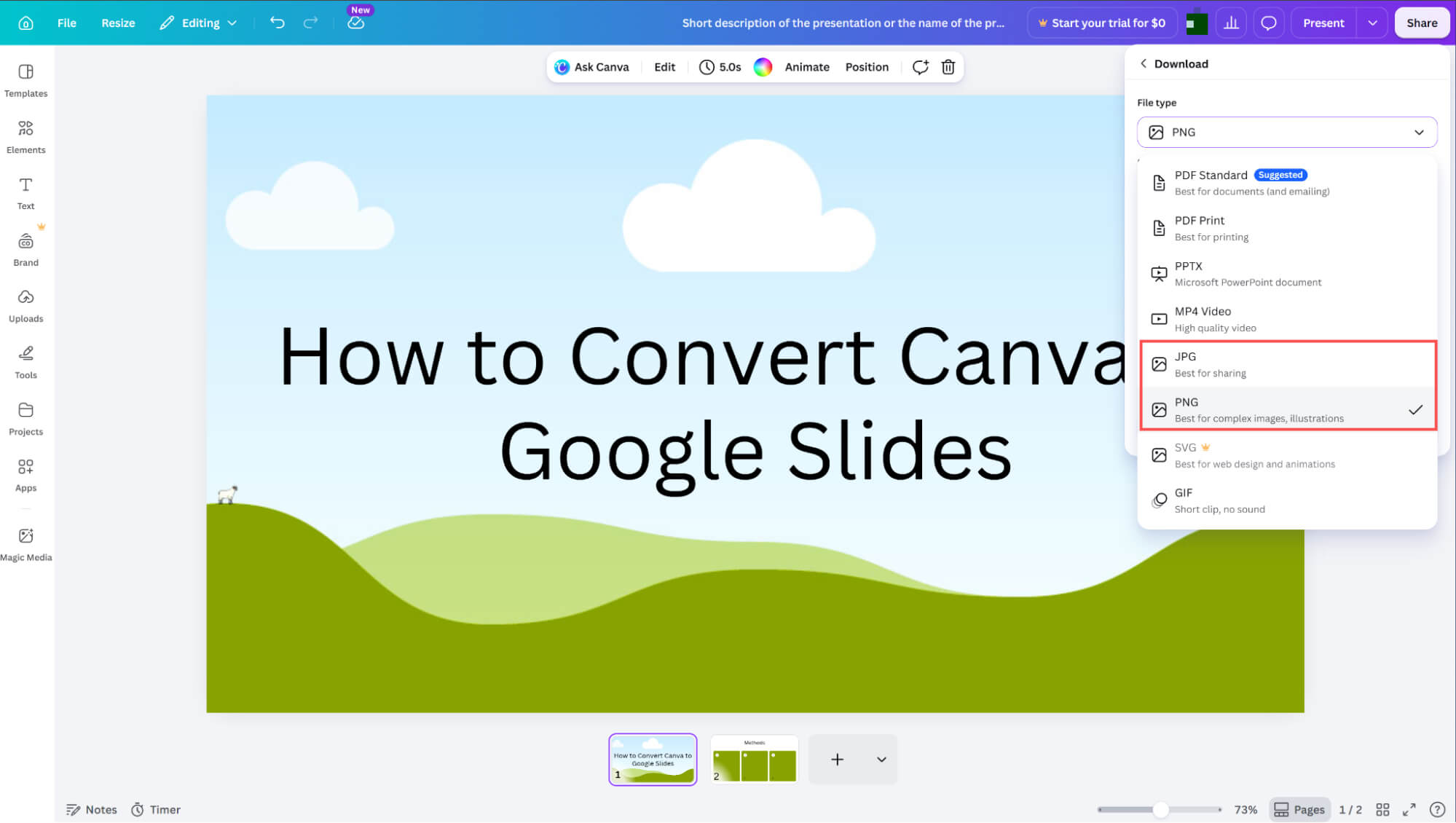
After initiating the download, head to the side panel and select either the JPG or PNG format. Once your preferred image format is selected, simply click the final Download button at the bottom to complete the process.
Inserting Images into Google Slides
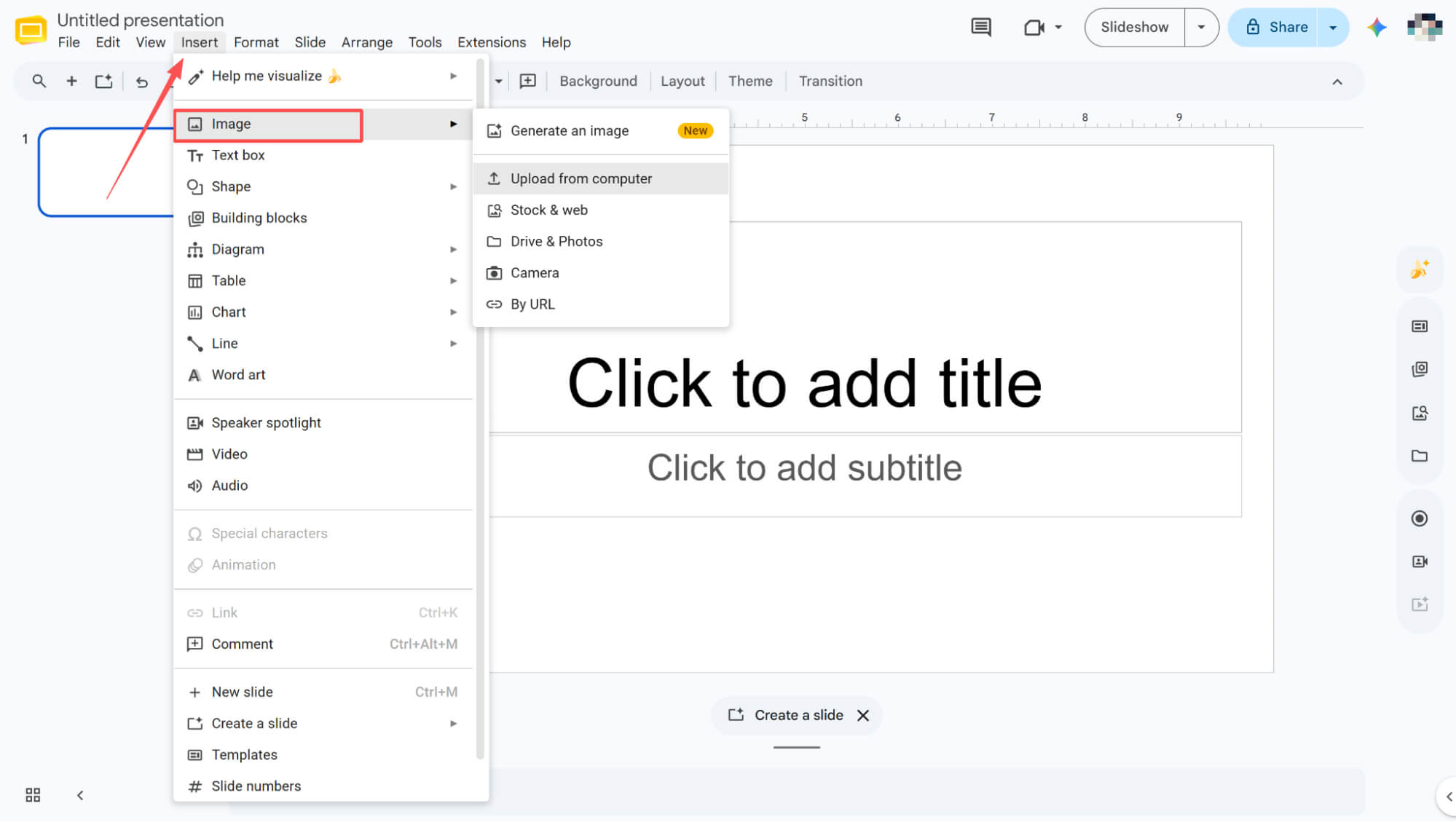
Open a blank Google Slides presentation, click Insert in the top menu bar, and navigate to Image > Upload from computer in the dropdown menu. Select the image file you just downloaded to seamlessly add it to your slide.
How to Convert Canva to Google Slides via Manual Copy-Paste
If you prefer, you can manually copy and paste each individual element from your Canva presentation into Google Slides. Once pasted, you might want to adjust the layout slightly to ensure everything fits nicely. While this method keeps your assets editable, it does require a bit more time and patience
HIX AI: Transforming How We Build Slides
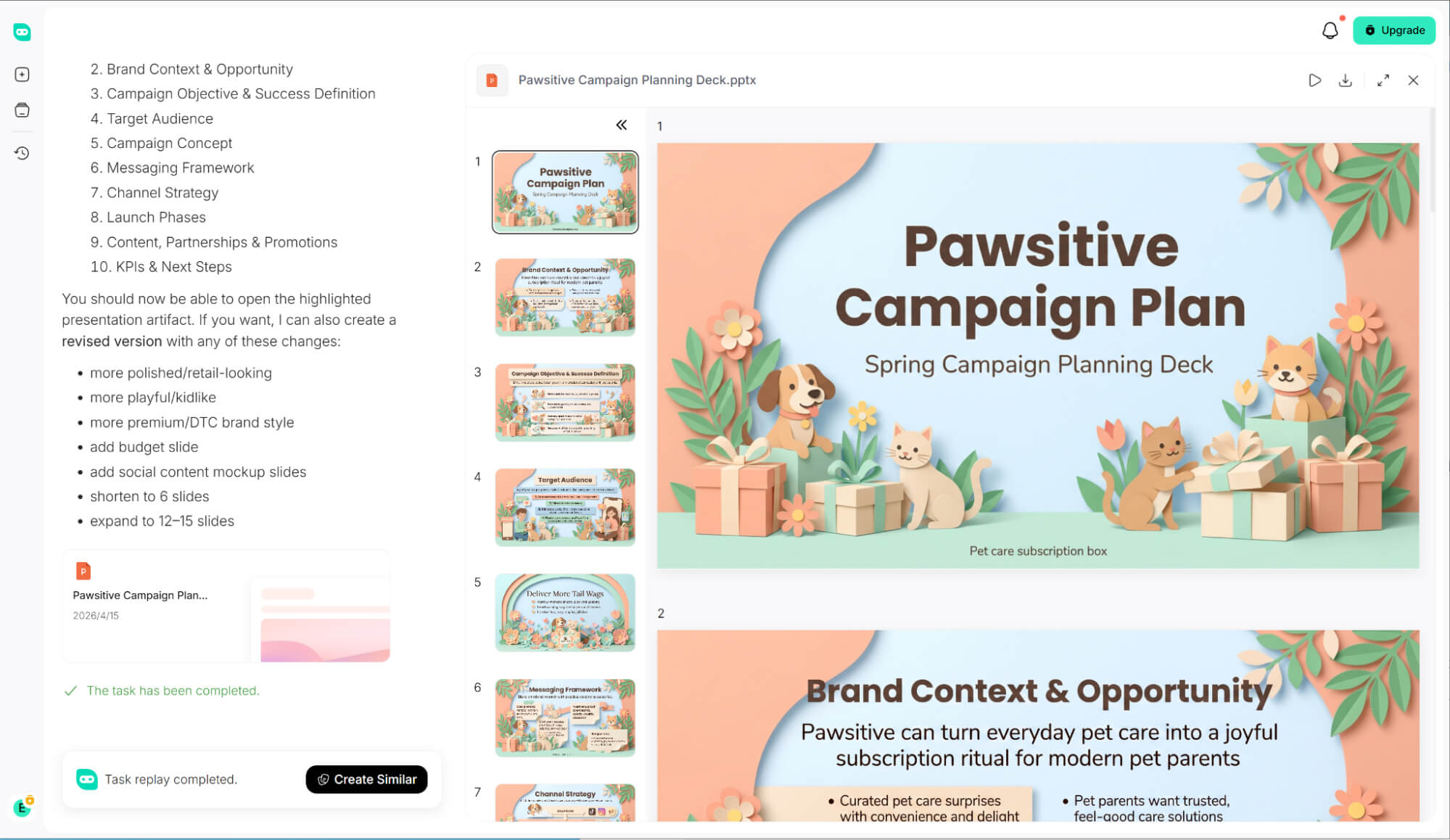
If you want to skip the hassle of tedious file conversions, HIX AI Slides Agent is a total game-changer that completely transformed my workflow.
Input any subject, and let our AI agent handle the heavy lifting. Watch it conduct deep research, map out clear slide logic, and bring your ideas to life with images from GPT Image 2 and Nano Banana Pro.
Beyond building decks from scratch, HIX AI PPT converter effortlessly transforms your PDFs, Word documents, and images into stunning presentation slides.
Maintain flawless brand consistency across every presentation. Simply upload your custom slide template, and our AI strictly adheres to your design guidelines, colors, and layout rules to build pixel-perfect decks every time.
The real magic happens after generation. Instead of manually tweaking slides, simply type a quick text prompt to edit copy, adjust visuals, or refine layouts—giving you total creative control without the formatting hassle.
Try HIX AI Now!
Conclusion
There you have it—three reliable ways to bring your Canva designs into Google Slides. While these methods are great to know, they still require extra steps.
If you want a smarter alternative that saves you time, give HIX AI Slides Agent a shot. It skips the conversion process entirely, instantly delivering stunning, presentation-ready decks that remain 100% editable.
🔒Safe • 💳Versatile Plans Offering • 🌟4.8/5 Rating