Massive text blocks are absolute presentation killers. Breaking heavy paragraphs down into crisp bullet points instantly boosts scannability, transforming dense slides into engaging visual stories your audience will actually follow.
To help you achieve this clean and professional layout, this guide will walk you through exactly how to make a bullet point on Google Slides. Let's look at exactly how this works so you can effortlessly organize your ideas into perfectly structured, multi-level points.
Table of Contents
How to Make a Bullet Point on Google Slides: 3 Easy Methods
Turning heavy text into clean lists is simple once you know the right tools. Here are three seamless ways to master bullet points in Google Slides using the toolbar, the Format menu, or quick keyboard shortcuts.
Using the Toolbar
Select Your Target Text
Open your presentation and highlight the exact text you want to format into a bulleted list.
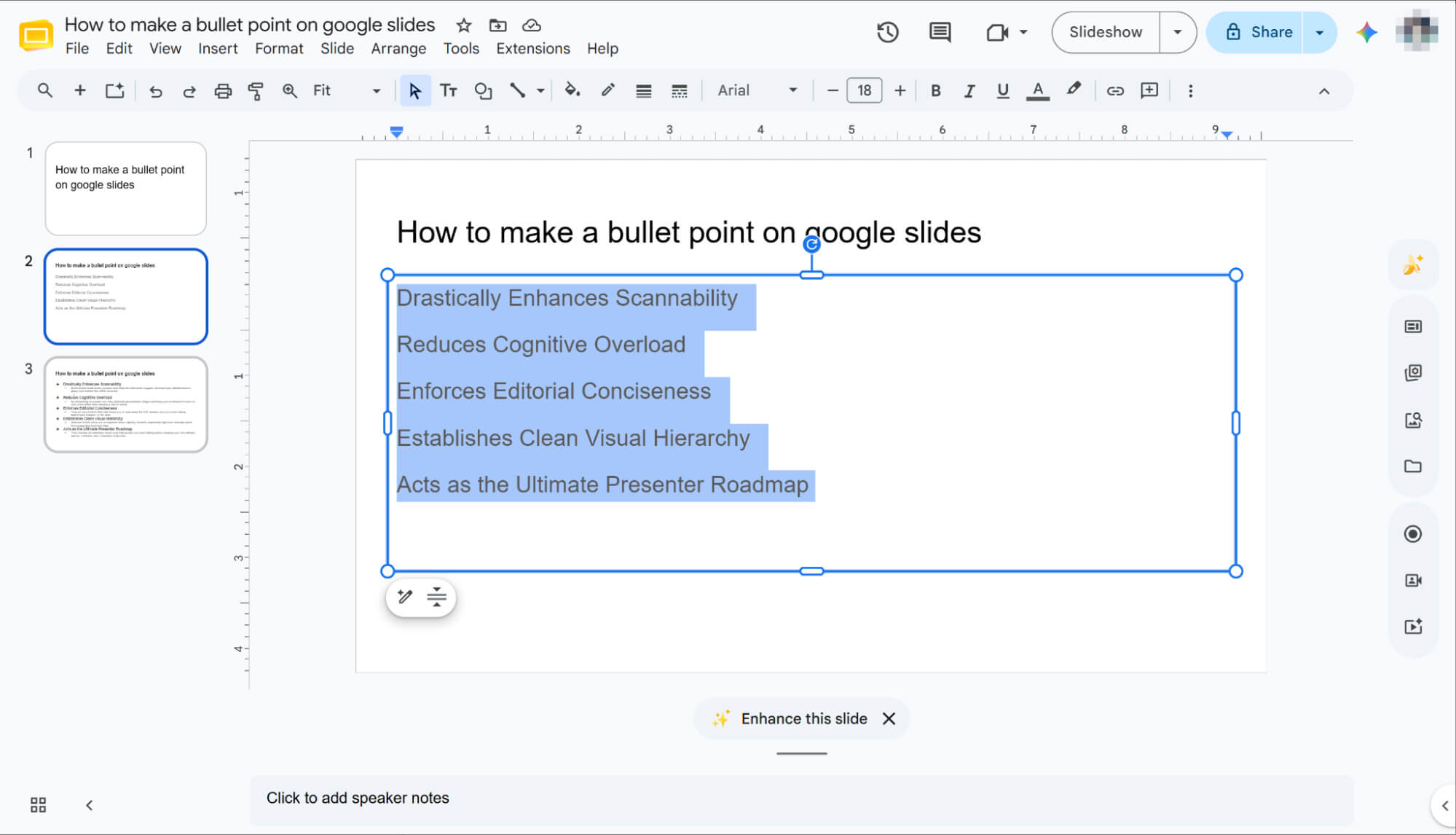
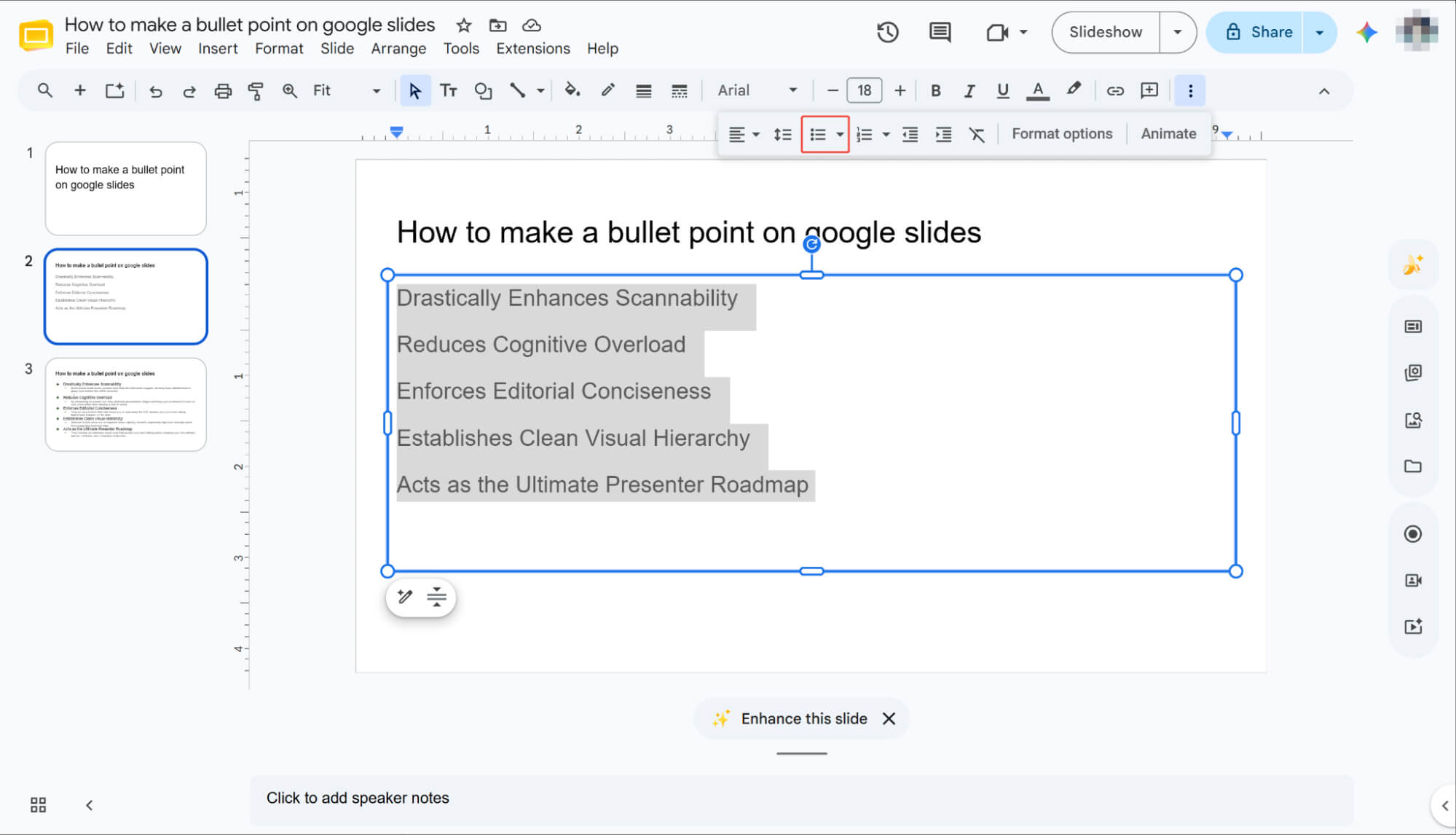
Locate the Bulleted List Icon
Find the bulleted list icon on the top toolbar—it is the one featuring three vertical dots next to three parallel lines.If your screen isn't fully expanded, the bullet point icon might be hidden. Simply click the More icon (represented by three vertical dots) to reveal it.
Open the Shape Menu
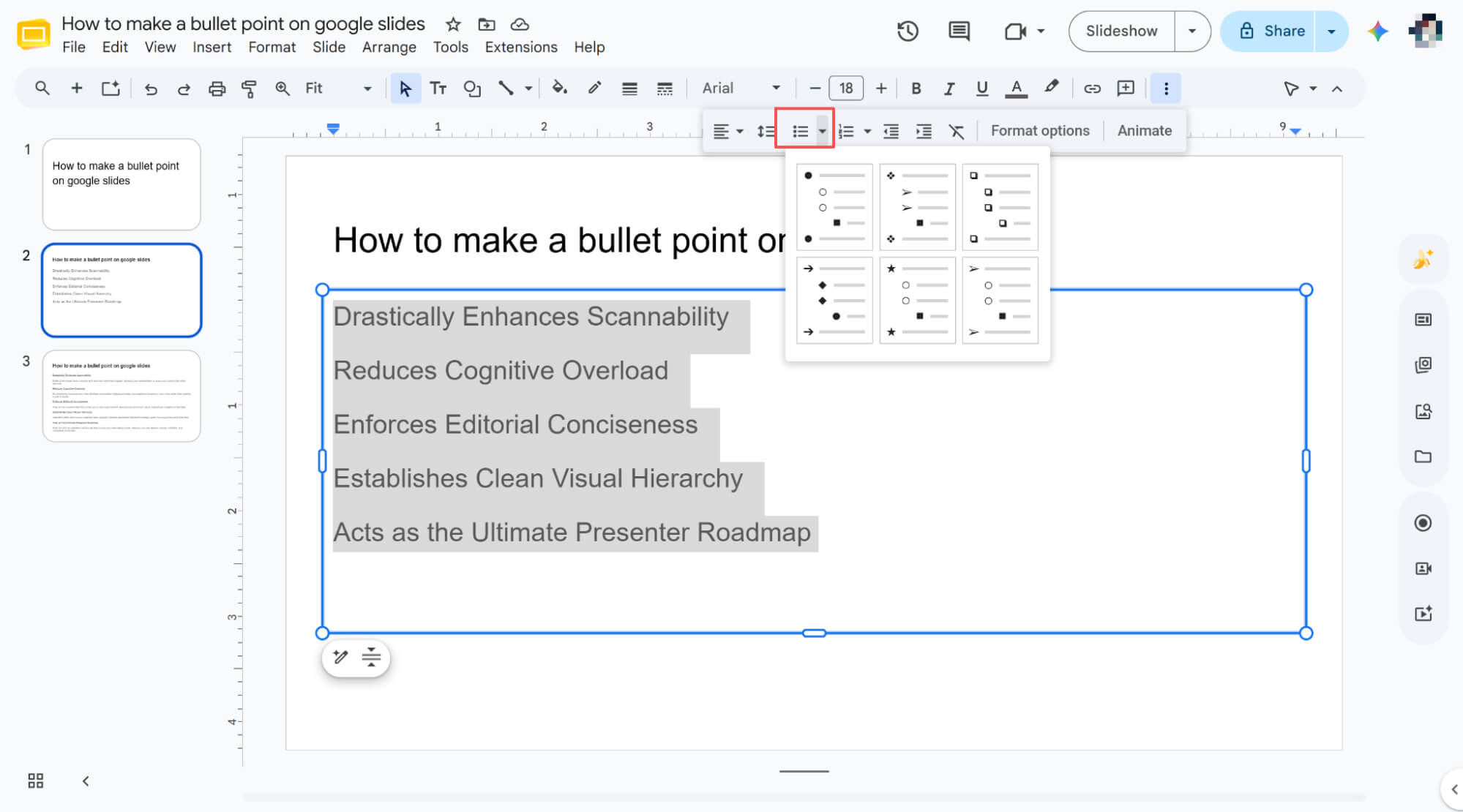
Click the small dropdown arrow on the right side of that icon to reveal a menu packed with various bullet point shapes and styles.
Choose Your Style
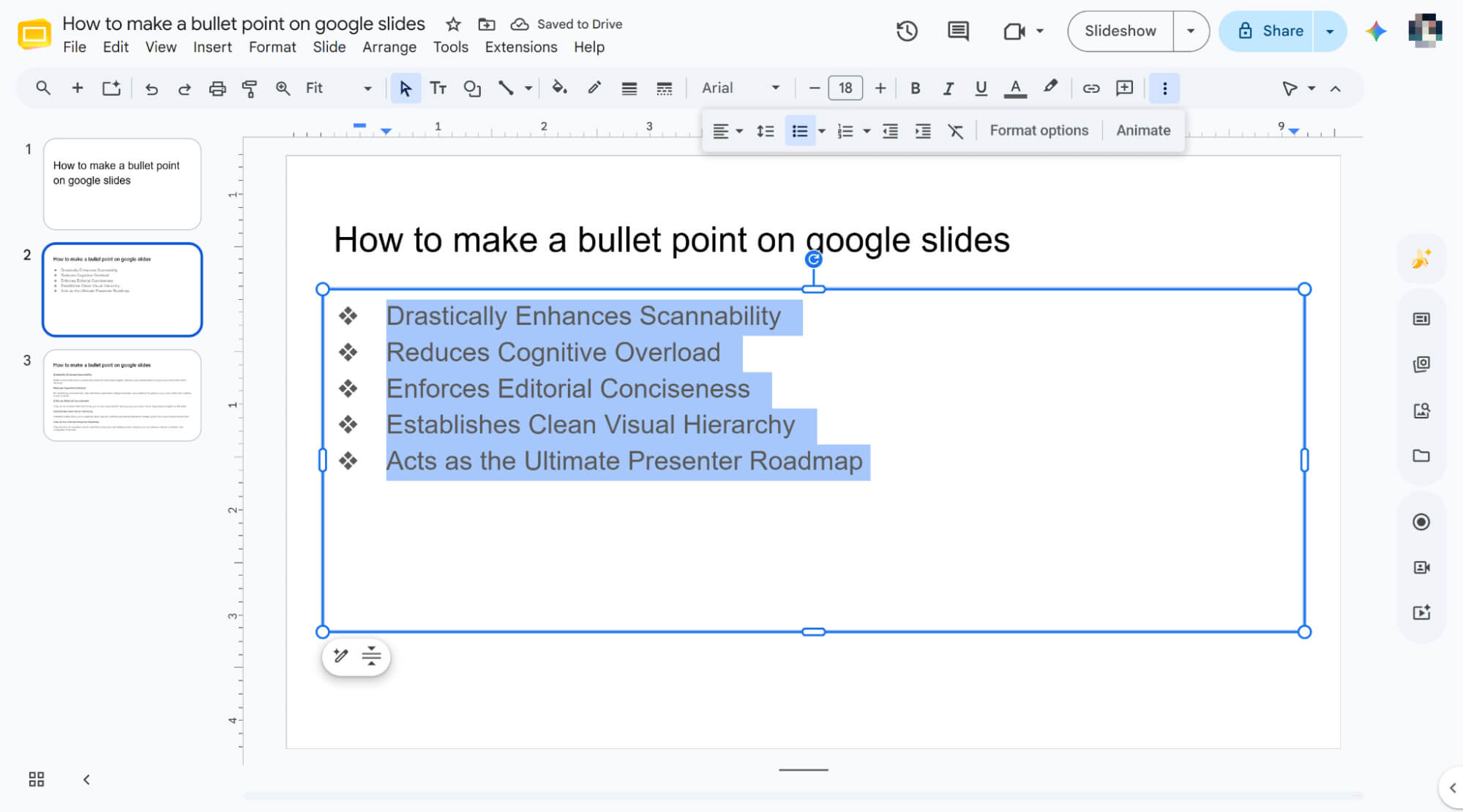
Click on your preferred shape, and Google Slides will instantly transform your highlighted text into a clean, beautifully organized list.
Using the Format Menu
Highlight Your Text and Open "Format"
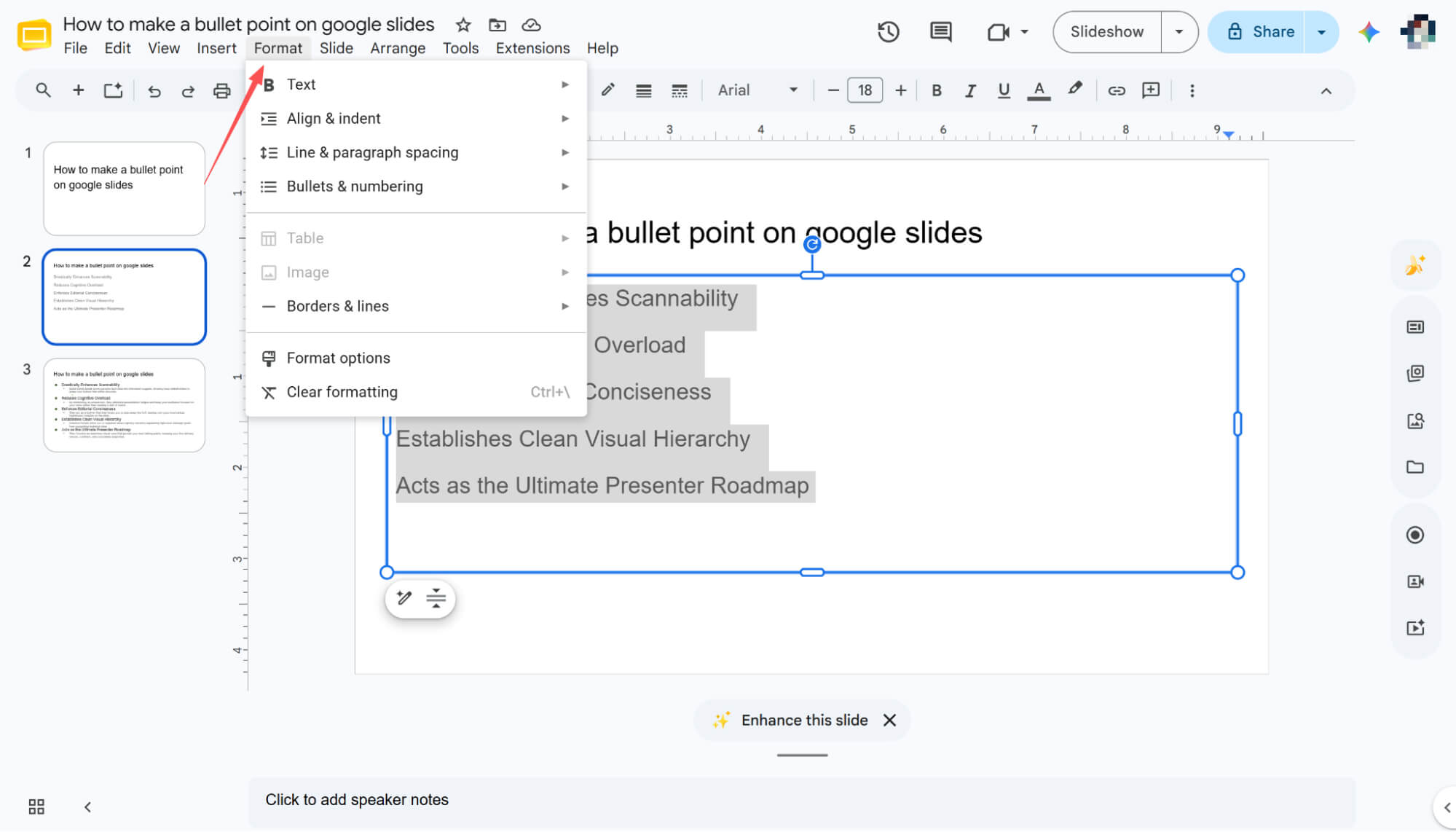
Go to your Google Slides presentation, highlight the specific text block you want to format, and click Format on the top toolbar.
Navigate to Bullets & Numbering
From the dropdown menu, select Bullets & numbering. This will reveal options for both numbered and bulleted lists.
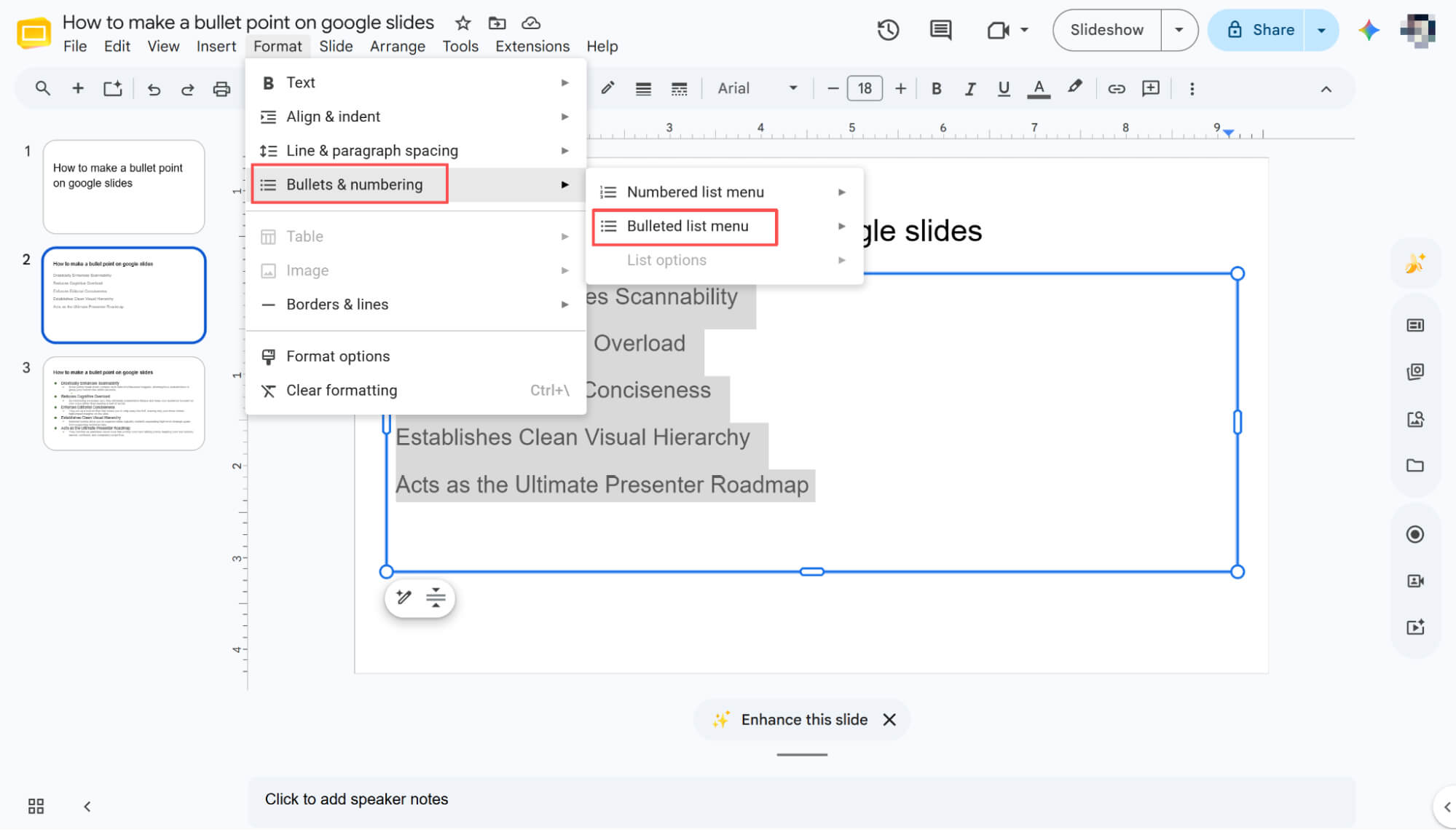
Explore the Bullet Points
Hover your cursor over the "Bulleted list menu" to pull up a sub-menu packed with various unique bullet shapes.
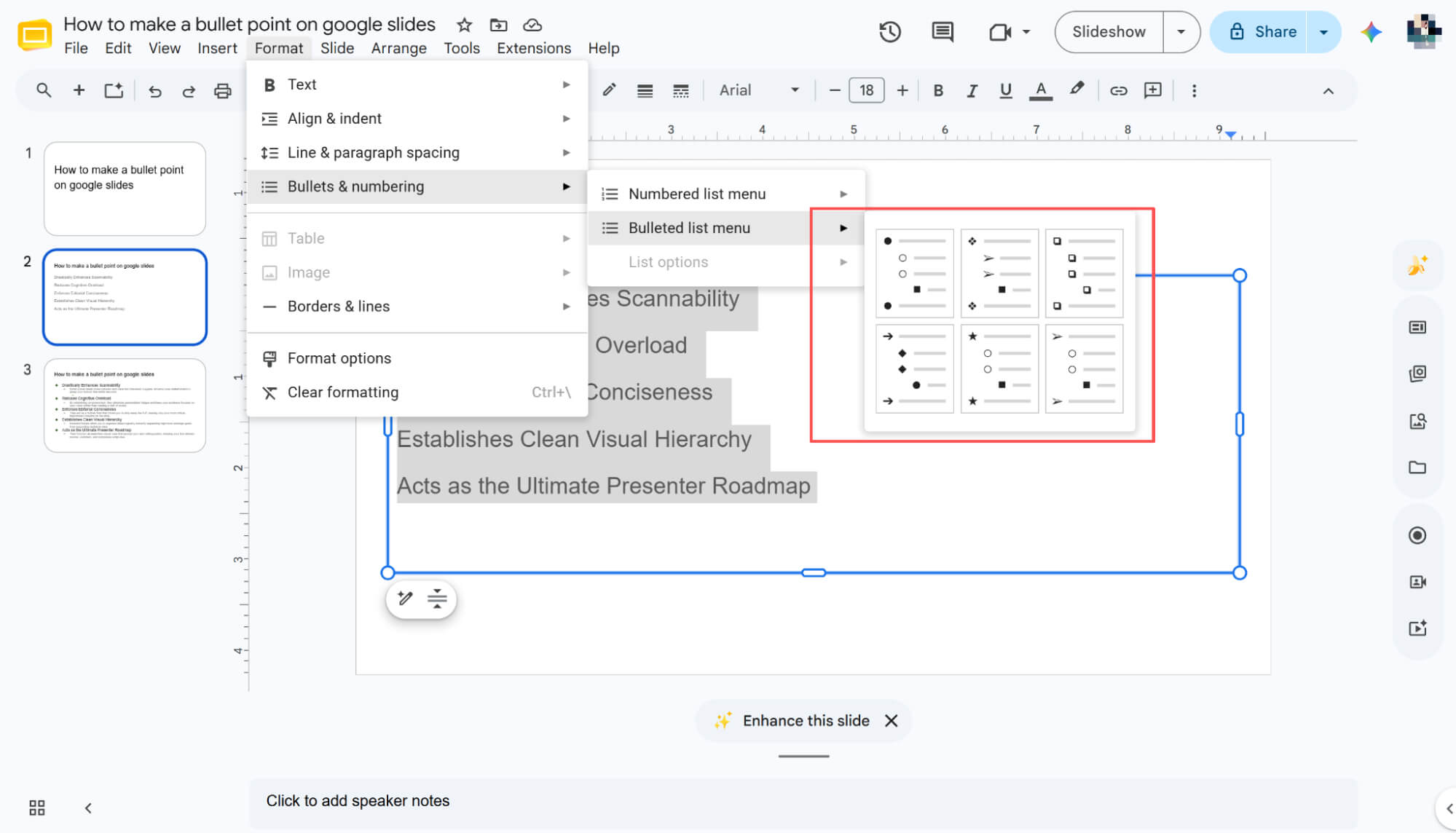
Apply Your Favorite Design
Simply click your preferred design, and Google Slides will instantly transform your text into a clean, styled list.
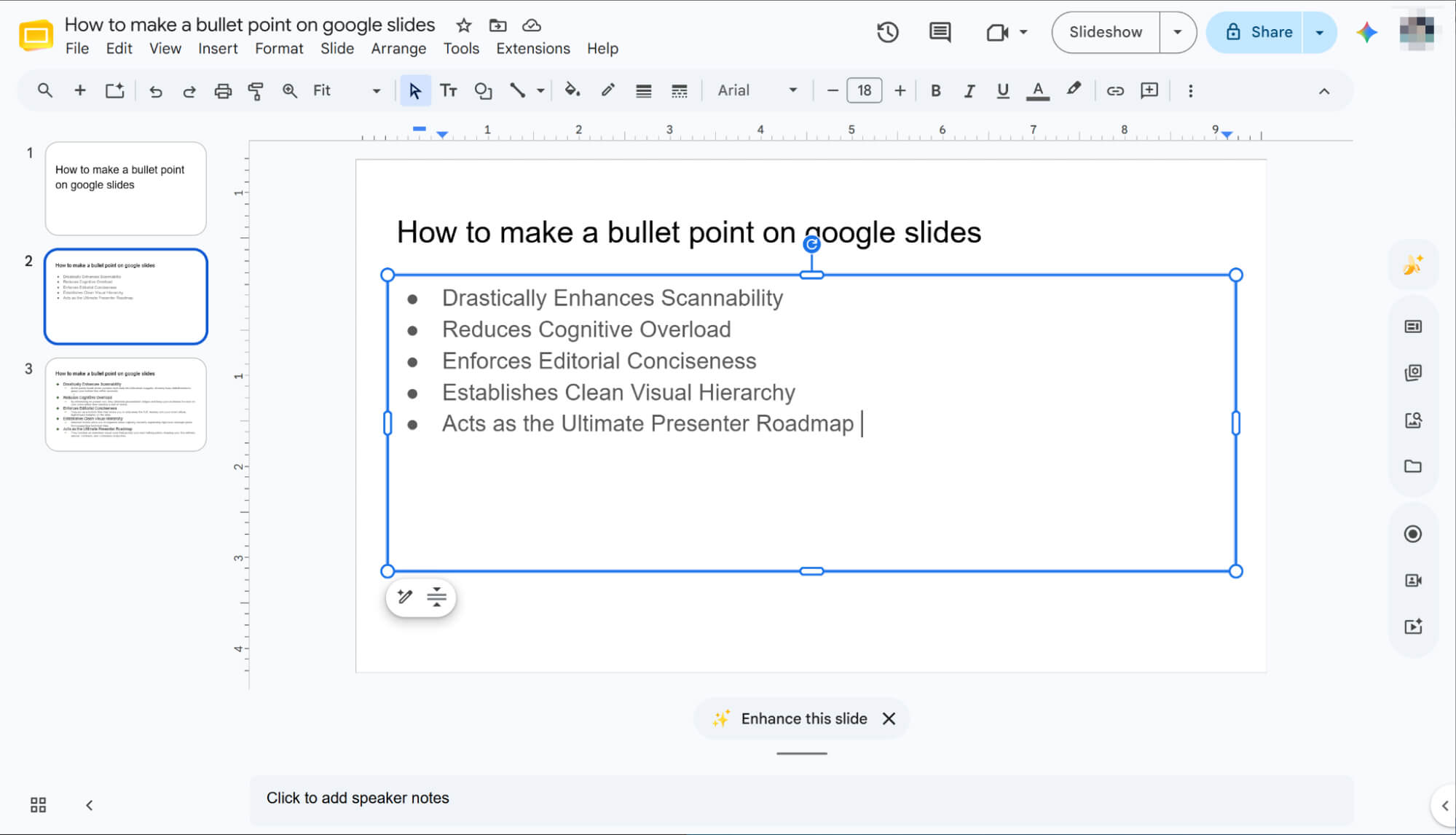
Using Keyboard Shortcuts
Want to add bullet points instantly without ever lifting your hands from the keyboard? Start by highlighting the target text inside your Google Slides.
Next, simply press Ctrl + Shift + 8 if you are on Windows, or Cmd + Shift + 8 if you use a Mac.
This quick shortcut immediately transforms your selected text into a clean, professional bulleted list.
How to Make a Bullet Point on Google Slides with Clear Visual Hierarchy
Create Your Base Bullet List
Select your target text and apply a standard bulleted list using any of the primary methods mentioned above.
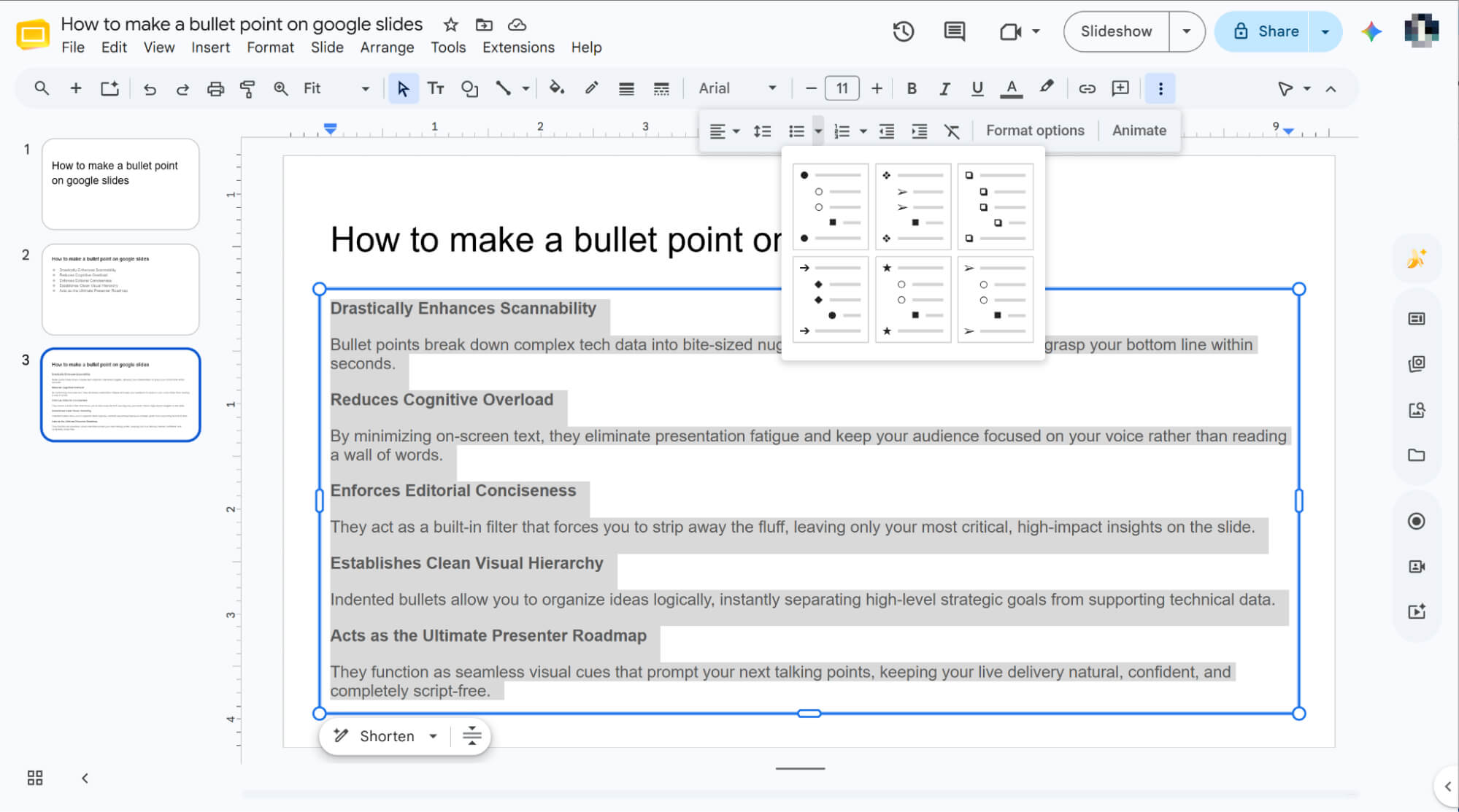
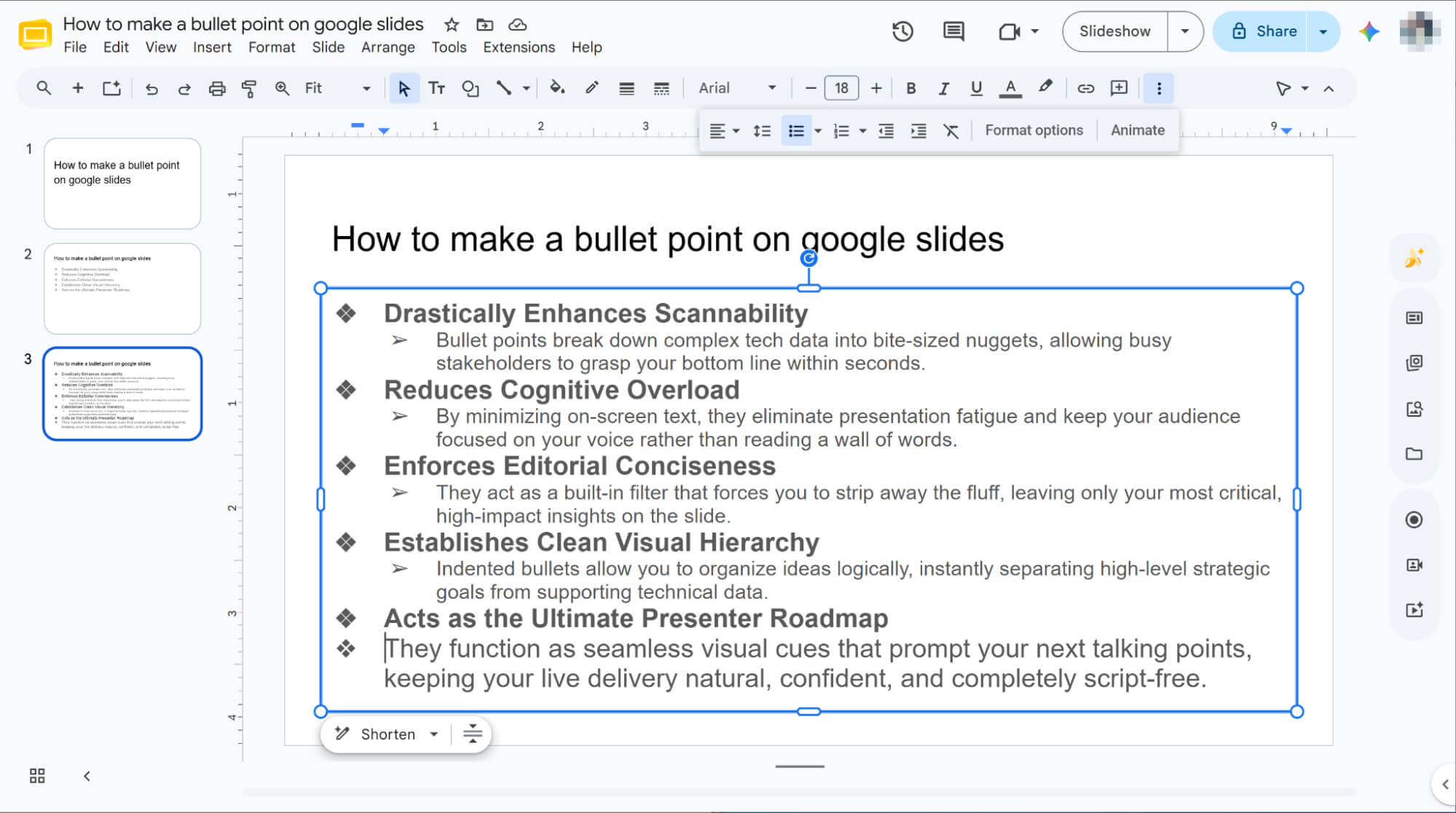
Indent to Create Sub-Bullets
Place your cursor at the beginning of the desired line and press the Tab key to instantly create a nested sub-bullet.
HIX AI Slides Agent: Streamline Your Presentation Prep and Stop Wrestling with Bullets
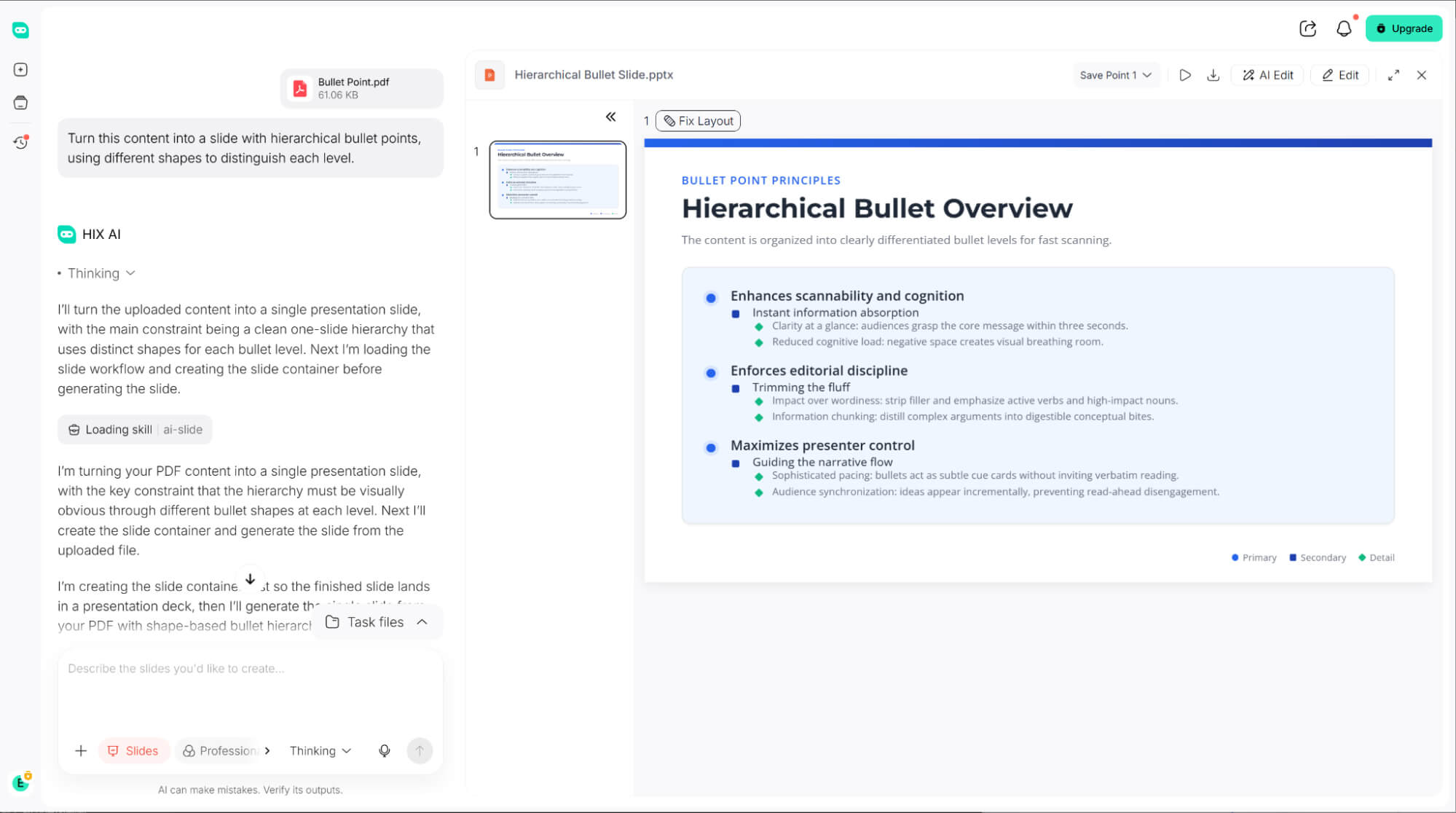
Still wasting precious hours manually formatting slides and wrestling with bullet points? It is time to upgrade your presentation workflow, which is why I highly recommend the HIX AI Slides Agent.
With a simple prompt, HIX AI Slides Agent automatically maps your content depth to assign custom colors and shapes to bullet points. It seamlessly styles the hierarchy while building your deck, completely eliminating the need to manually tweak individual bullets one by one.
Not fully happy with your freshly generated deck? No worries! HIX AI Slides Agent lets you freely tweak every slide element—from updating text and changing font colors to resizing layout components.
Even better, it tackles your prep work by conducting deep research on any topic to gather and organize relevant data. It’s the ultimate all-in-one assistant that saves you massive preparation time!
Try HIX AI Slides Agent
Conclusion
Bullet points are essential for turning heavy text into a compelling presentation. But while manual shortcuts are useful, you shouldn't waste time formatting your copy line by line.
To skip the layout headache entirely, I highly recommend HIX AI Slides Agent. With a single prompt, it automatically organizes your text into perfect nested hierarchies with custom shapes and colors. Let AI handle the tedious alignment so you can focus on making your message resonate.
🆓Free to Try • 📑Create Any Slides • ⭐4.9/5 Rating