Trying to draw on Google Slides? Maybe you wanted to circle something important, sketch a quick diagram, or just doodle to make your slide more fun. It's easier than you might think!
In this article, I'll walk you through everything step by step. By the end, you'll know how to draw on Google Slides, and be able to add lines, shapes, and even freehand drawings like a pro. Let's get started!
Table of Contents
How to Draw on Google Slides
Now let’s start with Google Slides’ secret weapon: the Scribble tool. It is your ticket to custom squiggles, signatures or wild underlines that no shape menu can fake.
Open Your Google Slides
Open your desired Google Slides and click on the slide where you want to doodle.
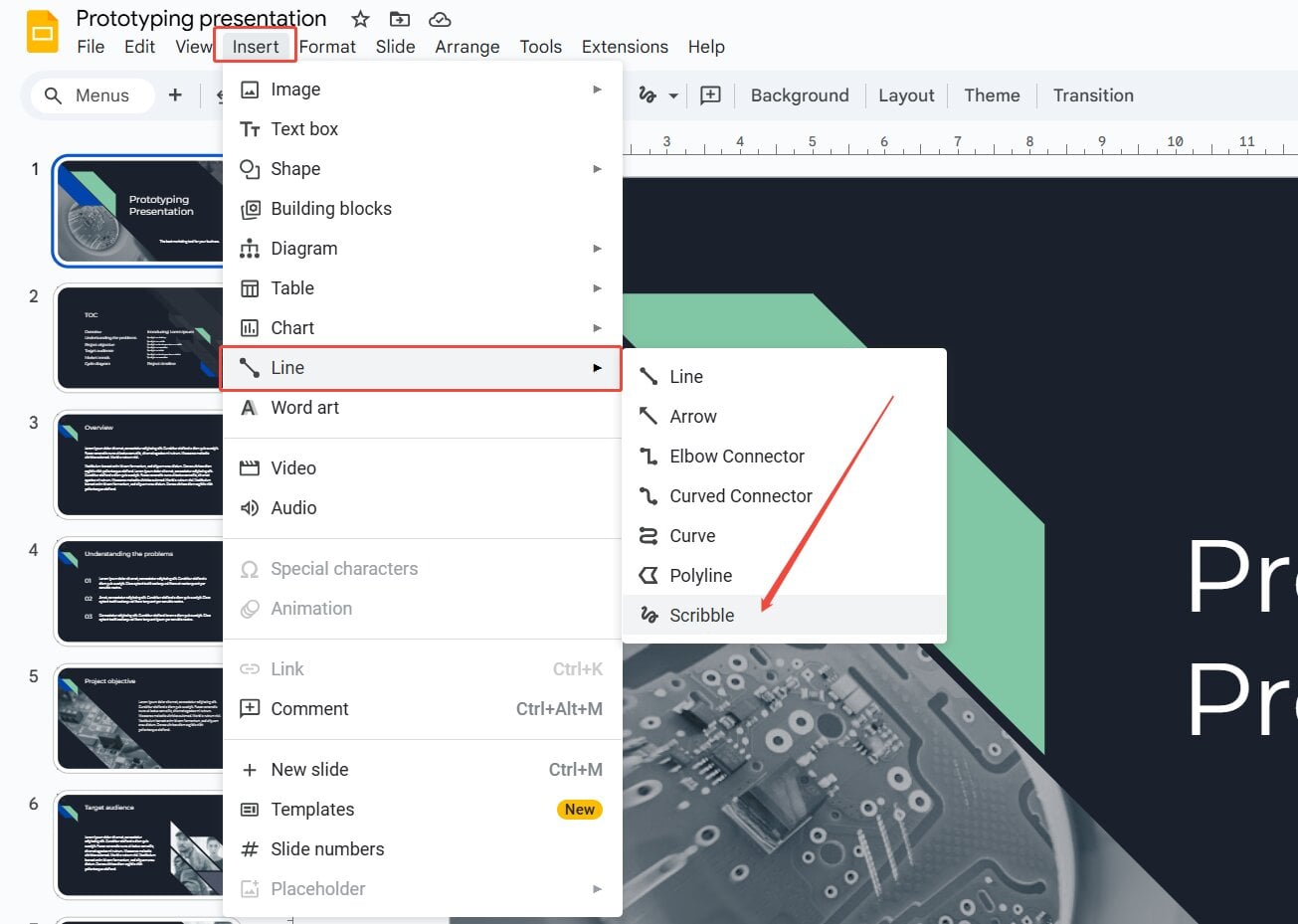
Access the Scribble Tool
Head to the toolbar, click Insert > Line > Scribble. Your cursor morphs into a crosshair—hover and feel the power.
Start Drawing
Click and drag anywhere on the slide. Go slow for precision and fast for flair. Lift your finger/mouse to finish one stroke; repeat for more.
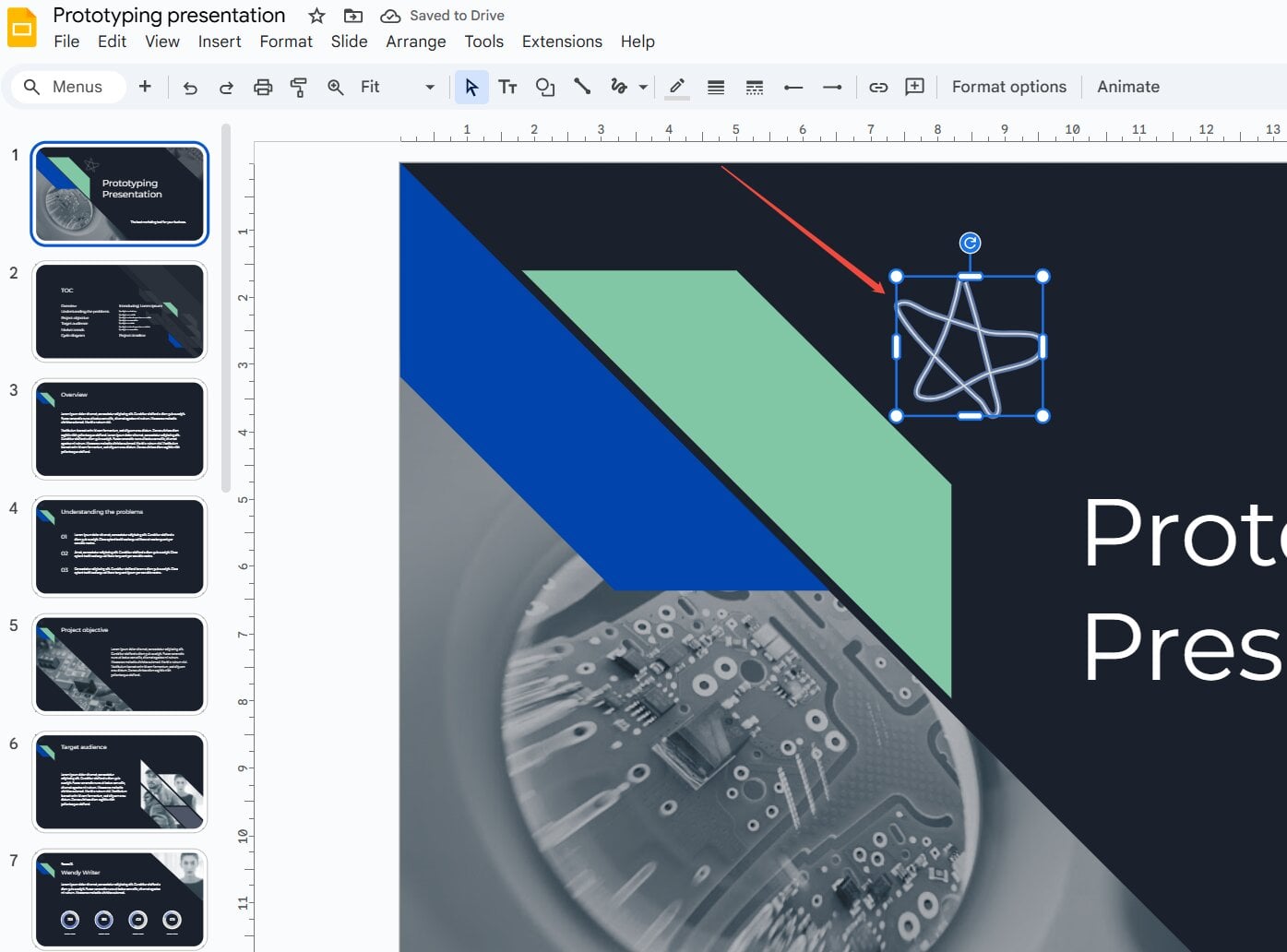
Tweak Color, Thickness and Style (Optional)
With your scribble selected, use the toolbar to swap colors, bump line weight or switch to dashed. Make it just your unique creation.
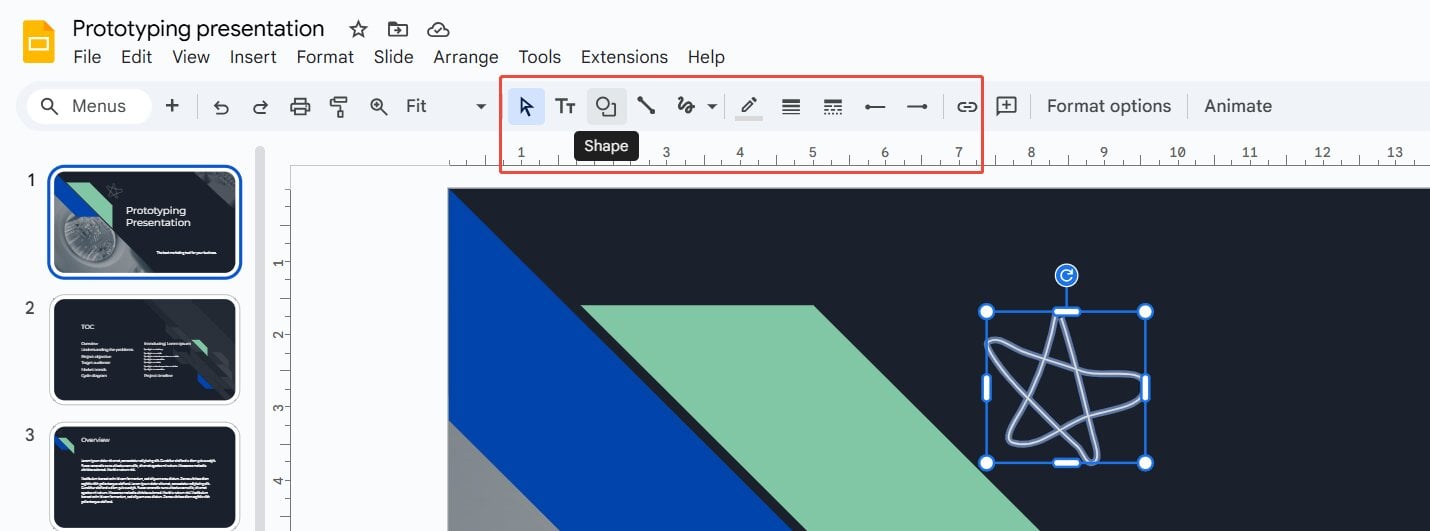
Finish Your Drawing
Once you have finalized your drawing, release your mouse button. Your unique drawing will display as an object on your slide. You can now feel free to move, resize or edit it further with options in the toolbar.
Polish Your Drawing Like a Pro
You have scribbled your first masterpiece—now let’s make it shine. These four tips will keep your drawings crisp and confident, without stealing the spotlight from your message.
-
Zoom In for Precision
Hit Ctrl to magnify your slide. Tiny wobbles vanish, and you will nail curves like a graphic tablet pro—no extra hardware needed.
-
Steal from Your Phone
Snap a sketch on your mobile, upload to Google Drive, then drag it straight into Slides.
-
Undo Is Your Best Friend
Messed up a stroke? Ctrl + Z instantly erases the last line. Chain multiple undos mid-draw to experiment fearlessly—think of it as a creative safety net.
-
Anchor with Shapes First
Draw a faint circle or arrow as a guide, scribble your flair on top, then delete the shape. This helps you create pro-level symmetry with zero geometry skills.
Meet HIX AI Slides: Create Personalized, Presentation-Ready Slides in Seconds
While the Scribble tool is perfect for adding personal touches, sometimes you need a faster way to build entire presentations from scratch. If you need an AI tool to relieve your stress, then just give HIX AI Slides a try!
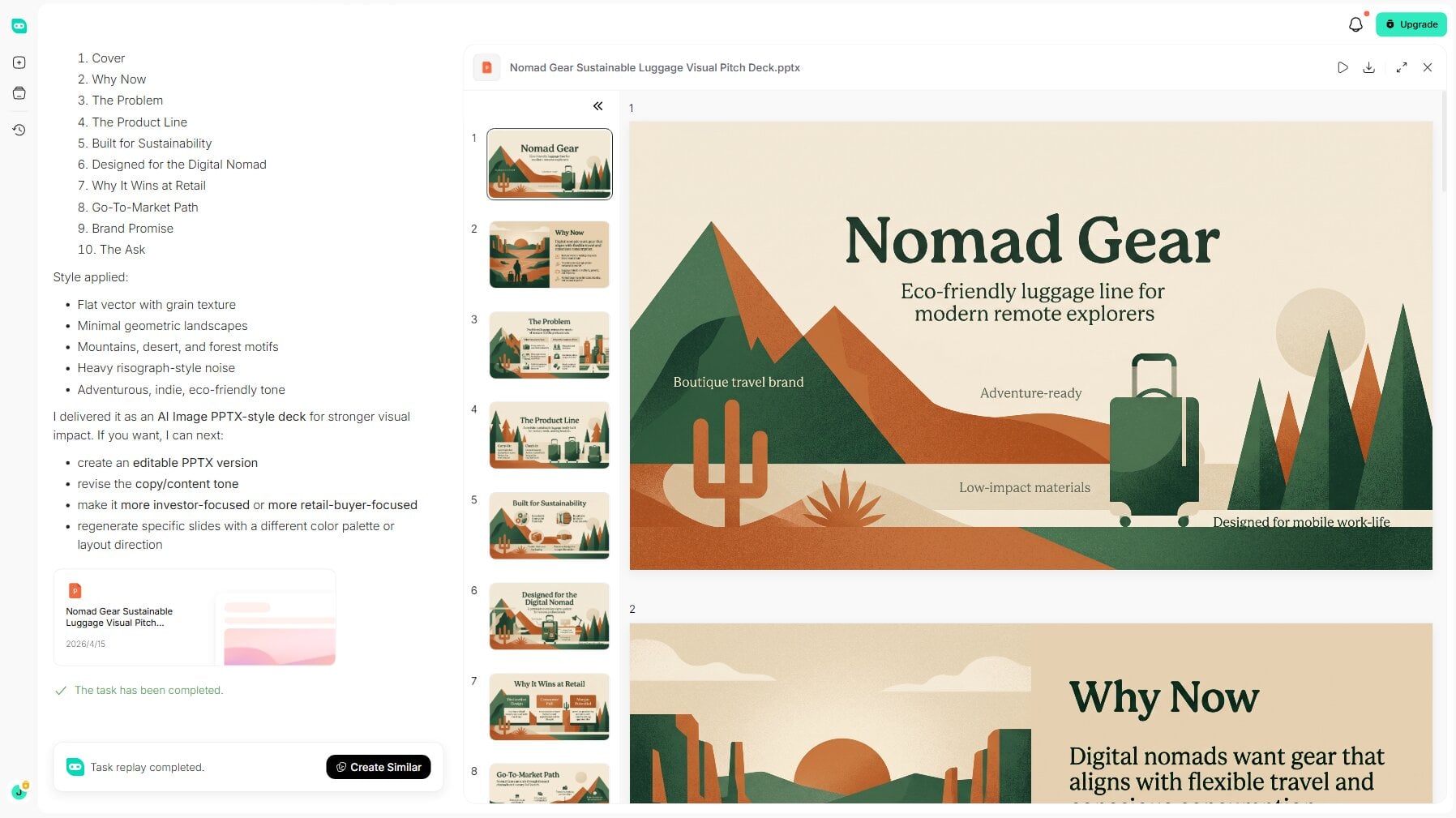
HIX AI Slides is a smart AI agent that takes your prompt and file uploads, analyzes your intent, and helps you create presentation-ready slides in moments. Instead of starting with a blank canvas, you simply tell it what you need—or upload your existing documents—and let it do the heavy lifting.
Best of all, you're never locked into what the AI produces. Once your slides are created, you can edit them freely, adjusting text, layouts, visuals, and more until everything looks exactly the way you want. It's the perfect blend of AI-powered speed and hands-on creative control.
Try HIX AI Slides Now!
Conclusion
You have now got the tools to make your Google Slides stand out with your own drawings. The Scribble tool is simple, free, and lets you add a personal touch that stock images just can’t match. Whether it’s a quick diagram, a highlighted point, or a fun illustration, your slides can feel more engaging.
Take a moment to try it on your next presentation. A little drawing goes a long way in keeping your audience focused and impressed. You don’t need to be an artist—just start, and have fun with it.
And when you're ready to build entire presentations effortlessly, give HIX AI Slides a try—it's the fastest way to turn your ideas into polished, ready-to-present slides.
🆓Free to Try • 👍Professional Slides• ⭐4.9/5 Rating