Whether you are collaborating with a remote team or prefer cloud-based tools, knowing how to convert PowerPoint to Google Slides is an essential skill for modern professionals.
While PowerPoint remains a powerhouse, Google Slides offers unmatched real-time sharing. Fortunately, making the switch does not mean recreating your presentation from scratch.
I’ve got you covered. Read on for a few proven solutions to resolve this conversion headache once and for all.
Table of Contents
How to Convert PowerPoint to Google Slides: 3 Step-by-Step Methods
Let’s dive into the step-by-step process of converting PowerPoint to Google Slides—you'll be mastering this quick transition before you know it.
Upload Your PPT to Google Drive
Upload Your PPT to Google Drive
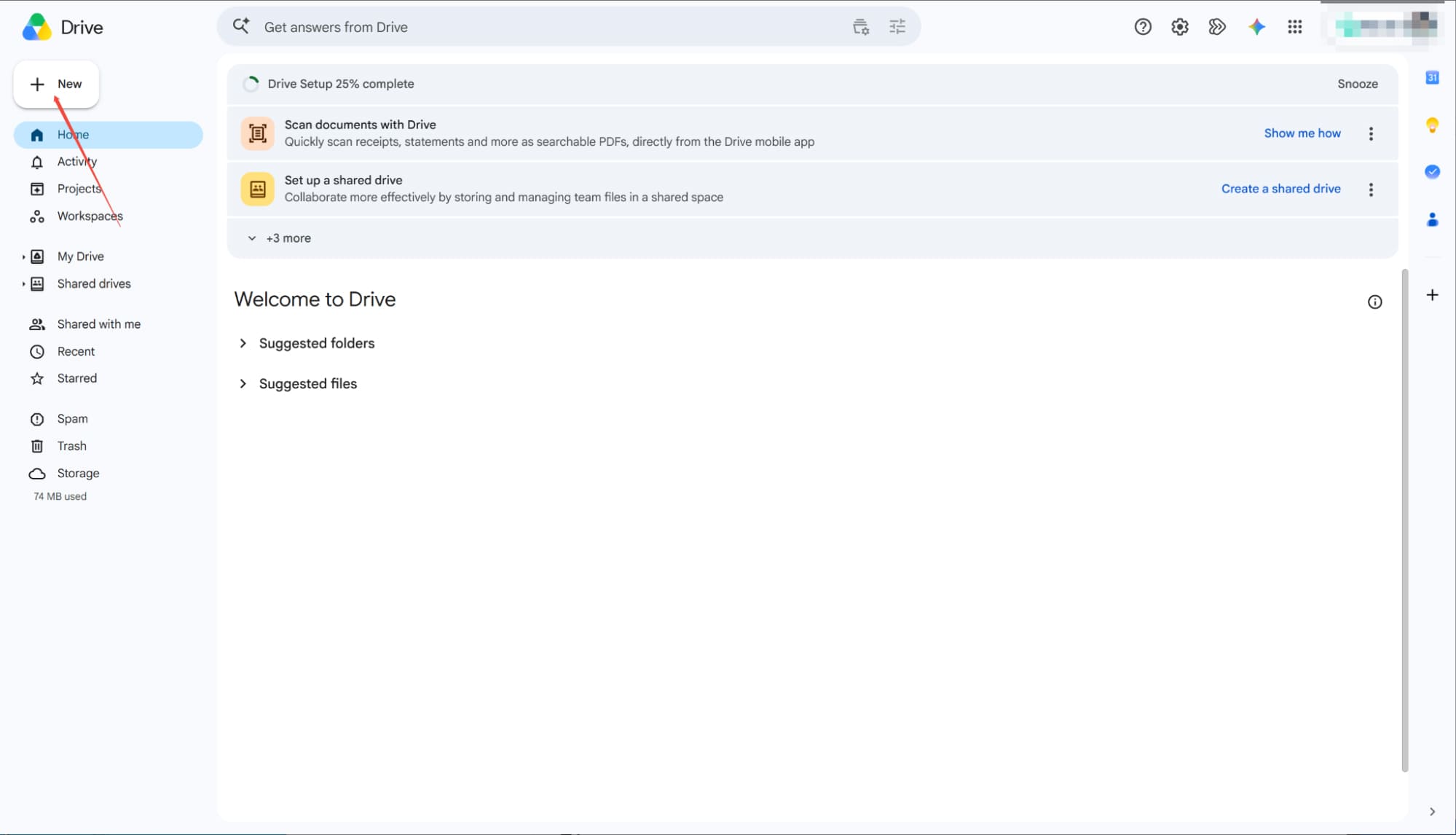
To get started, upload your existing PowerPoint file into Google Drive. Open the Google Drive interface and click the "New" button in the top-left corner to initiate the process.
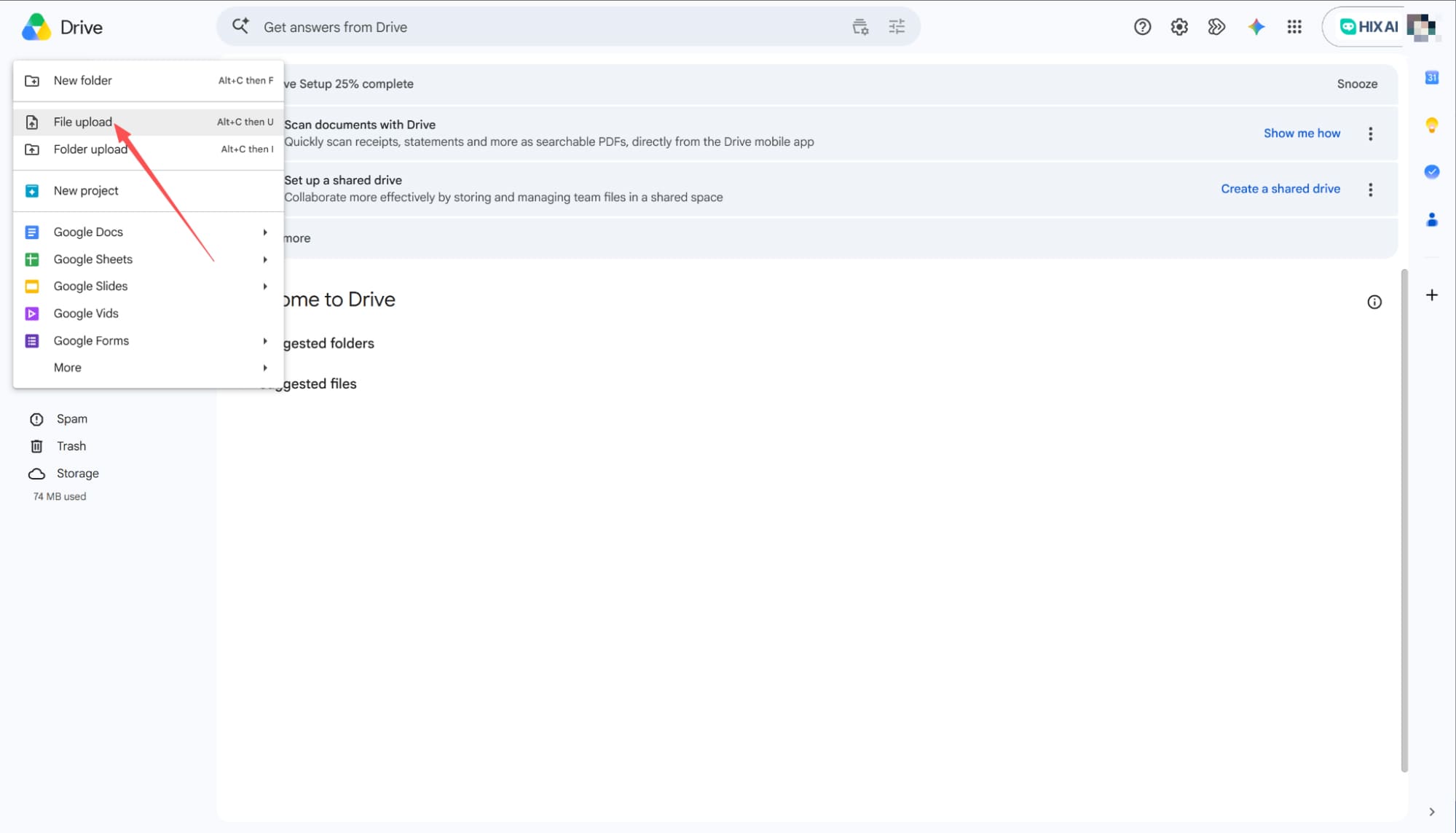
Choose File Upload
From the dropdown menu, select "File upload" to find and choose the PowerPoint file you want to transform.
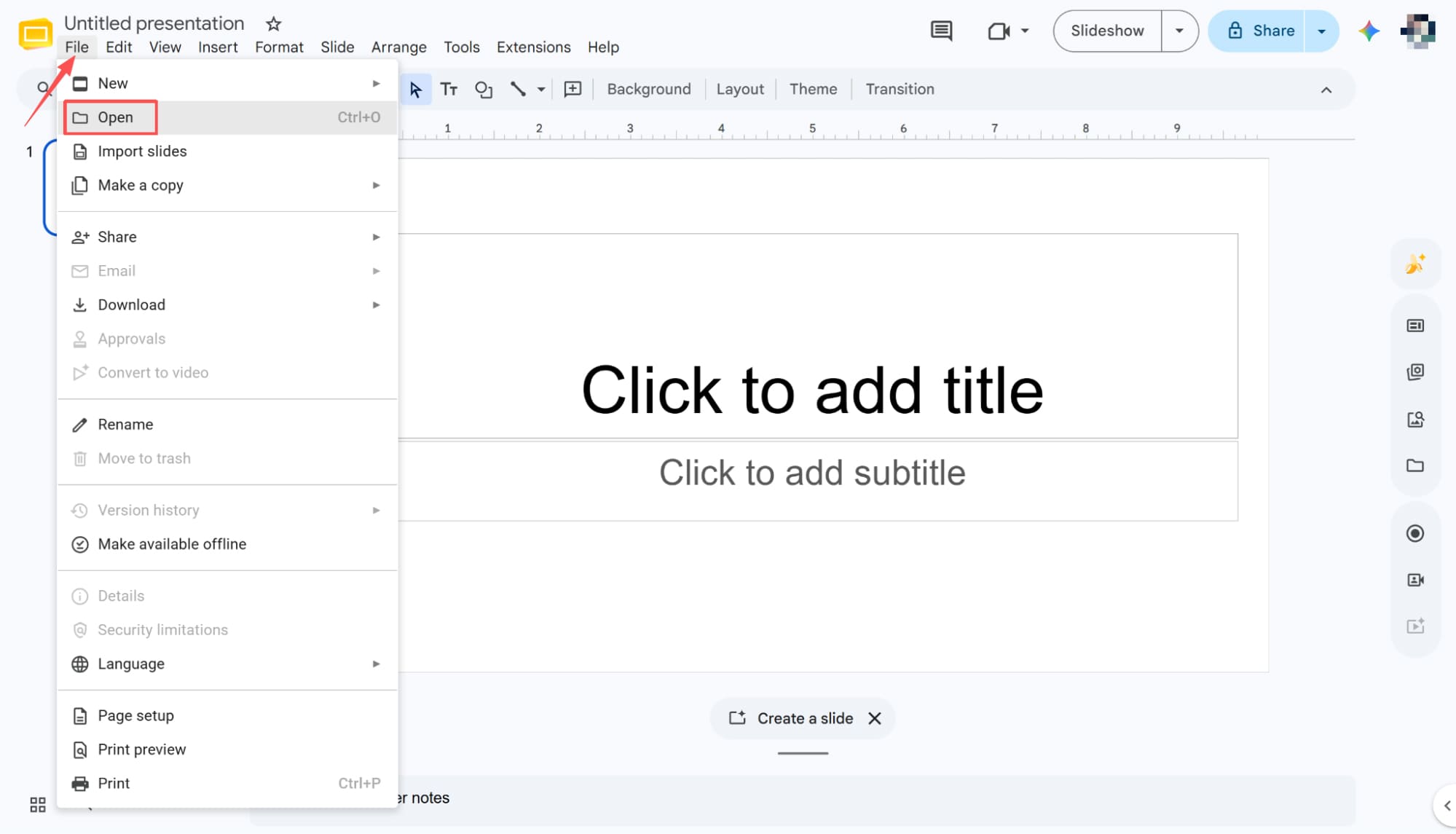
Navigate to the Open Menu
After your PowerPoint file successfully uploads, it is time to launch Google Slides. Click on "File" in the top menu bar, and then select "Open" from the dropdown list.
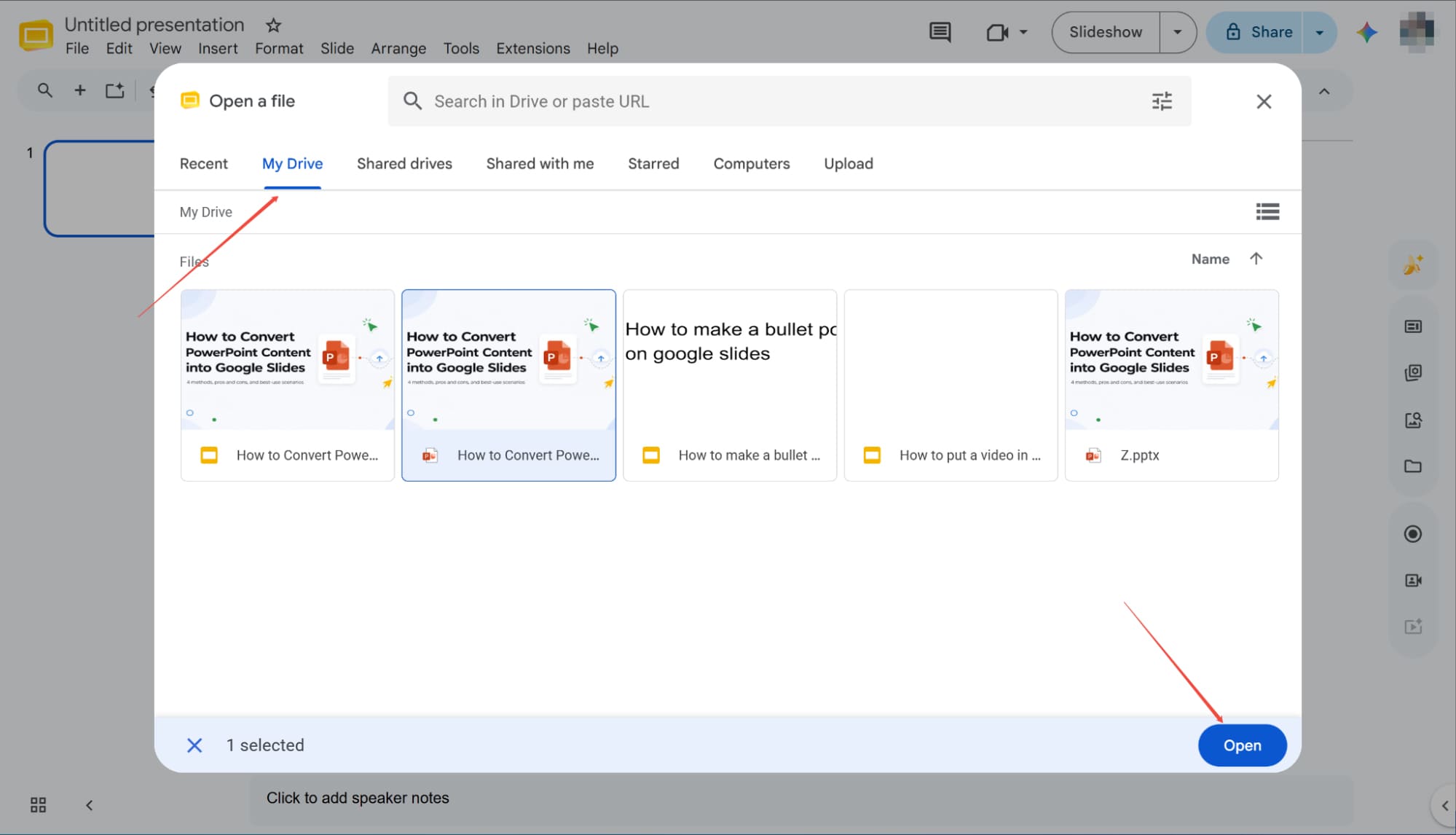
Locate and Open Your PPT
Clicking "Open" triggers a file dialog box to appear. Navigate straight to the "My Drive" tab, where you will easily spot your recently uploaded PowerPoint file. Simply click to select your presentation, and then hit the "Open" button in the bottom right corner to bring it into your workspace.
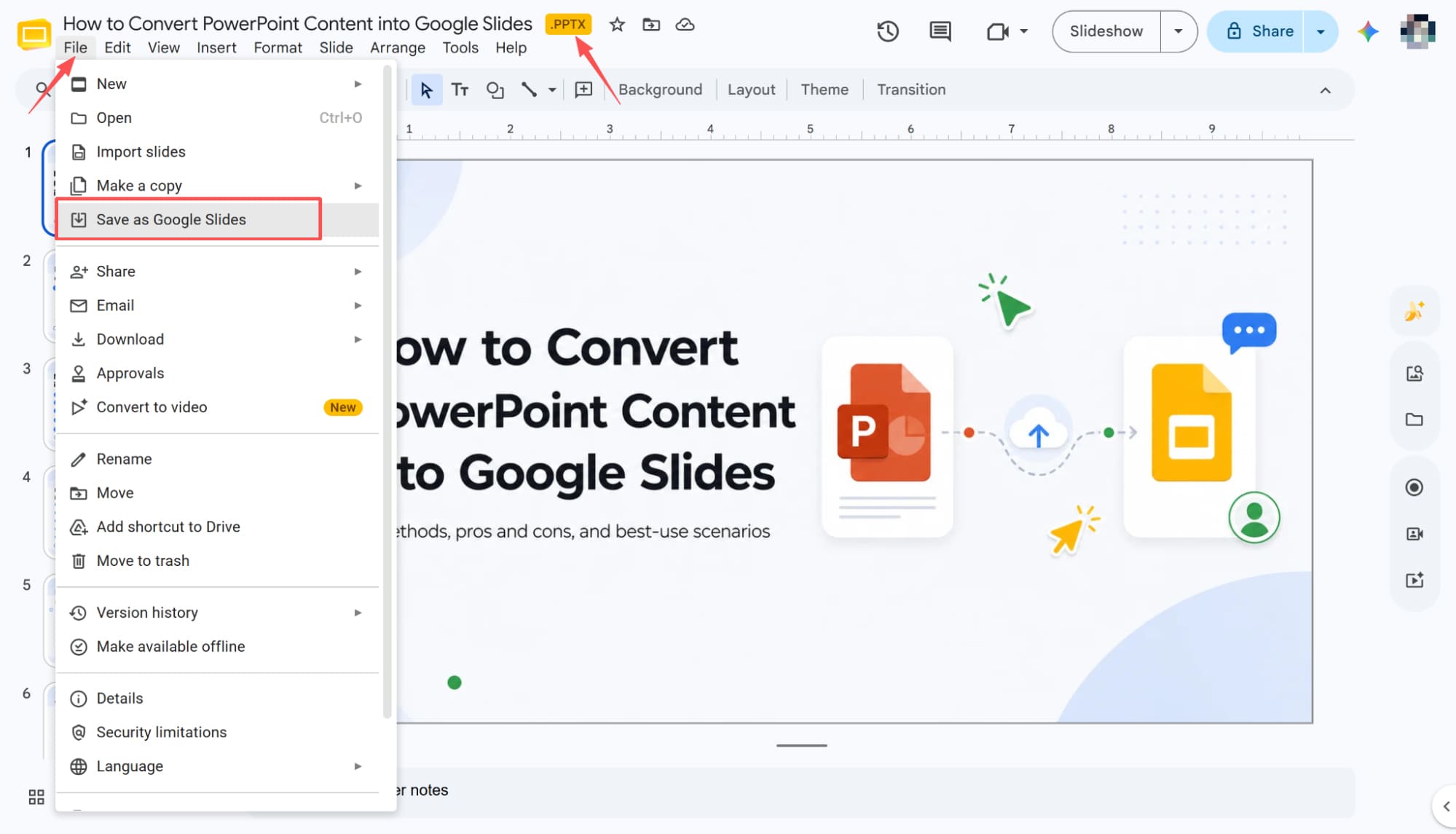
Save as Google Slides
Once your file opens, you will notice the ".PPTX" extension right next to the document name. To finish the process, click "File" in the top menu and select "Save as Google Slides" from the dropdown. You have now successfully converted your PowerPoint into a native Google Slides presentation.
Convert PowerPoint to Google Slides via Direct Upload
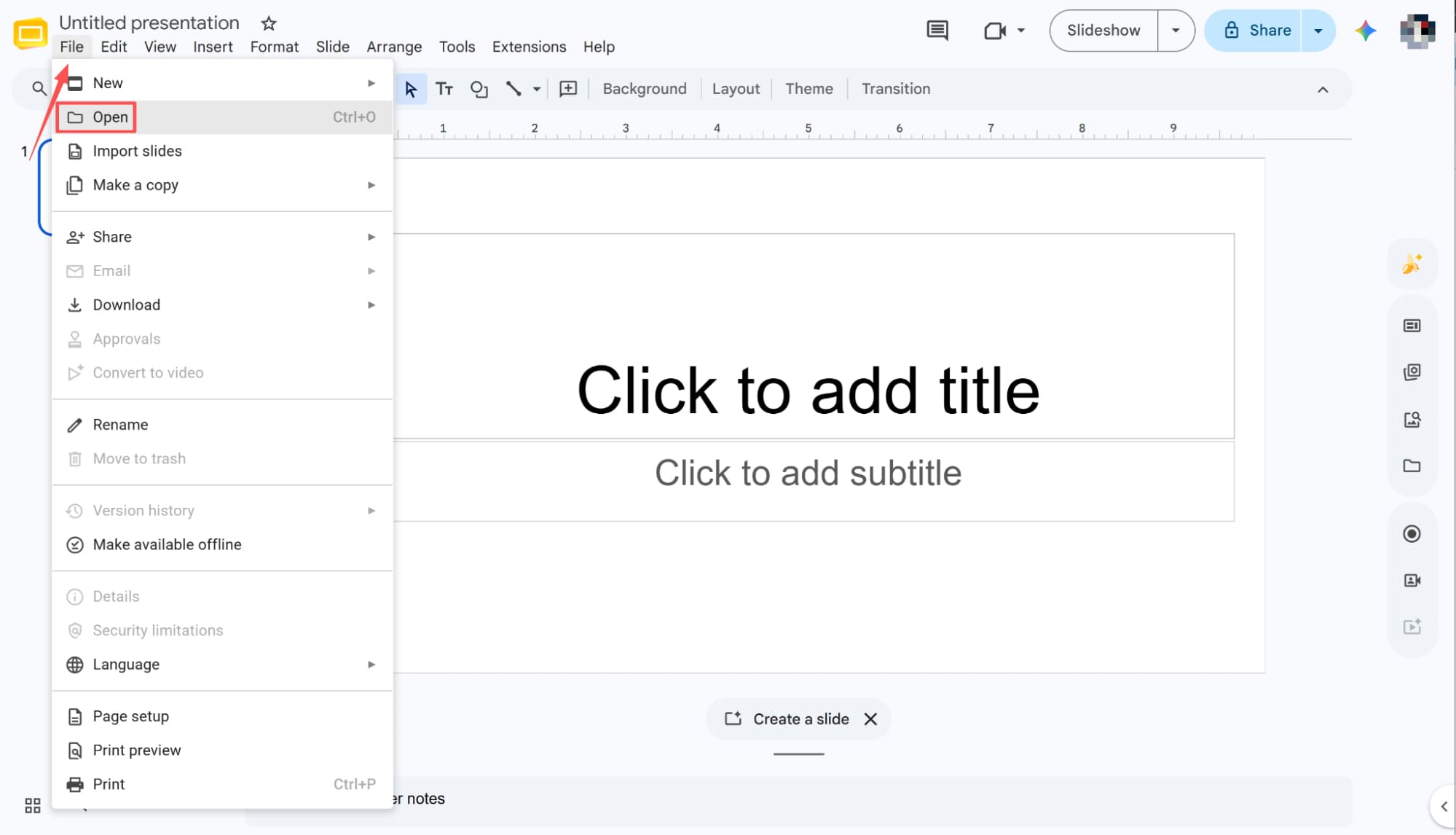
Start from a Blank Slide
Start by opening a new blank Google Slides presentation. From there, head to the menu bar, click "File," and select "Open" from the dropdown to import your file.
Browse and Upload Local Files
After clicking Open, a file selection window will pop up. Switch to the "Upload" tab and click the "Browse" button below to navigate your local drive and select the specific PowerPoint presentation you want to transform.
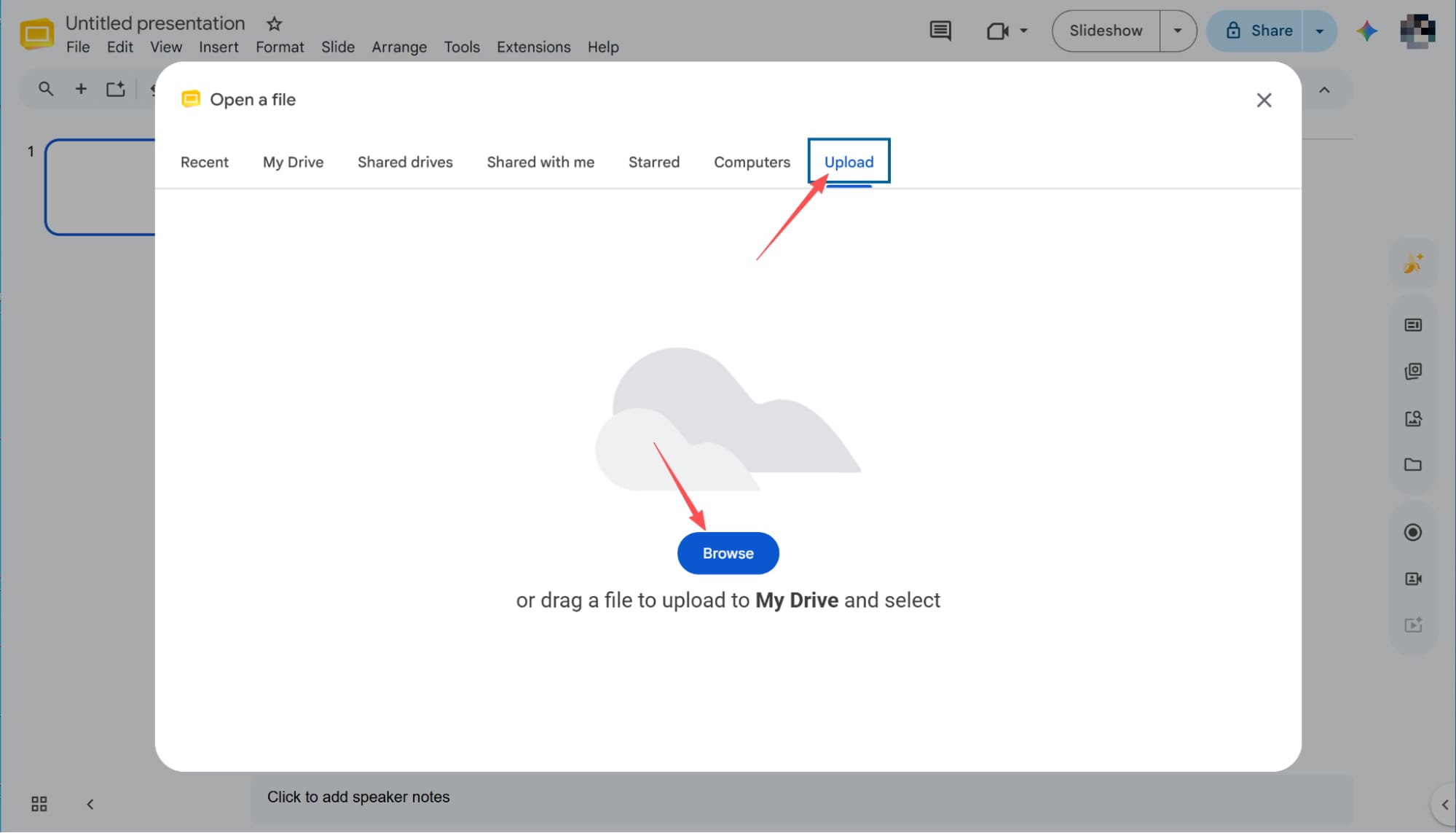
Finalize the Automatic Conversion
Once you select your file, Google Slides will automatically begin loading its content. Simply wait a few moments for the process to complete, and your PowerPoint presentation is successfully converted into a fully functional Google Slides document.
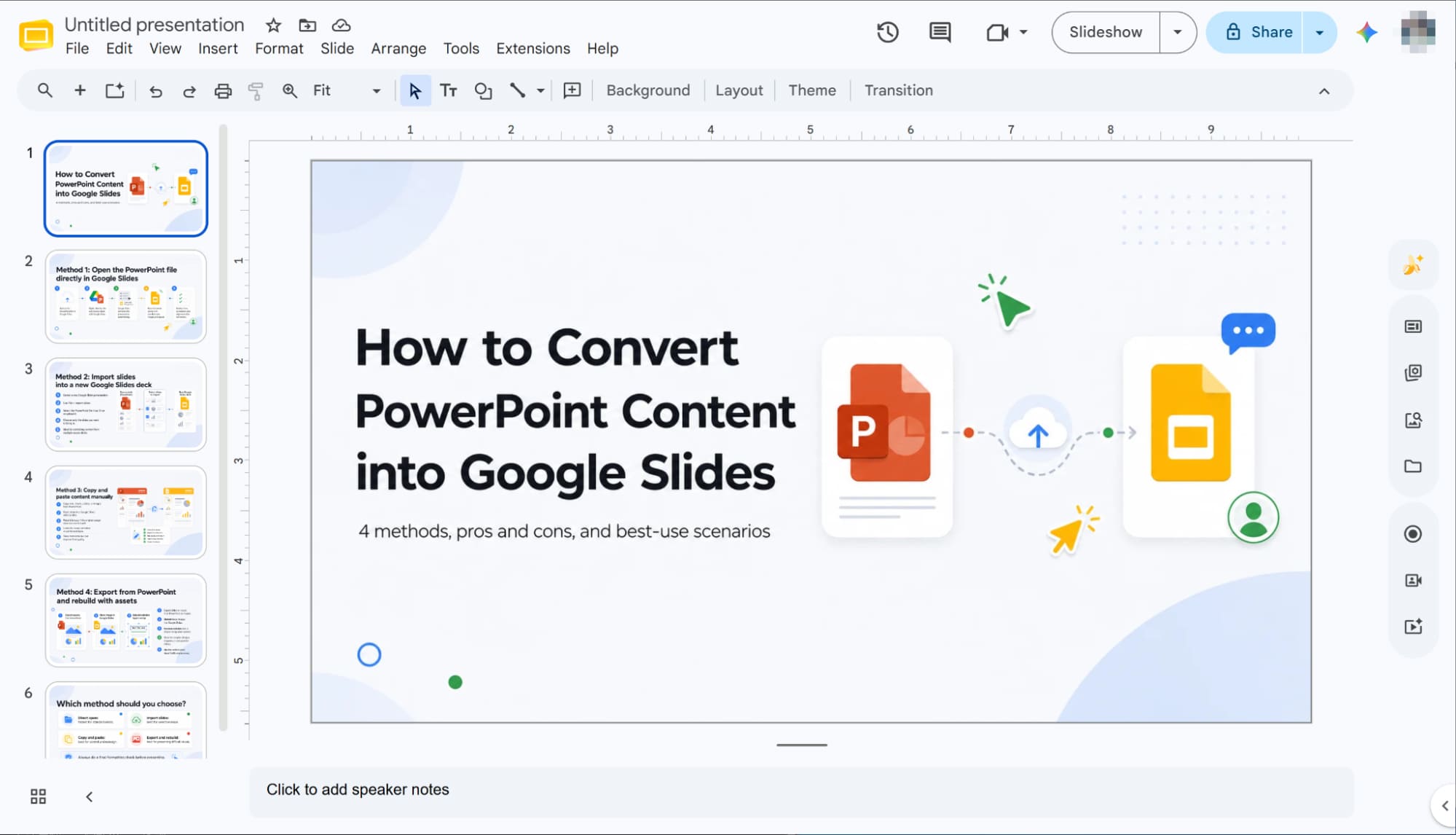
Convert PowerPoint to Google Slides using the "Import slides" Feature
Select Import Slides
Start by opening a fresh, blank Google Slides presentation. Next, navigate to the top menu bar, click "File," and select "Import slides" from the dropdown list to proceed.
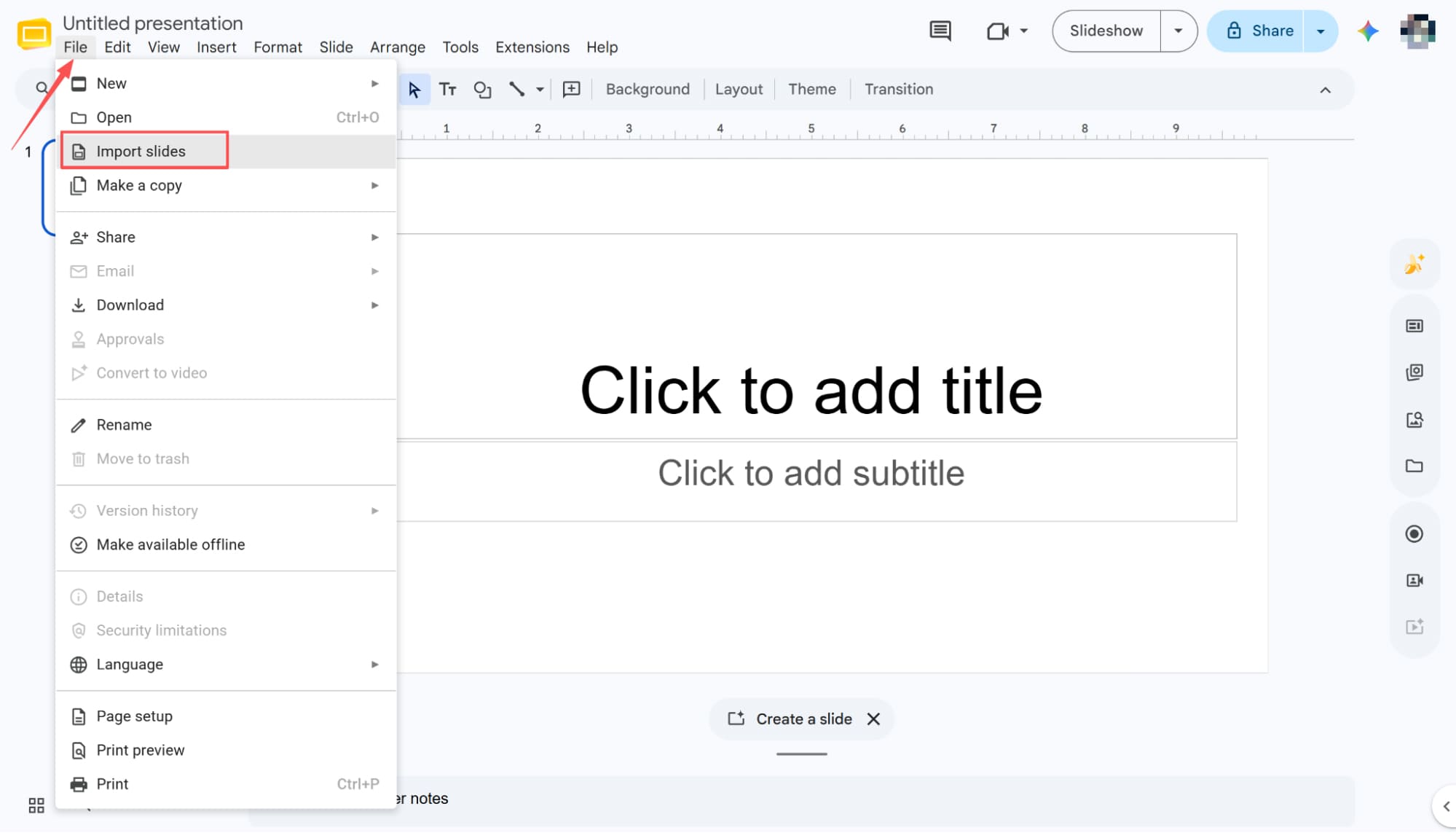
Import Your PowerPoint File
Clicking "Import slides" opens a new dialog window on your screen. Navigate directly to the "Upload" tab and click the "Browse" button, which allows you to locate and select the specific PowerPoint file you want to convert.
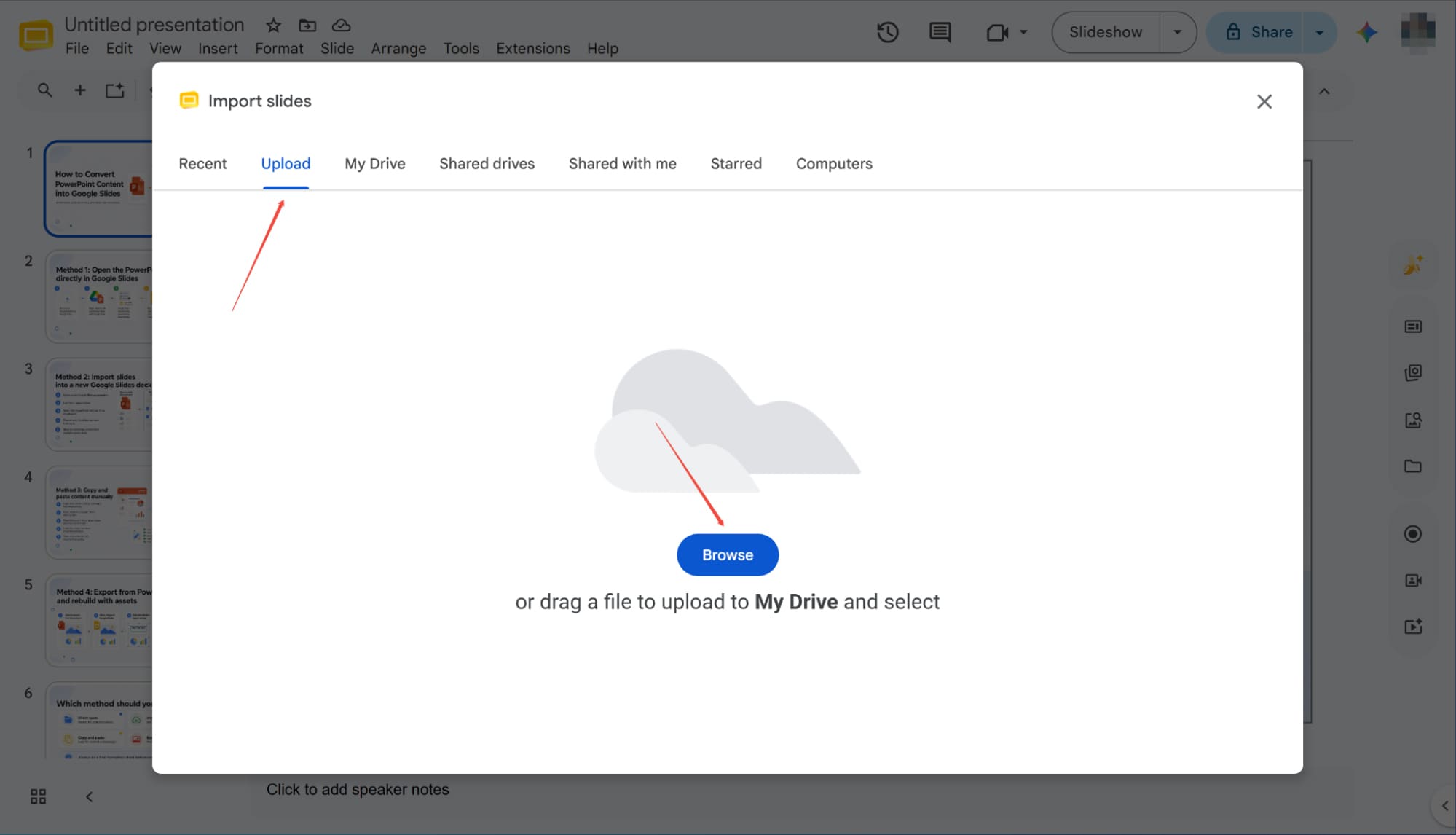
Select and Import All Slides
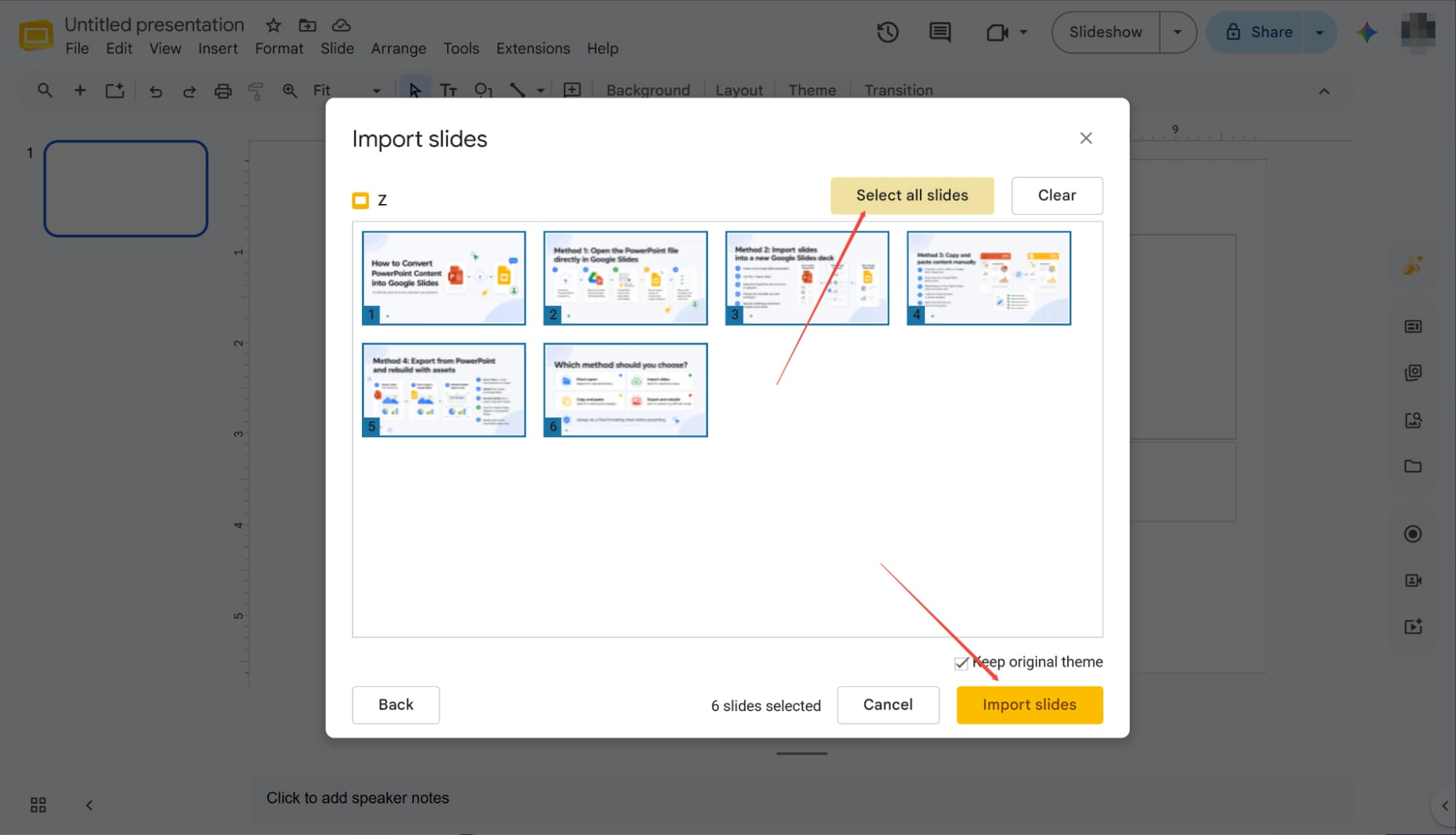
Once the PowerPoint finishes importing, a dialog window will display all your slides. Click "Select all slides" in the top right corner to highlight everything, then hit the "Import slides" button at the bottom right. After a brief pause, your entire presentation successfully converts to Google Slides.
How to Convert PowerPoint to Google Slides: Common Pitfalls and Pro Tips
While file conversion is simple, critical design elements often break in transit. These tips will help you spot pitfalls and minimize post-conversion adjustments.
Custom Fonts
Watch out for font compatibility during conversion. If your deck uses proprietary or unsupported typography, Google Slides will automatically substitute them. To ensure flawless visual consistency and avoid unexpected layout shifts, it is always best to stick to universally compatible fonts on both platforms before you initiate the file transfer
Animation and Transition
Because PowerPoint boasts a much richer animation library, some effects may break during conversion. Make sure to check your presentation afterward and easily replace any failed animations with supported options native to Google Slides.
Audio Files
When switching from PowerPoint to Google Slides, embedded audio files may not fully convert. To ensure your presentation functions properly, you will need to manually re-insert those audio tracks after the conversion is complete.
Charts
PowerPoint charts linked to Excel often turn into static, uneditable images during conversion. If you need fully editable charts in Google Slides, you must recreate the data charts in Google Sheets and link them to your new deck
HIX AI Slides Agent: Smarter Features for Ultra-Efficient Slide Creation
If you’re like me, you move to Google Slides chasing a faster, more efficient workflow. However, switching platforms only takes productivity so far. True efficiency requires us to fundamentally change how we approach presentation making from the very start.
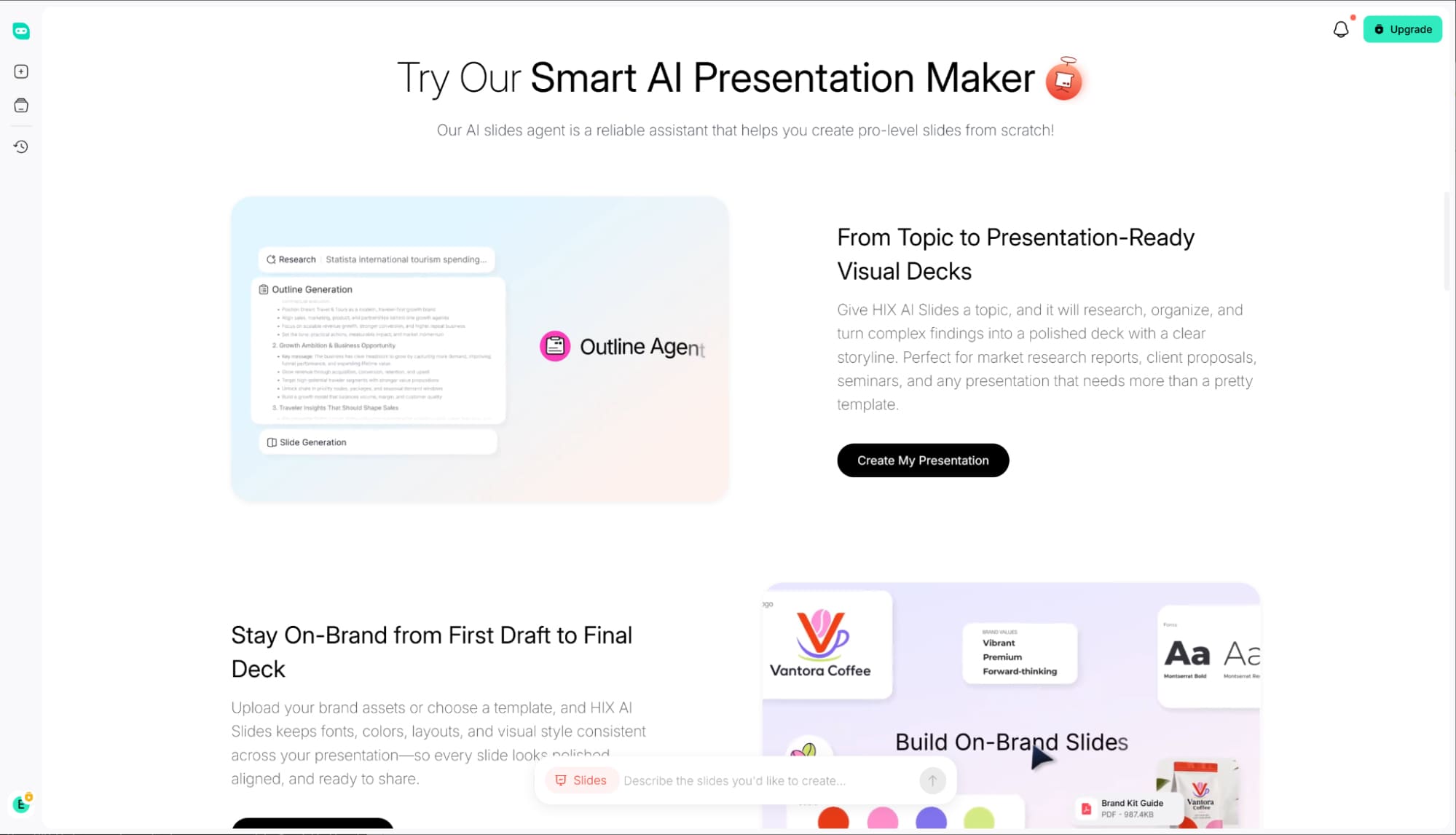
As a true one-stop platform, HIX AI Slides Agent redefines creation. It conducts deep research on your topic to craft logical copy and generate clear, editable charts automatically.
Nailing the visual style is just as easy. You can effortlessly upload your own brand assets or choose from a vast library of stunning slides templates.
Once generated, you retain full creative freedom to seamlessly update text, resize elements, and adjust layouts, handling everything in a single workspace.
Try HIX Slides Agent Now
Conclusion
In this guide, we’ve explored three seamless ways to move your PowerPoint decks to Google Slides, ensuring your cloud-based collaboration remains as smooth as possible.
To truly maximize efficiency, shift from file conversion to AI-powered creation with HIX AI Slides Agent. Whether starting from a simple prompt or a complex topic, it instantly delivers professional presentations, allowing you to stop converting and start creating.