Have you ever sat through a boring slideshow and thought, "This needs something more"? Maybe you're working on a school project, a class presentation, or even a fun slideshow for a family event. Adding music can totally change the vibe and keep your audience interested. The good news? It's easier than you might think!
I remember the first time I tried adding music to my slides. I felt totally lost and clicked around for way too long. That's why I put together this guide on how to add music to Google Slides—so you don't have to struggle like I did. Let's walk through it together, step by step.

Table of Contents
💡 Key Takeaways
- Upload to Drive First: Audio files must be saved in Google Drive and set with open access permissions before inserting them into your deck.
- Stick to MP3/WAV: Google Slides natively supports only MP3 and WAV audio formats for direct playback.
- Fine-Tune via Format Options: Right-click the audio icon to open Format Options, where you can adjust volume, set automatic start, or toggle Loop Audio.
- Link External Platforms: For unsupported services like Spotify, embed direct hyperlinks into text or clickable visual elements instead of native audio.
Step-by-Step: How to Add Music to Google Slides
There are a few ways you can add music to your slides.
Method 1: Adding an Audio File (Like an MP3)
If you have your own music file, this method is perfect for you.
Upload Your Music to Google Drive
Google Slides only works with audio files that are saved in your Google Drive. So first, go to your Google Drive, click New, then File upload, and choose your music file.
Go Back to Google Slides
Open your presentation and click on the slide where you want the music.
Insert the Audio
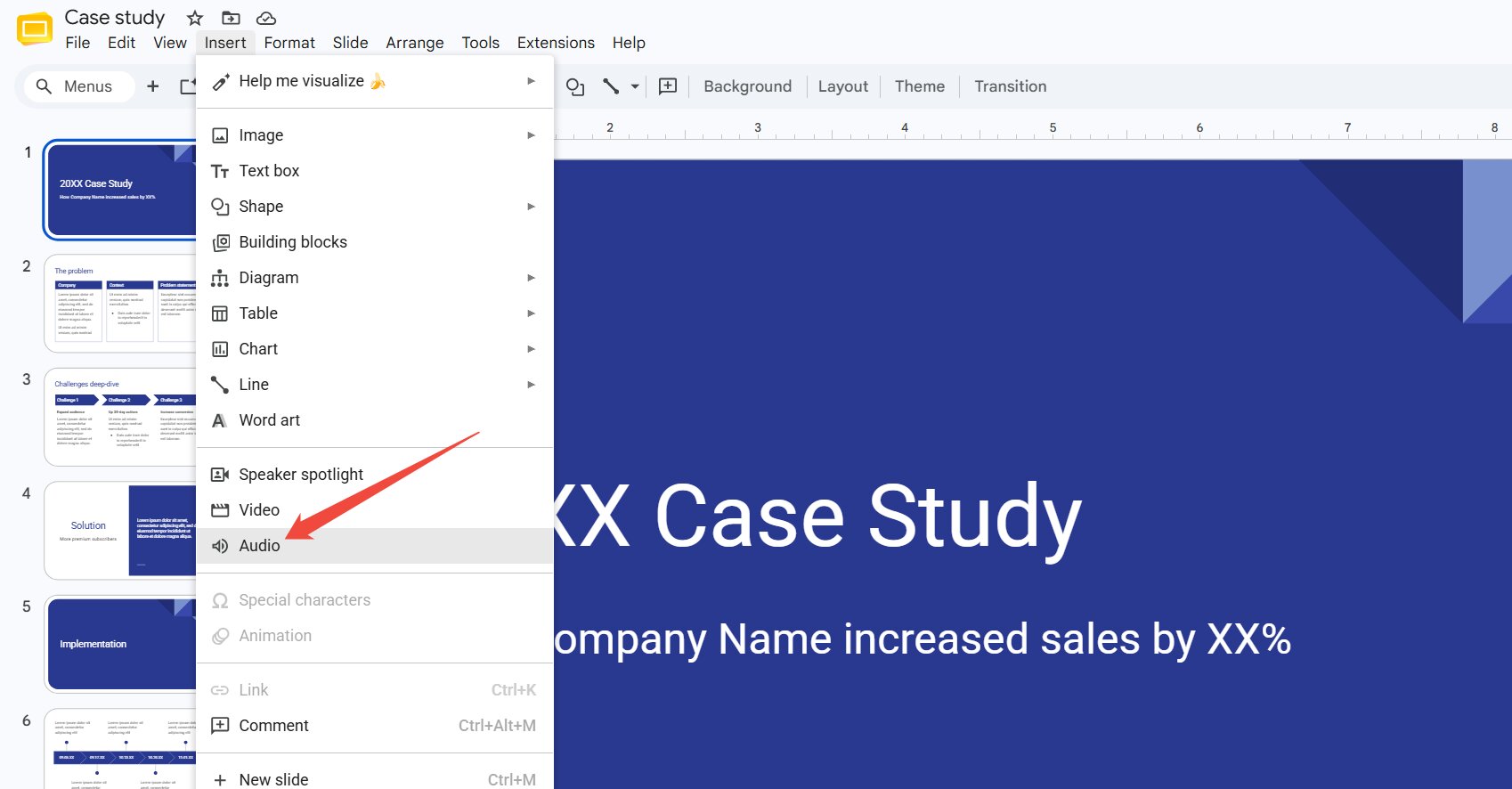
Click Insert at the top, then choose Audio. A window will open showing the files in your Drive.
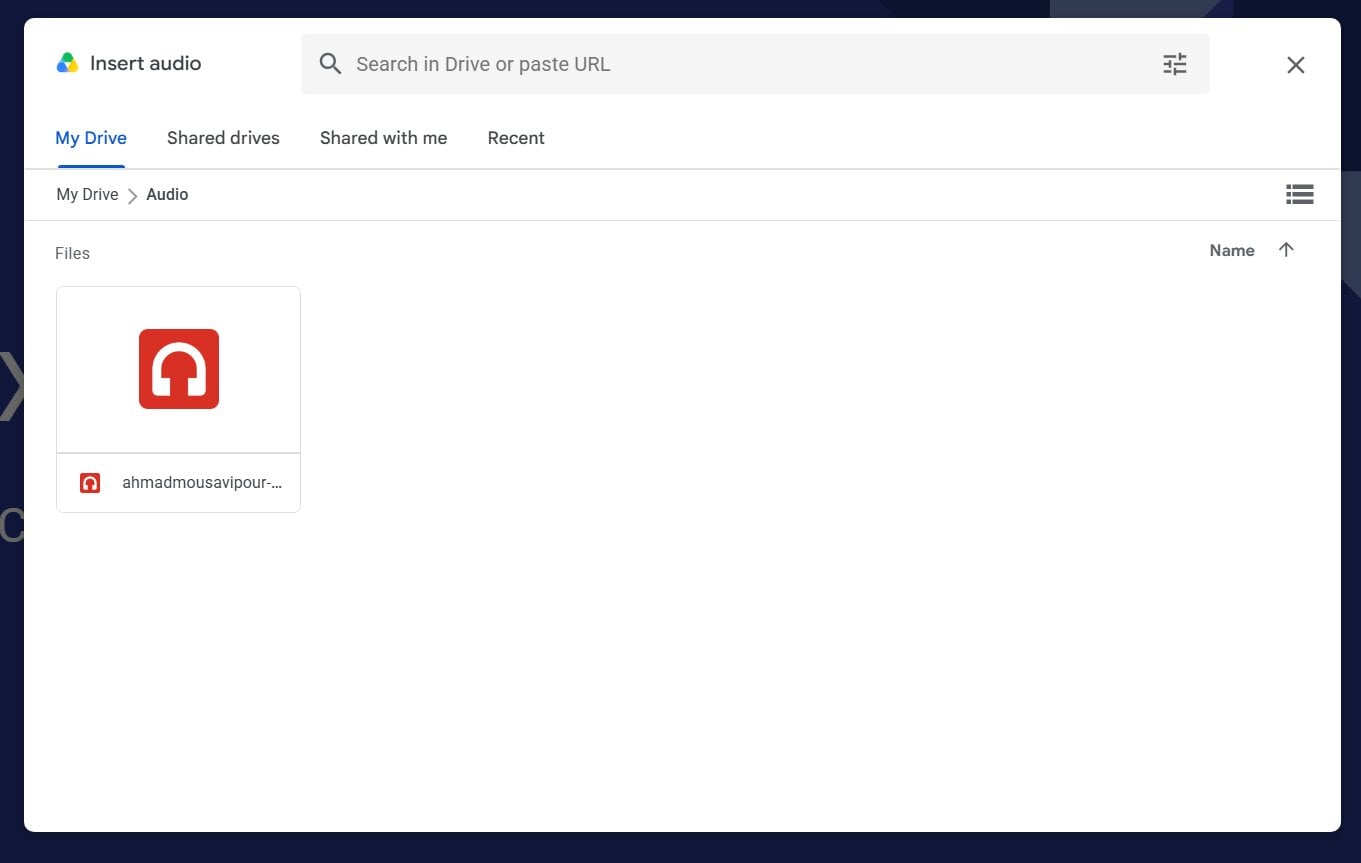
Pick Your Music
Find your music file and double click on it. A small speaker icon will appear on your slide.
Customize Your Audio Settings
Click on the speaker icon, then open Format options on the right side.
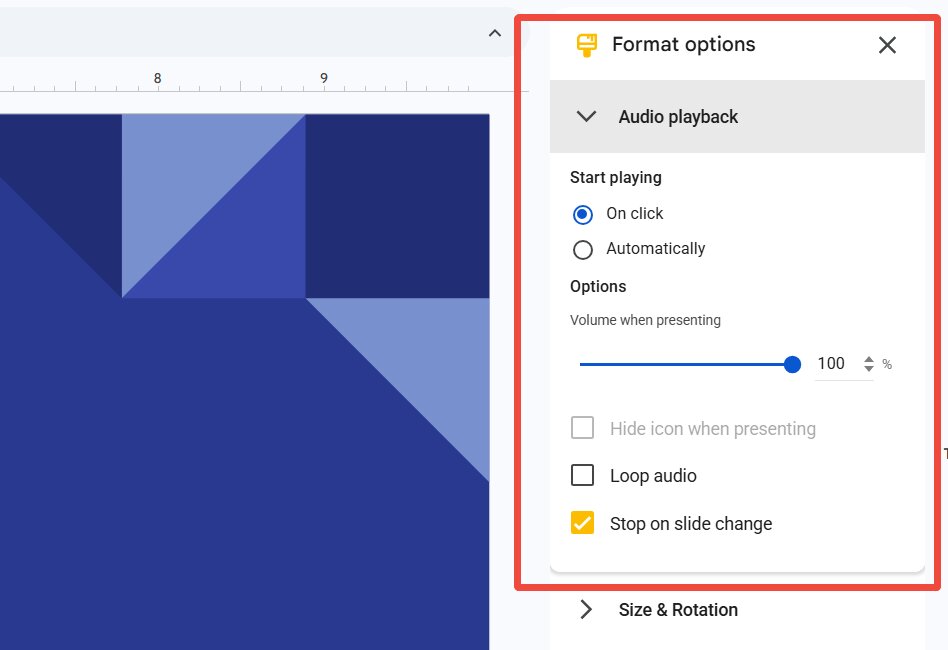
Here you can:
- Make it play automatically
- Adjust the volume
- Have the music continue across all slides
- Hide the icon during your presentation
Method 2: Adding Music with a YouTube Video
This is one of the easiest ways to add music, especially if your song is on YouTube.
Open Your Presentation
Head over to Google Slides and open the presentation you want to work on. Click on the slide where you want the music to play.
Insert a YouTube Video
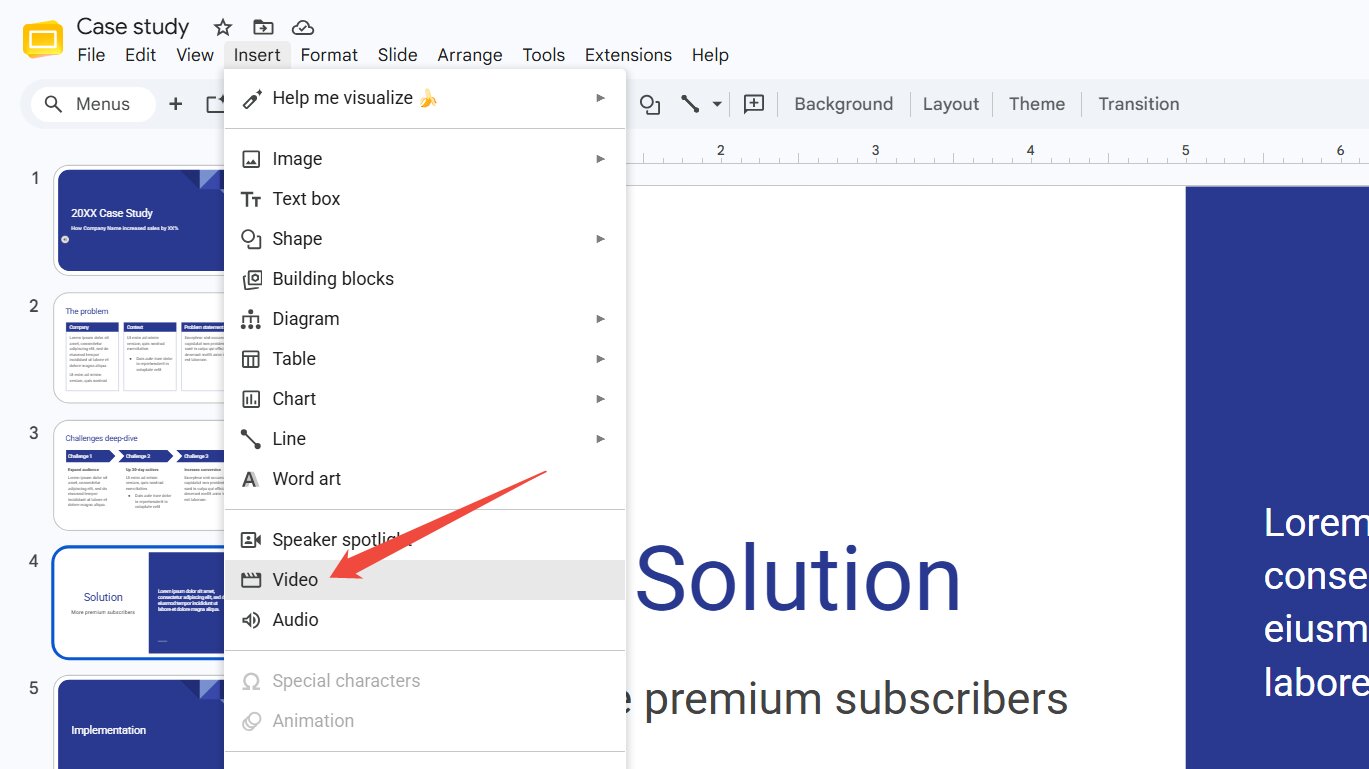
At the top of your screen, click Insert, then choose Video. A box will pop up letting you search YouTube directly.
Find Your Music
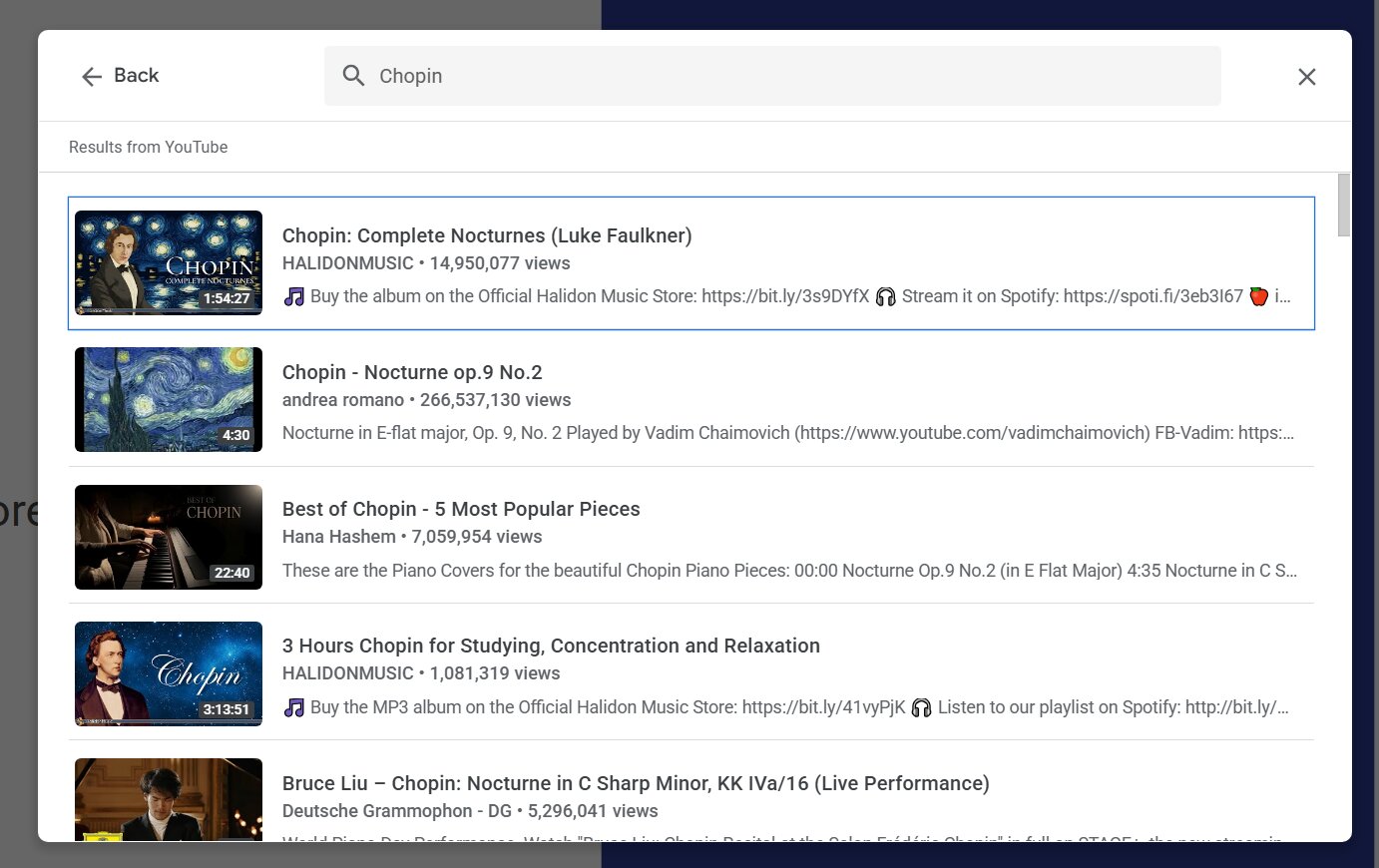
Type the name of the music you want into the search bar. When you find it, double-click on it to load it into your slide.
Adjust the Video
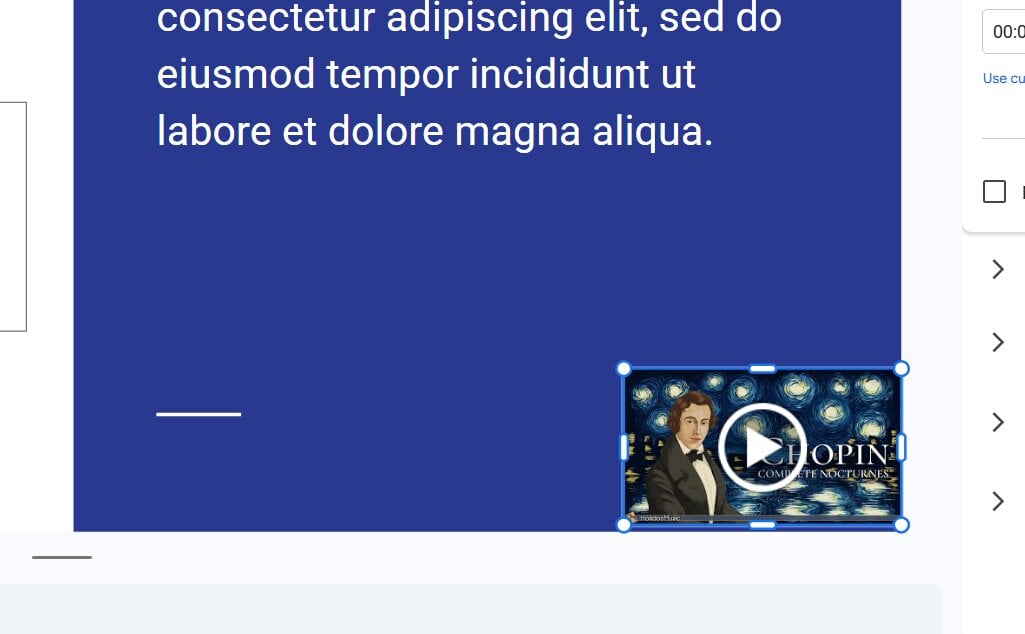
The video will appear on your slide. You can shrink it down and drag it to a corner so it's out of the way. Want it totally hidden? Move it off the edge of the slide.
Set It to Play Automatically
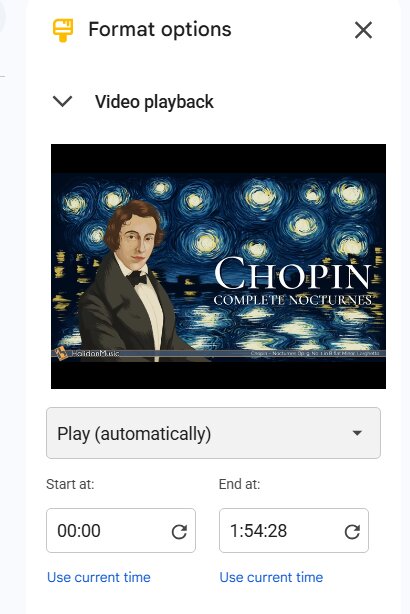
Click on the video, then look for Format options on the right. Under Video playback, you can choose to have it Play automatically when you reach that slide.
Tips to Make Your Music Sound Great
Now that you know how to add music, here are some helpful tips I've learned along the way:
-
Keep it appropriate.
Make sure your song fits the mood of your presentation. Upbeat music works great for fun topics, while soft music is better for serious ones.
-
Don't make it too loud.
You want people to hear you talk, not just the music.
-
Test it before presenting.
Always run through your slideshow first to make sure everything plays correctly.
-
Check copyright rules.
If your project is for school or going online, try to use royalty-free music to stay safe.
What If Something Goes Wrong?
Sometimes things don't work perfectly, and that's okay! Here are a few quick fixes:
🔇 Music won't play?
Make sure your audio file is saved in Google Drive and that you have permission to use it.
⚙️ Can't find the audio option?
Double-check that you're using Google Slides on a computer, since some features aren't available on phones or tablets.
🌐 Video won't load?
Try refreshing the page or checking your internet connection.
Want to Build Your Slides Even Faster? Try HIX AI Slides
Staring at a blank slide can feel pretty overwhelming, especially when you're short on time. That's where HIX AI Slides agent comes in.
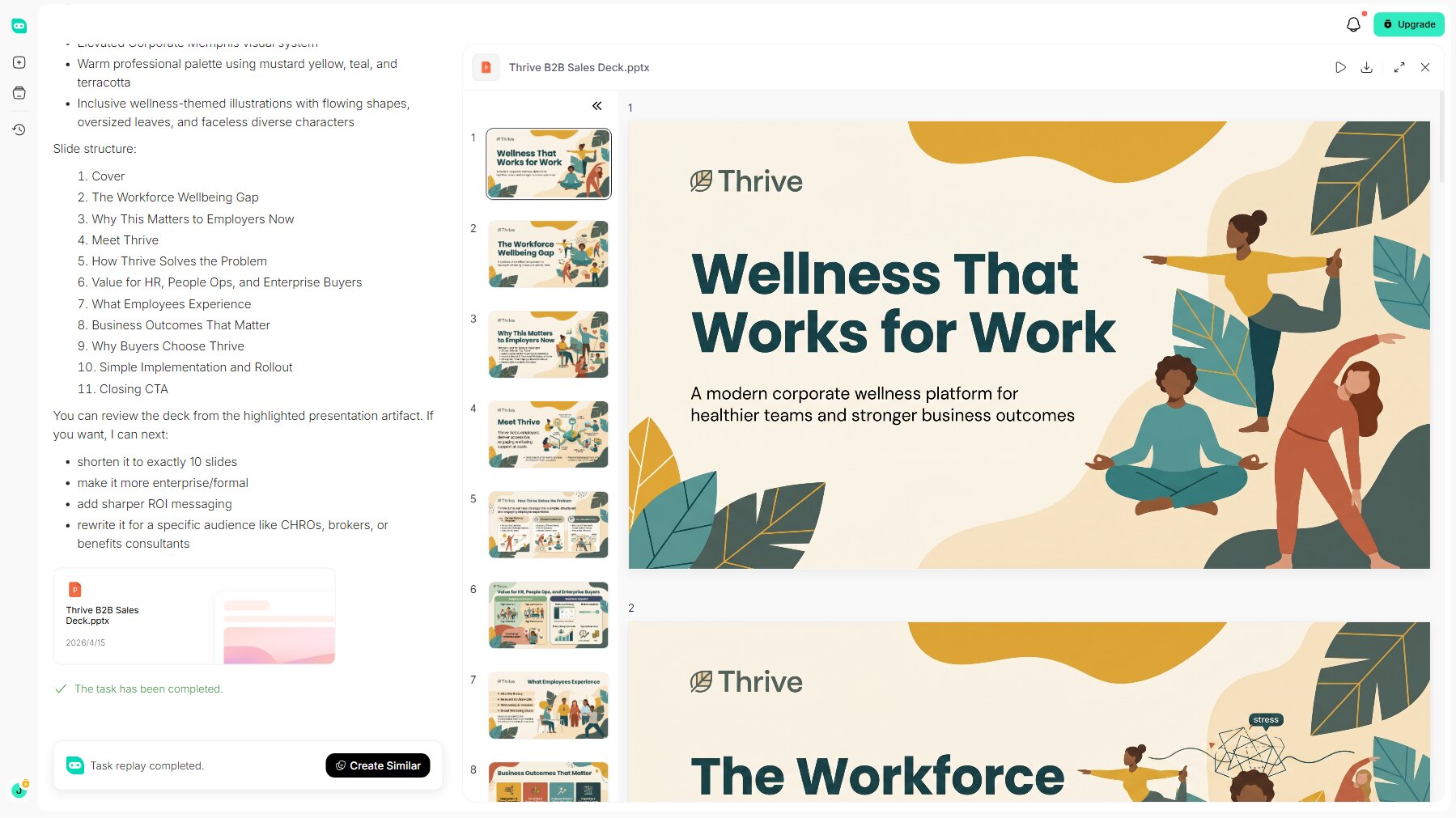
Through autonomous deep research, HIX AI slides agent can instantly turn any given topic into logically structured presentation copy. It also offers seamless PPT conversion, transforming your uploaded files—including Word documents, PDFs, images, and HTML—directly into complete, well-organized slide decks.
For users who prioritize brand consistency, the agent supports custom PowerPoint template uploads. This ensures that every generated presentation strictly maintains your official corporate colors, fonts, and visual guidelines.
Furthermore, HIX AI helps optimize existing PowerPoint formats, layouts, and visual elements. More conveniently, you can effortlessly adjust specific elements on any slide using simple text instructions.
Try HIX AI Slides Now!
You've Got This!
Adding music to Google Slides might seem tricky at first, but once you've done it a couple of times, it becomes second nature. Whether you're presenting a science project, sharing memories at a party, or just want to impress your classmates, a little music can make a big difference.
And don't forget—pairing your awesome music with slides built by HIX AI Slides is the easiest way to create a presentation that truly stands out, so give it a try today!
🆓Free to Try • 👍Professional Slides • ⭐4.9/5 Rating
FAQs
What audio file formats does Google Slides support?
Google Slides supports MP3 and WAV audio formats.
Can you add Spotify music directly to Google Slides?
Not directly. Google Slides does not support direct Spotify audio playback, but you can insert a Spotify link into any clickable text or image on your slide.
How do you loop music in Google Slides?
After adding your audio file, click on the audio icon and open Format options from the toolbar. Under Audio playback, check the box for Loop audio.
Can I adjust the music volume in Google Slides?
Yes. After inserting your audio file, click the audio icon on the slide and select “Format options. In the sidebar that opens, use the slider under Audio playback to adjust the volume to your preferred level.
How do you delete unwanted music from Google Slides?
Simply click the audio icon on your slide to select it, then right-click and choose Delete (or press the Delete / Backspace key on your keyboard).