One of the simplest yet most powerful adjustments to make your Google Slides better is making shapes transparent.
Whether you’re layering elements for depth, highlighting key points, or creating a clean overlay, opacity control helps you achieve a polished, professional look without overcomplicating your slide.
In this guide, I will let you know clearly how to make a shape transparent in Google Slides. No need for external tools or complex workarounds—just a few clicks within the platform. Stay tuned!
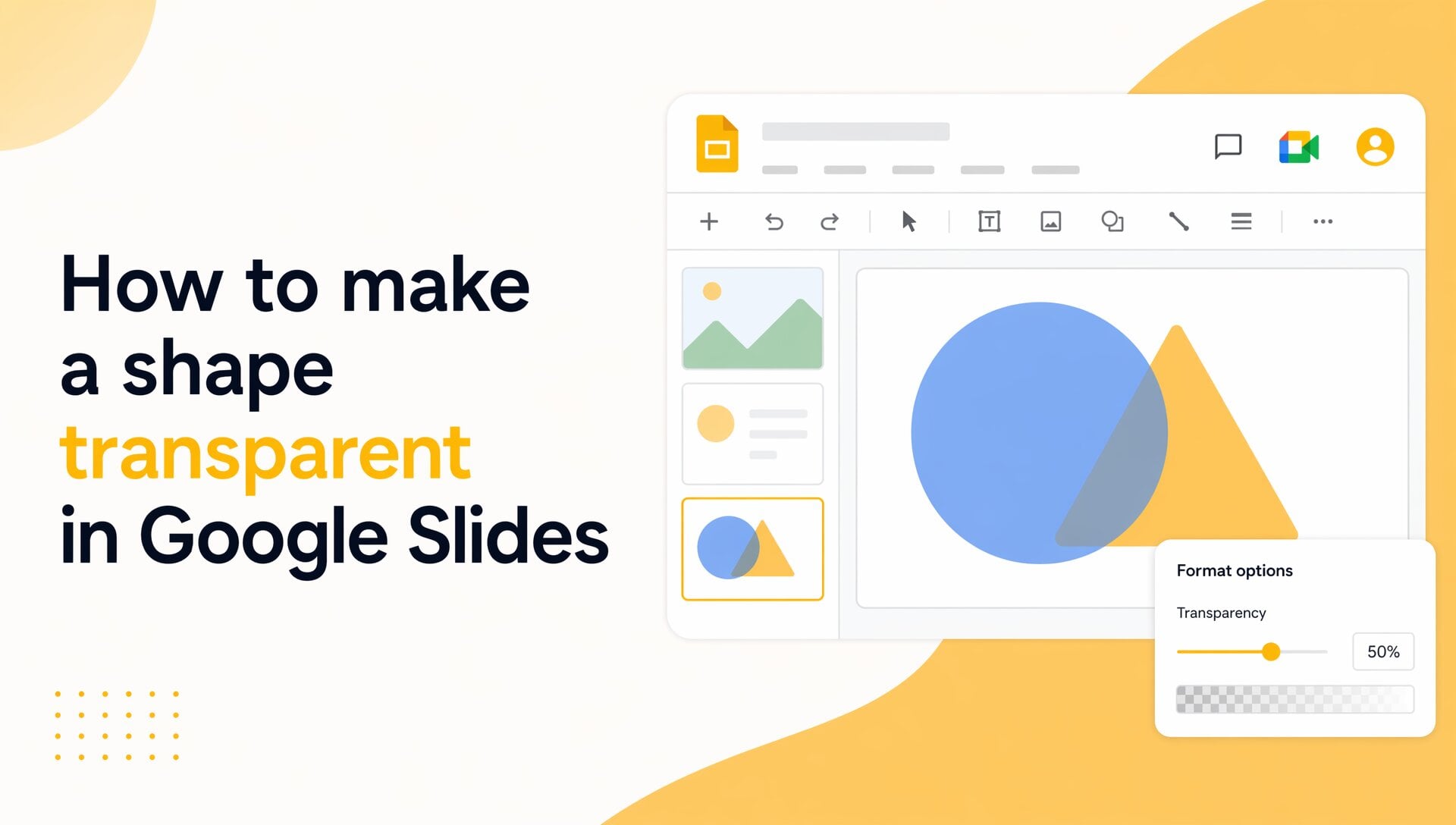
Table of Contents
Steps to Make a Shape Transparent in Google Slides
The process is built right into Google Slides’ shape formatting options—no plugins or exports needed. Follow these detailed steps, and you will have full control over how solid or see-through your shapes appear.
Select Your Shape
Click the shape you want to adjust. You’ll see a blue border with resize handles appear, confirming it’s active. If you need to edit multiple shapes at once, hold Shift and click each one.
Open the Fill Color Menu
With the shape selected, look at the toolbar at the top. Click the Fill color icon (it looks like a paint bucket). A dropdown menu will pop up showing color options. Click Custom in the dropdown.
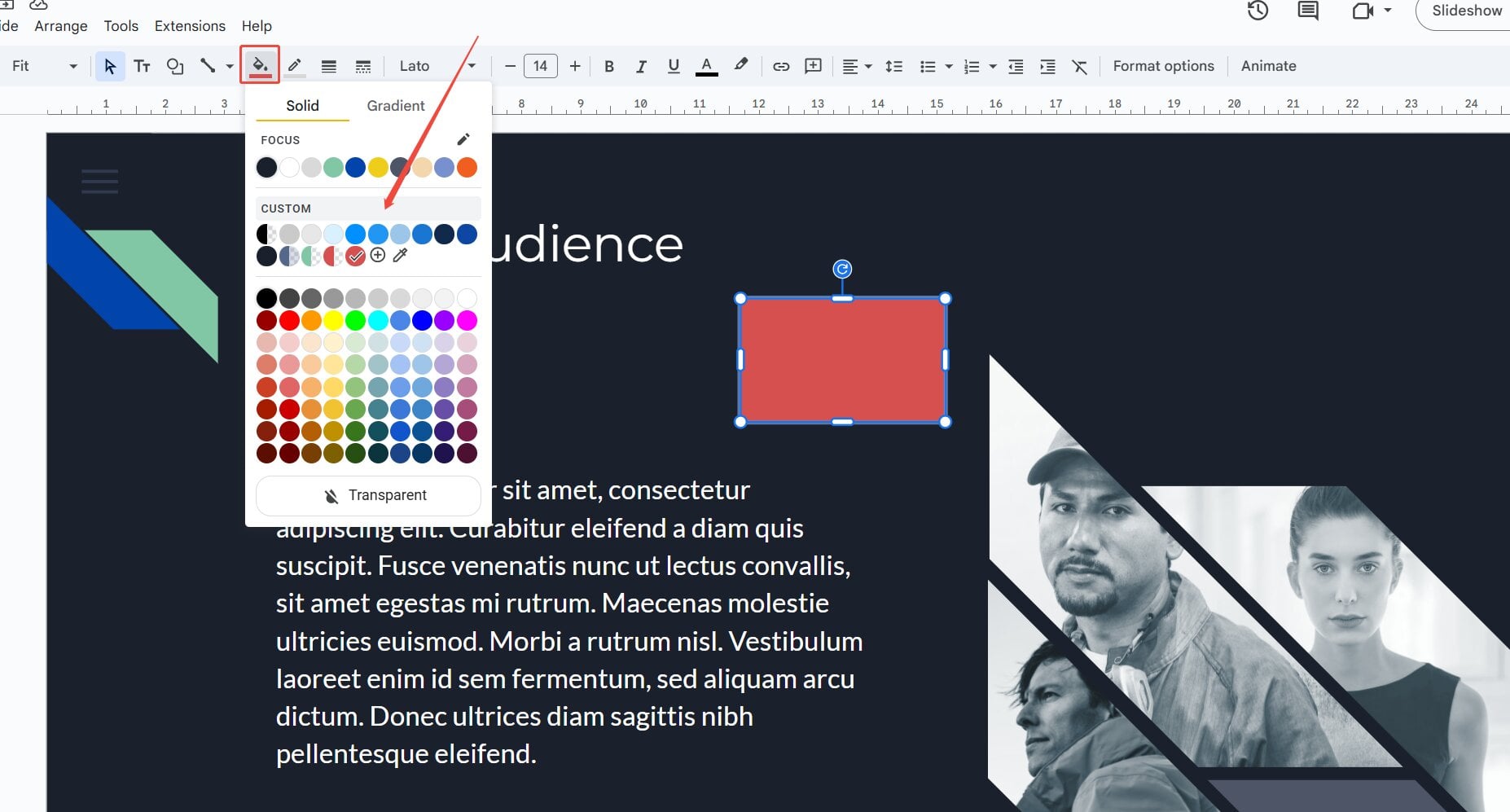
This opens a color picker dialog with hex code, RGB sliders, and—crucially—an opacity slider.
Adjust the Opacity Slider
Drag the opacity slider left to make the shape more transparent or right to make it more solid. Watch the live preview on your slide as you move it. You can also type a precise percentage (0% = fully transparent, 100% = fully opaque).
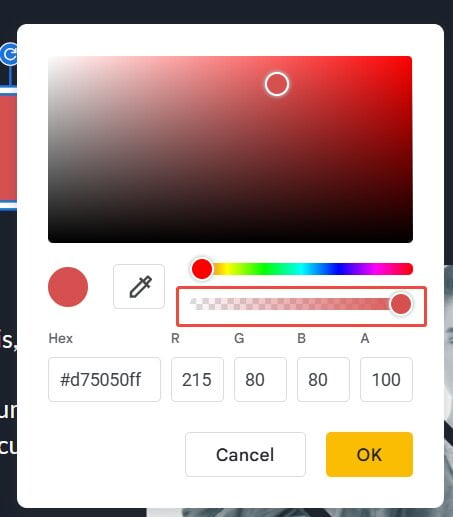
Apply and Fine-Tune
Click the OK button to confirm your changes. The shape updates instantly. If it’s not quite right, just repeat the process—Google Slides lets you tweak opacity as many times as needed without quality loss.
Create Slides Effortlessly with HIX AI Slides
While adjusting opacity is a great way to refine your slides manually, sometimes you want to skip the heavy lifting and generate polished presentations from the start. That’s where HIX AI Slides can help you.
HIX AI Slides is a smart AI agent designed to turn your ideas into presentation-ready slides in moments. Simply provide a prompt and upload any relevant files, and it will analyze your intent to understand exactly what you’re trying to communicate. From there, it builds out structured, visually coherent slides tailored to your topic—no design experience required.
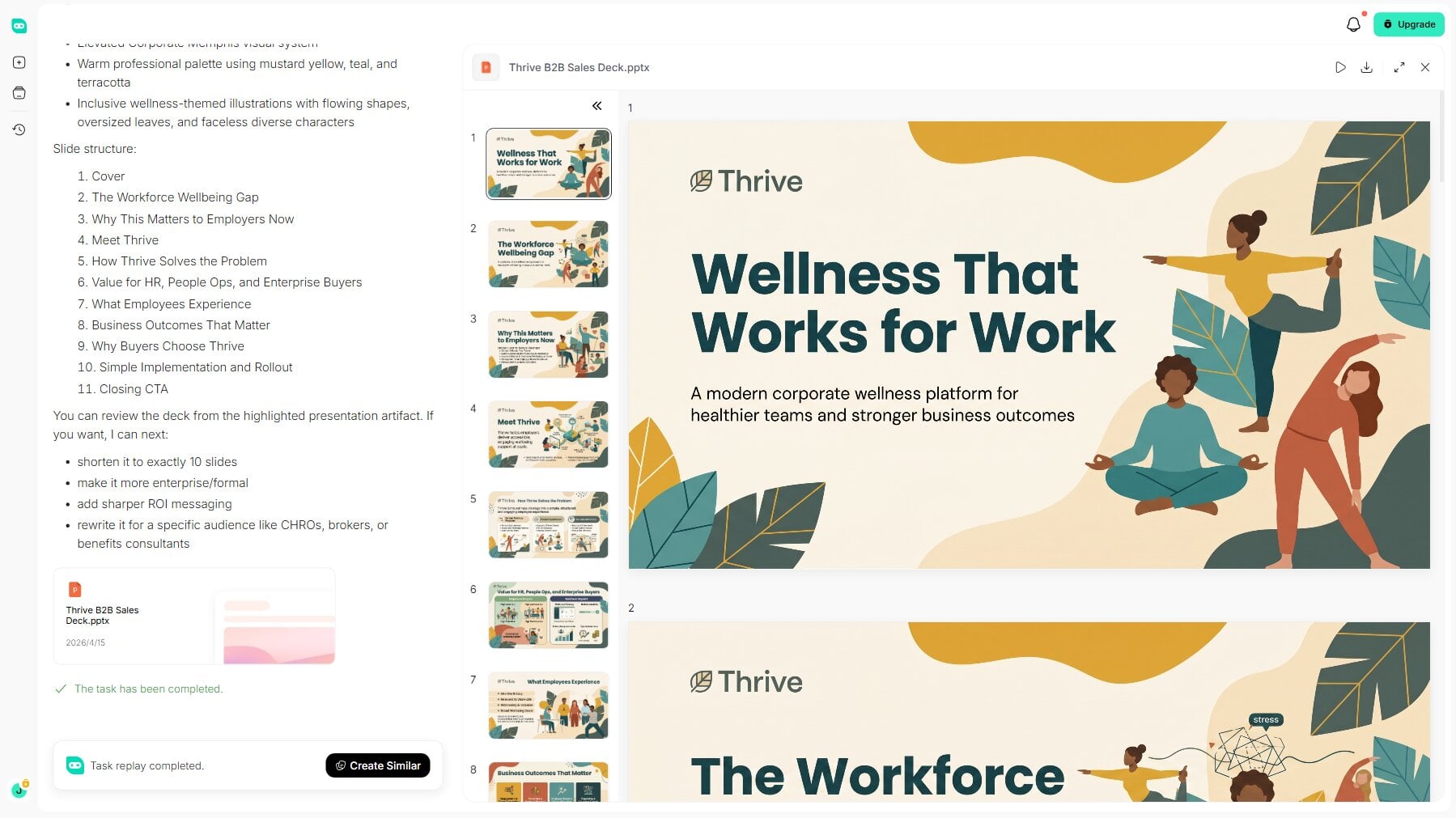
What makes it especially powerful is the flexibility it offers afterward. Once your slides are created, you’re not locked into the AI’s choices. You can freely edit everything—adjusting text, rearranging elements, and fine-tuning the design (including transparency tricks like the one above) until each slide looks exactly the way you want.
Whether you’re starting from scratch or looking to speed up your workflow, HIX AI Slides bridges the gap between a rough idea and a professional, ready-to-present deck.
Try HIX AI Slides Now!
Conclusion
Making a shape transparent in Google Slides is one of those small skills that elevates your entire presentation. With just a few clicks, you can create depth, guide attention, and keep your design clean and intentional.
And when you’re ready to create stunning presentations even faster, give HIX AI Slides a try—it turns your ideas into polished, ready-to-present decks in just moments.
🆓Free to Try • 👍Professional Slides • ⭐4.9/5 Rating