Trying to make vertical slides for mobile viewing or social media content? Google Slides automatically makes your slides wide. But you can also easily make them vertical.
In this article, I'll show you the steps of how to make your Google Slides vertical. I'll keep things simple and easy to follow, so by the end, you'll feel like a pro.
Table of Contents
Step-by-Step: How to Make Google Slides Vertical
Follow along with me to make your slides vertical. I'll explain each step so nothing feels confusing.
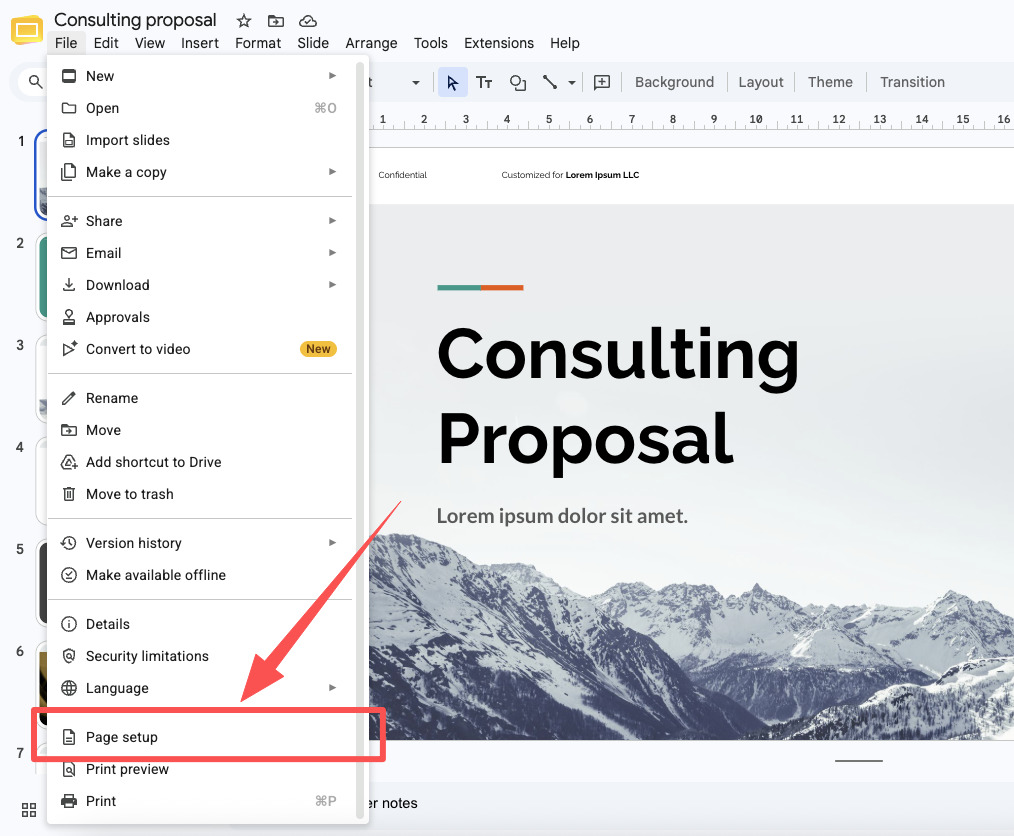
Open Page Setup
Go to Google Slides and open the presentation you want to change. Then click File > Page Setup.
Configure Custom Width & Height
Change the dimension setting from "Widescreen 16:9" to "Custom". Then set your target width and height.
To make your slide vertical, you just need to make the height greater than the width. For example, if you want a slide that looks like a regular piece of paper, you could type:
- Width: 8.5 inches
- Height: 11 inches
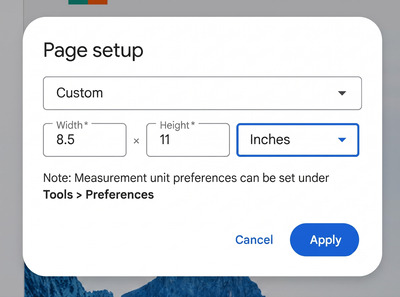
You can also choose other units, like centimeters or pixels, by clicking the little drop-down menu next to the numbers.
Click "Apply"
Once you've typed in your numbers, click the blue "Apply" button. Then your slide will instantly change from wide to tall.
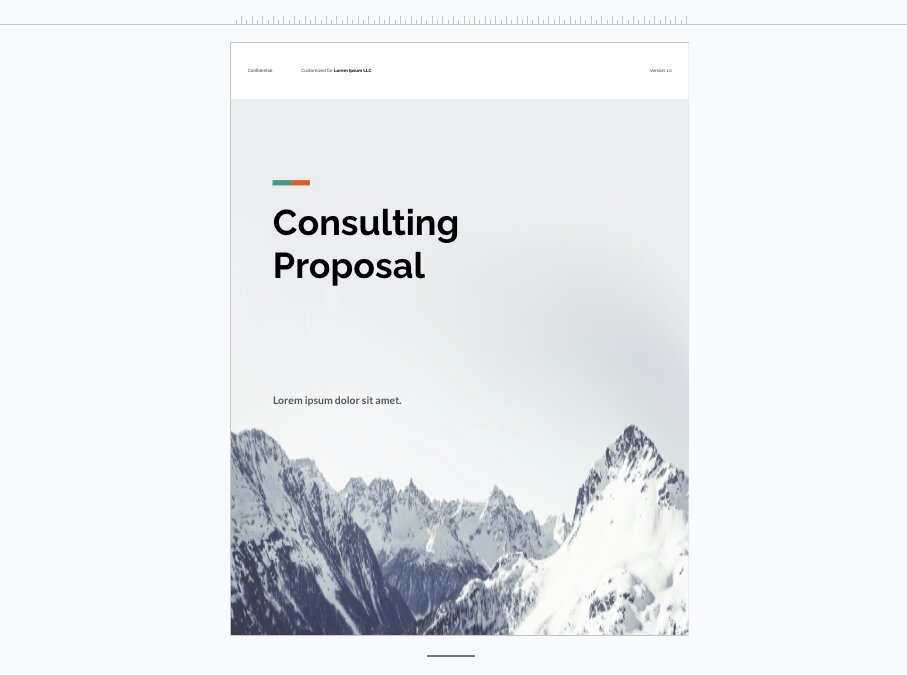
A Few Helpful Tips
Now that you know the basic steps, let me share some tips I've learned along the way. These will help you avoid some common mistakes.
Decide Your Size Before You Add Content
If you add a bunch of text, pictures, and shapes first, and then change the size, everything might get squished or moved around. It's less stressful to set your vertical size first, before you start designing.
Common Sizes to Try
If you're not sure what numbers to use, here are some sizes that work well:
- Poster: 24 inches wide by 36 inches tall
- Flyer or Paper: 8.5 inches wide by 11 inches tall
- Instagram Story: 1080 pixels wide by 1920 pixels tall
You Can Always Change It Back
Don't be afraid to experiment! If you make your slide vertical and decide you don't like it, you can simply go back to "Page setup" and change the numbers again. Nothing is permanent, so feel free to play around.
Create Better Slides More Easily with HIX AI
Sometimes the hardest part about creating slides isn't changing the slide size—it's figuring out what to actually put on each slide.
With HIX AI Slides, you'll have a smart AI agent to help you do research, and create presentation-ready, data-driven slides with a clear story. That means less time staring at a blank slide and more time creating.
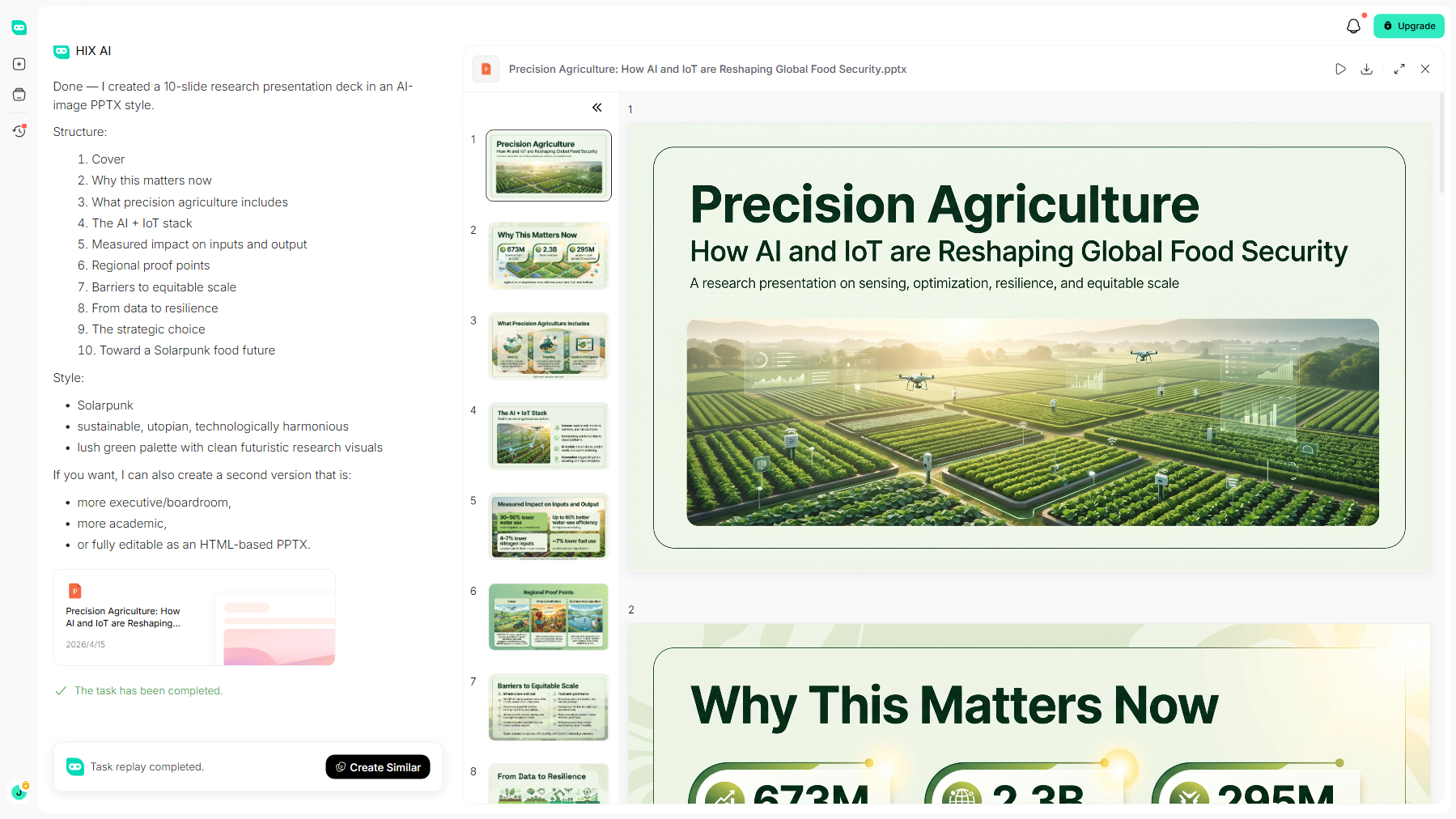
And no more messy, mismatched layouts with. Whether you upload your own custom style guides or reference documents, HIX AI ensures every slide stays perfectly cohesive.
Just tell HIX AI what slides you want to create. Our AI handles the heavy lifting—researching, organizing, and drafting—to deliver a polished presentation in seconds.
Try HIX AI Slides Now!
Final Words
And there you have it! Making your Google Slides vertical is really just a matter of clicking "File," then "Page setup," then "Custom," and changing your numbers so the height is greater than the width.
So go ahead and give it a try. Open up Google Slides, follow the steps, and watch your slide stand up tall!
And if you need an intelligent AI slides agent to help you create AI slides seamlessly, you can try HIX AI Slides! It's your reliable assistant that helps you create pro-level slides from scratch!
🆓Free to Try • 📑Create Any Slides • ⭐4.9/5 Rating