We’ve all been there—you’re tweaking a Google Slides deck, and it’s suddenly cluttered with messy draft slides you just don’t need. Honestly, no one has time for tedious, one-by-one clicking.
That’s why I put together this guide on how to delete a slide on Google Slides. I’ll walk you through my personal favorite shortcuts to wipe out single or bulk slides on your PC, plus how to handle it effortlessly right from your phone.
Let’s clean up your presentation and save you some serious time!

Table of Contents
How to Delete a Slide in Google Slides on PC
Once your slides are done and you start rehearsing, you might realize some content needs trimming. Whether you want to drop a single slide or remove a few unnecessary ones, don't worry. In this section, I’ll walk you through three quick, effortless methods to delete slides and keep your deck perfectly polished.
Right-Click
Click Your Target Slide
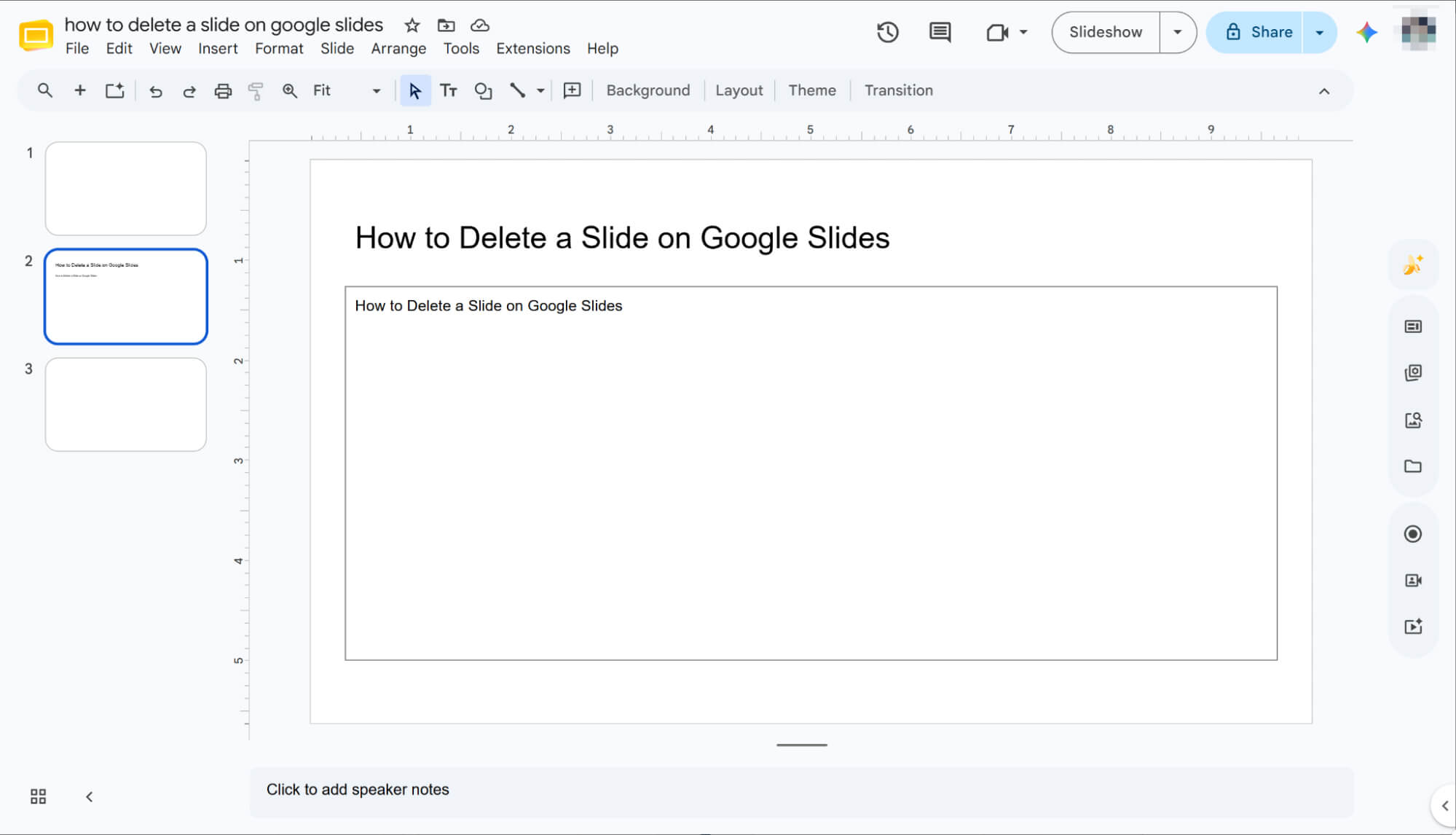
Select the slide you want to delete from the left thumbnail panel. Once clicked, you’ll notice its border light up with a bright highlight, showing it’s successfully selected.
Delete via the Right-Click Menu
Now, right-click on that highlighted slide and select 'Delete' from the pop-up menu. Just like that, the unwanted slide will be instantly removed from your presentation.
Toolbar
Select Your Target Slide
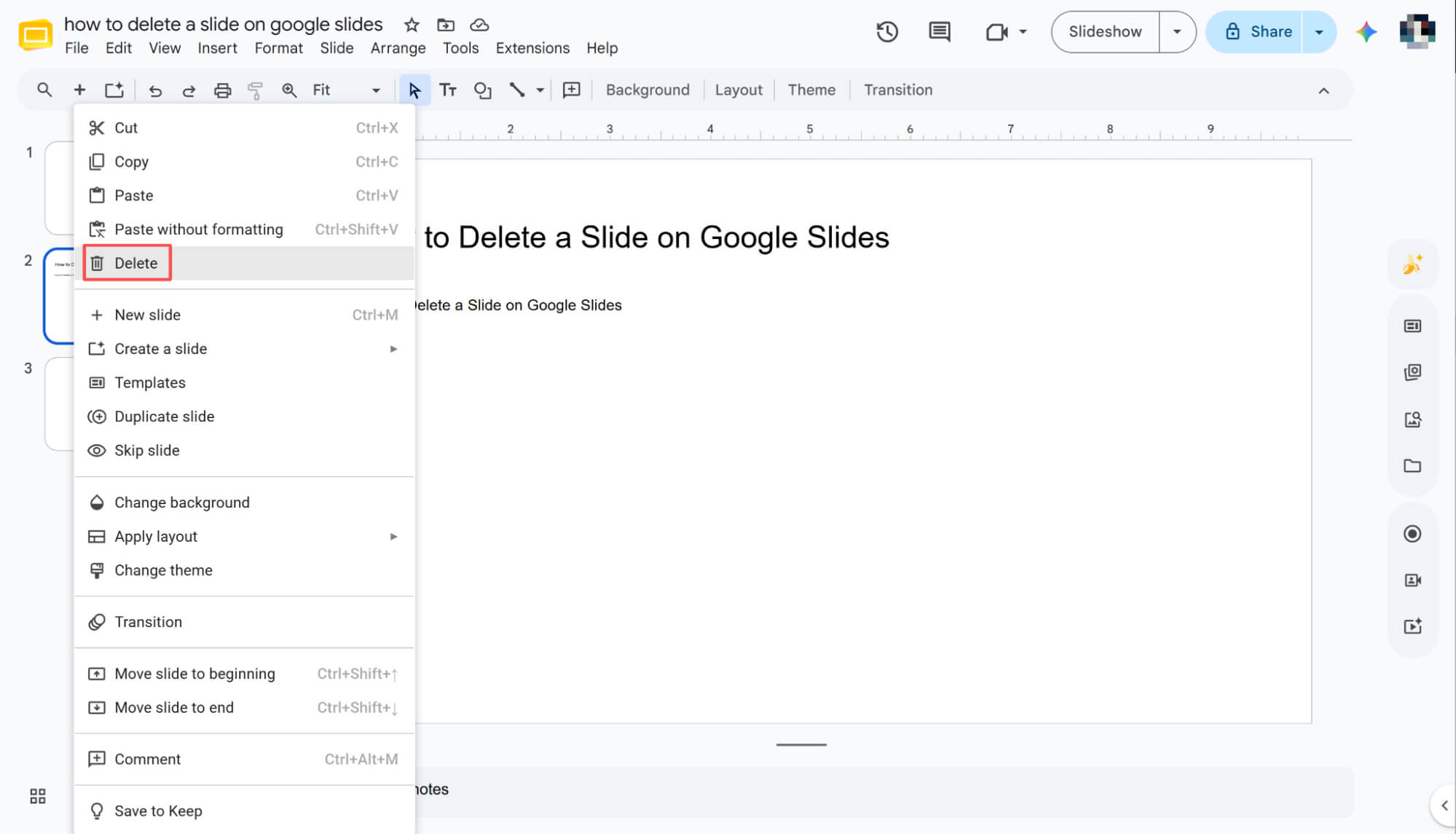
Choose the target slide from the left thumbnail panel. Once you click it, the slide’s border will instantly highlight, giving you a clear visual cue that it’s selected.
Delete via the Toolbar Menu
Navigate to the top toolbar, click on 'Slide,' then select 'Delete' from the dropdown menu to instantly remove your current slide.
Hit the 'Backspace' Key
With the target slide selected, simply press the 'Backspace' key on your keyboard. Just like that, the unwanted slide is instantly removed from your presentation.
How to Delete a Slide on Google Slides: Removing Multiple Slides at Once
Now that you’ve mastered deleting a single slide, let’s talk about a major time-saver: cleaning up large sections of your presentation.
In this section, I’ll show you how to take control of your deck by batch-deleting multiple slides simultaneously. Let’s dive into the fastest ways to streamline your workflow and get it done in seconds!
When dealing with too many slides to select in the sidebar, head to the top toolbar, click 'View,' and choose 'Grid view.' This instantly displays all your slides on one screen, making them incredibly easy to manage.
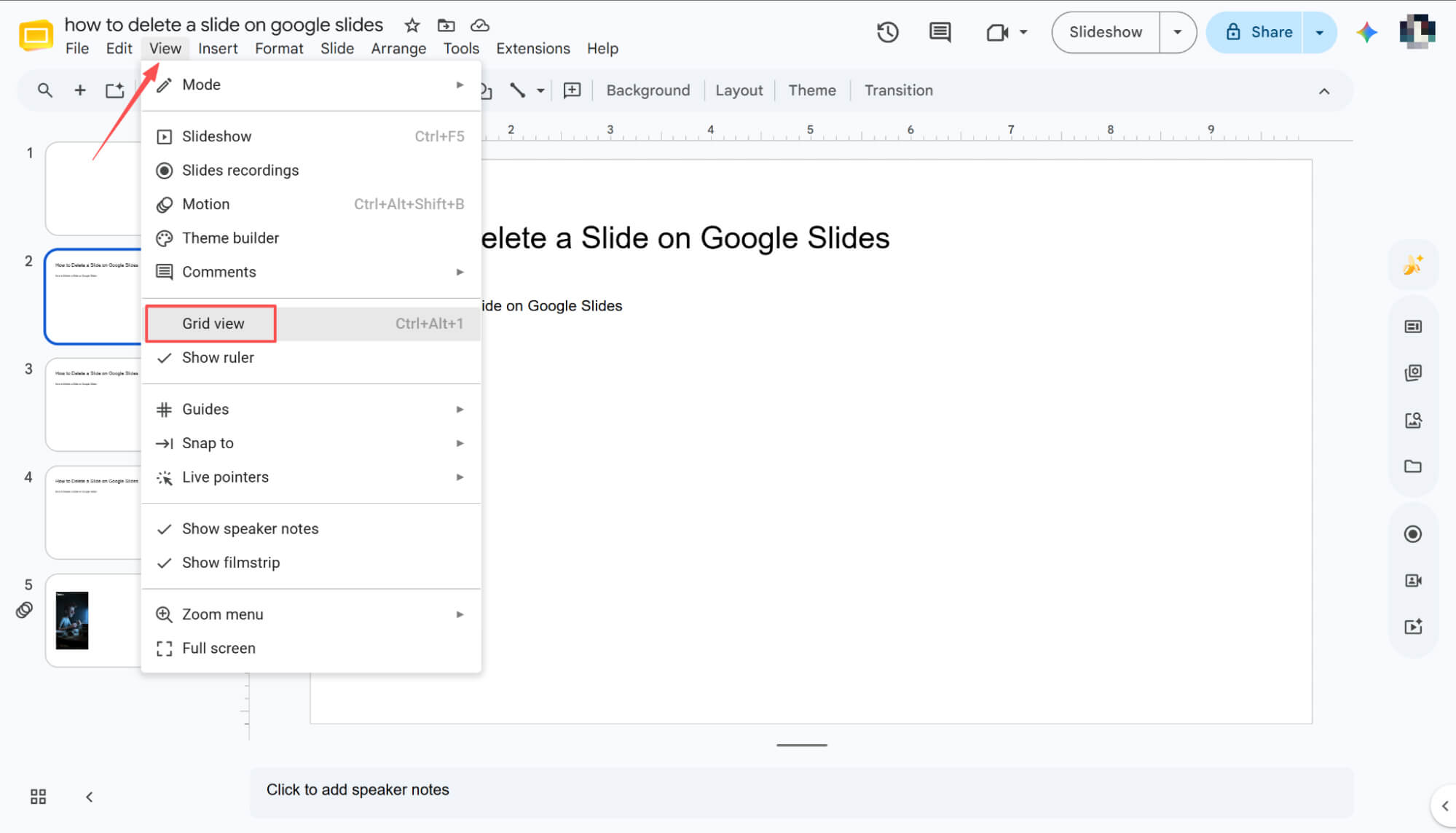
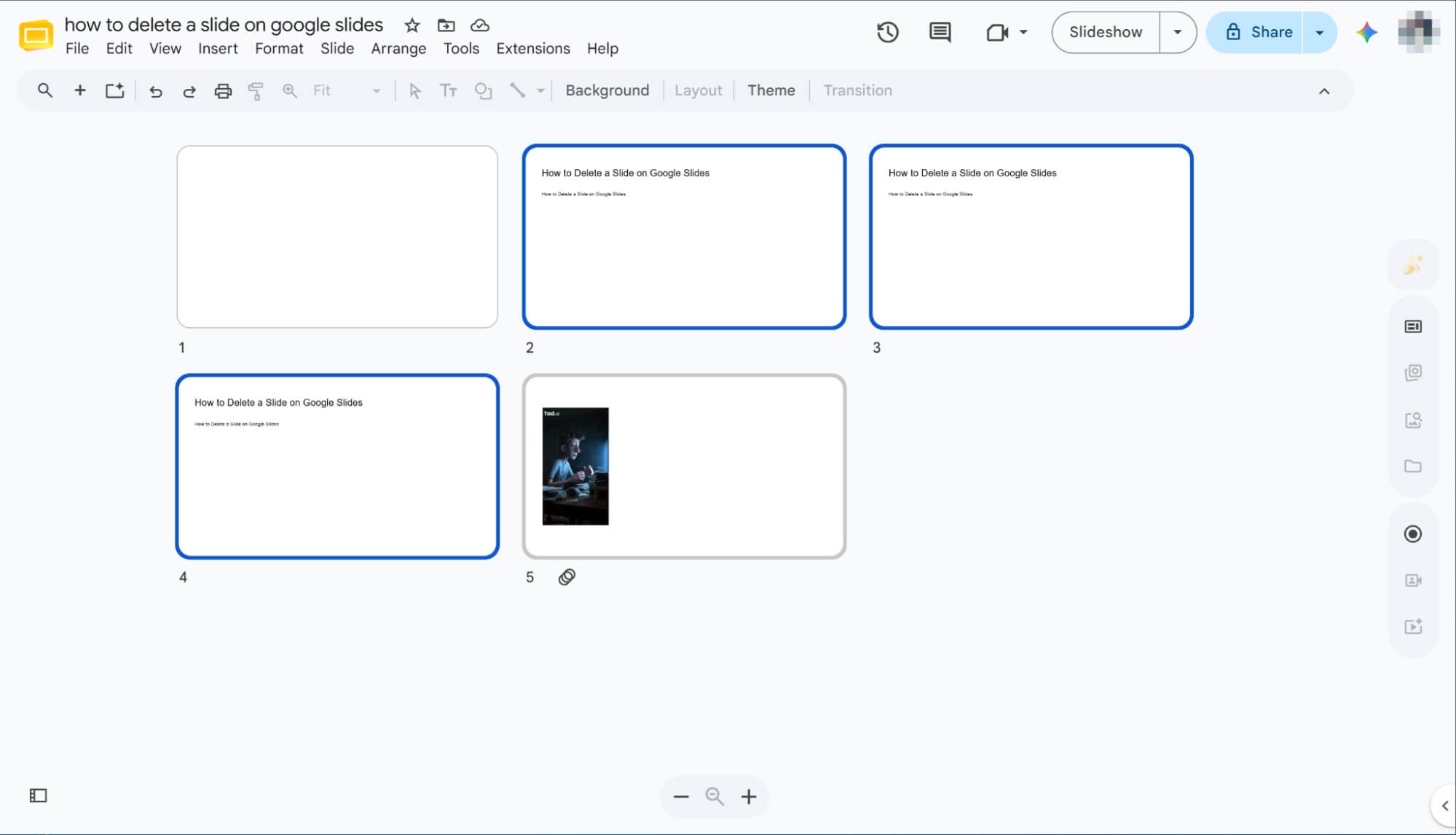
Use 'Shift' to Select Consecutive Slides
To delete a block of consecutive slides, click your first slide, hold down the 'Shift' key, and click the last one. This instantly selects the entire range. Once highlighted, simply use any of the three previous methods—like hitting 'Backspace'—to remove them all at once.
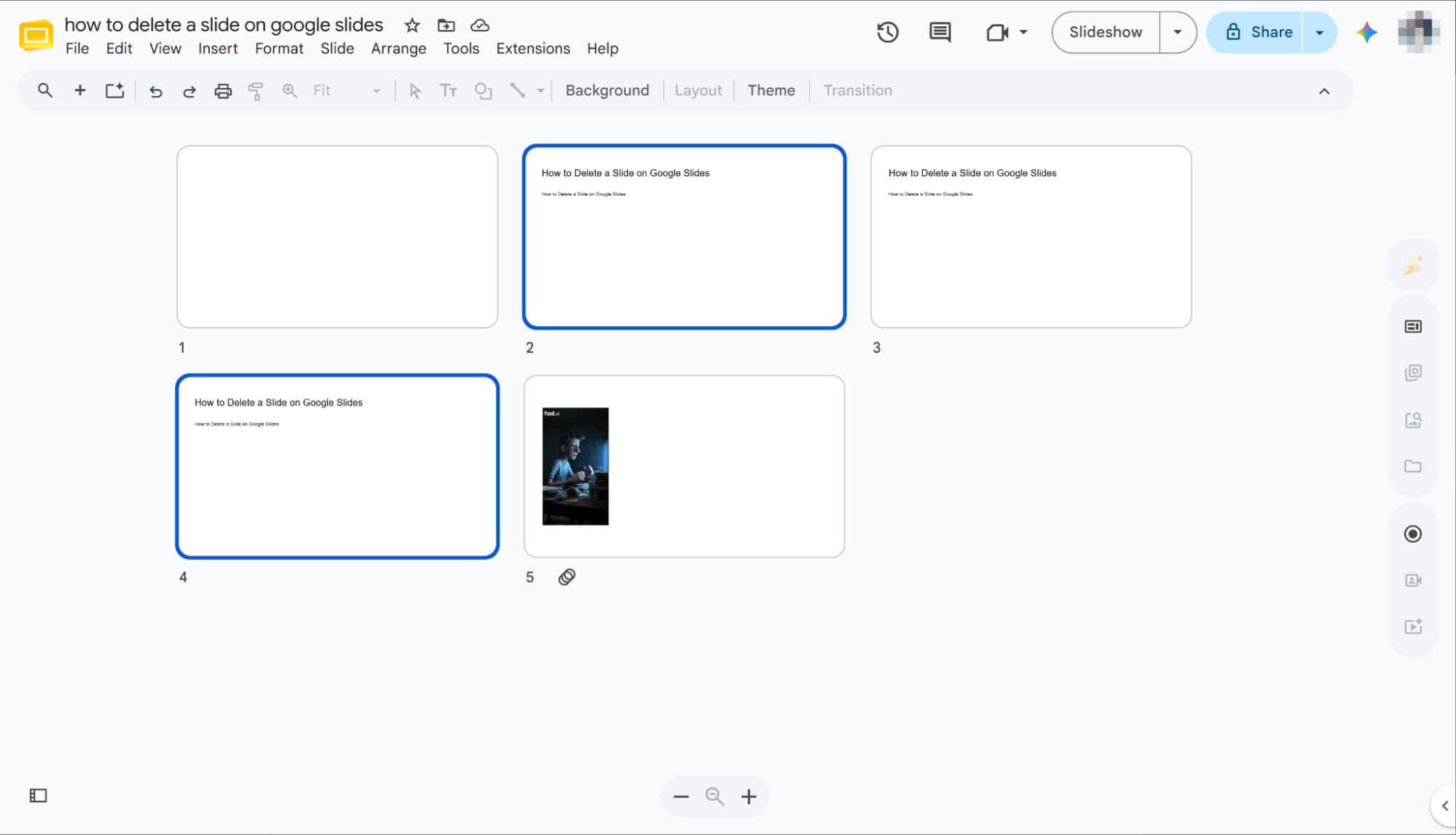
Use 'Ctrl' to Select Non-Consecutive Slides
To delete separate, non-consecutive slides, click the first one, hold down the 'Ctrl' key, and click the other slides you want to remove. This allows you to select multiple scattered slides simultaneously. Once they are all highlighted, just use your favorite deletion method from before to clear them out.
How to Delete a Slide in Google Slide on Mobile
Editing on the go? Don’t worry, your smartphone has you covered. While the mobile layout differs slightly from your PC, managing your presentation is just as easy. In this quick guide, I’ll walk you through deleting slides on your phone, keeping your deck polished anytime, anywhere.
Enter 'Edit Slide' Mode
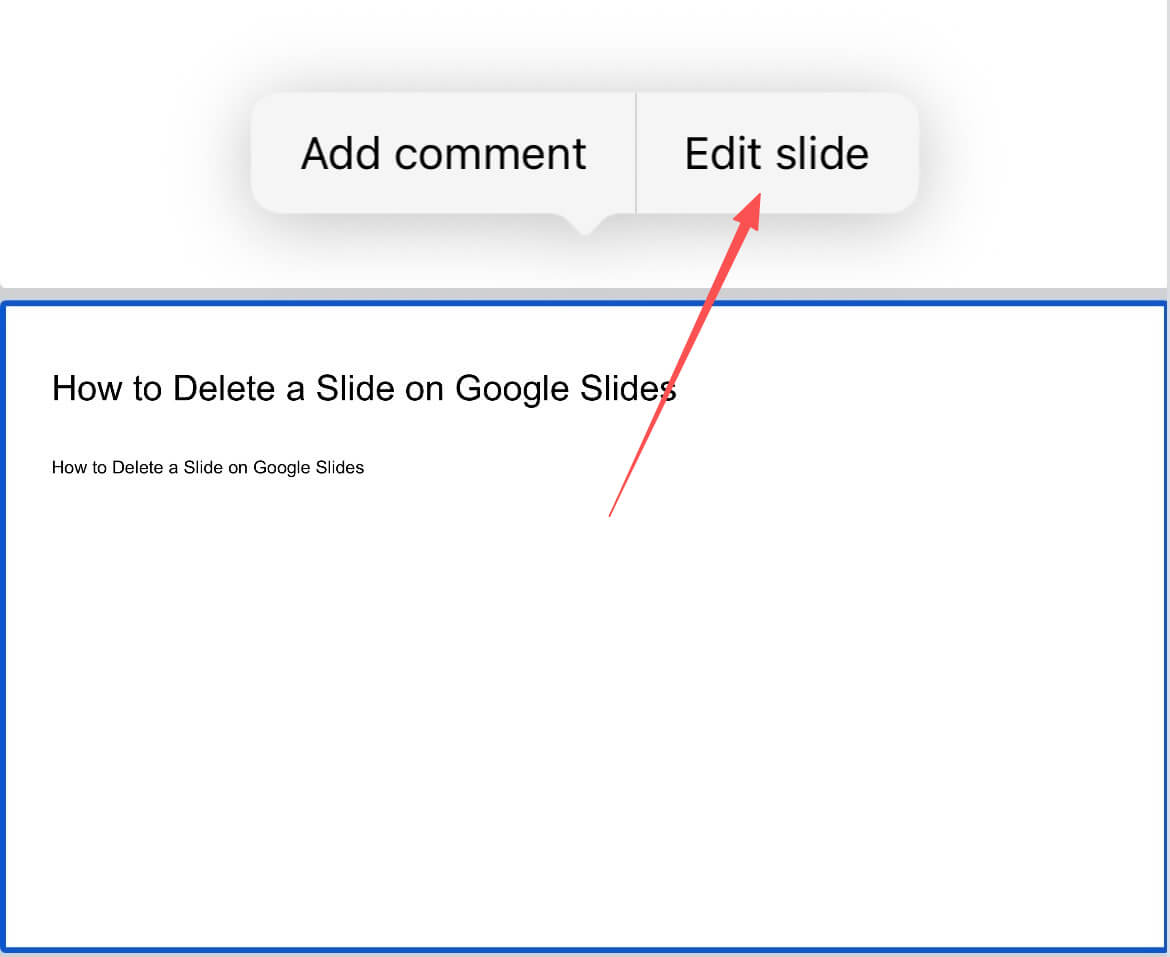
Open your presentation in the Google Slides app and tap the specific slide you want to modify. From the menu that pops up, select 'Edit slide' to unlock full editing controls right on your phone.
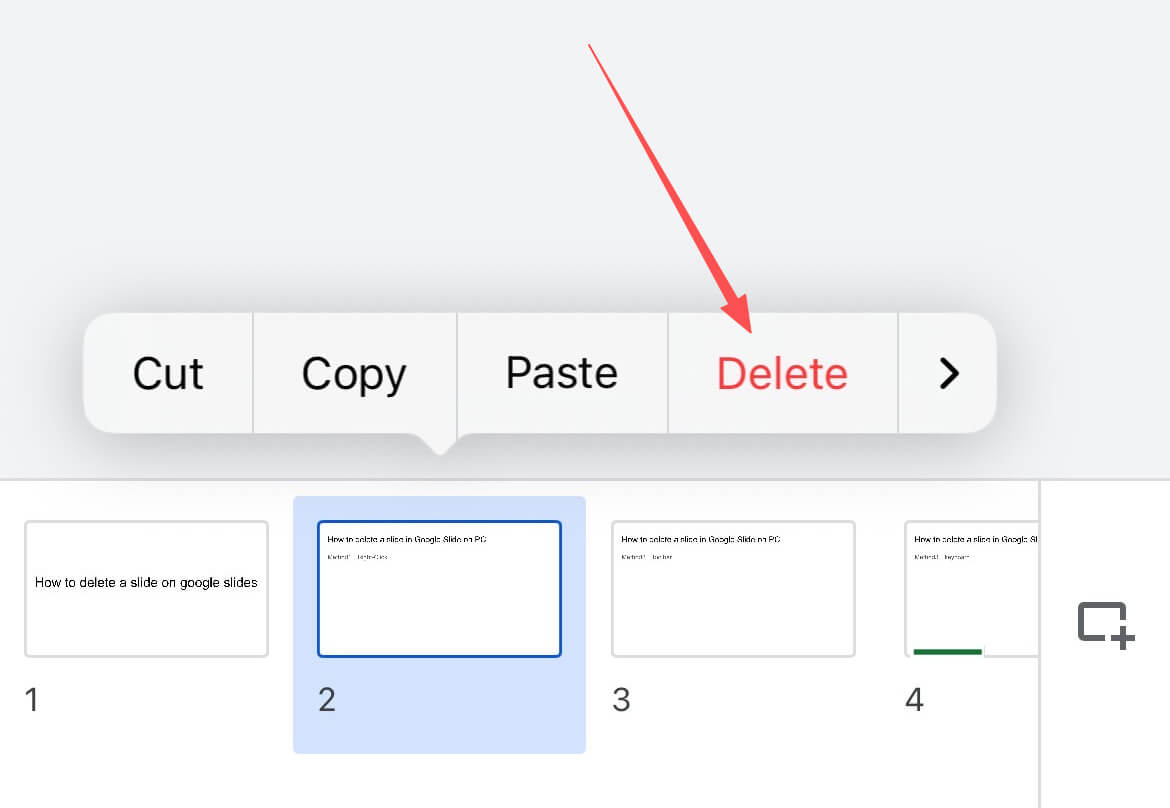
Tap 'Delete' to Remove It
Once in edit mode, tap the specific slide thumbnail at the bottom of your screen. When the quick options menu pops up, simply select 'Delete' to instantly remove that unwanted slide from your mobile deck.
How to Undo Deleting a Slide on Google Slides
Mistakes happen, especially when rushing through edits. Don't worry—you can easily restore deleted slides.
Press Ctrl+Z (Windows) or Command+Z (Mac) to undo the deletion.
Click Edit -> Undo to recover your slide.
Either method lets you recover your deleted slides in seconds. Just pick the option that fits your workflow.
HIX AI Slides Agent: Chat to Delete, Auto-Generate, and Freely Tweak Your Decks

Tired of tedious, repetitive clicking just to delete a specific slide from your presentation? With HIX AI Slides Agent, you can now manage and remove slides entirely through conversation, completely skipping the manual hassle.
Need a brand-new presentation? Just type in a topic! The HIX AI slides agent conducts deep research and drafts logically sound, flawless copy from scratch—or instantly transforms your existing documents, images, and HTML files into beautifully designed decks.
To ensure total brand consistency, you can also upload your own slide templates. The agent strictly adheres to your designated colors and fonts, keeping every presentation perfectly on-brand.
Beyond that, it grants you total flexibility to freely edit slide elements post-generation. Whether you need to update copy, resize components, or reposition layouts, you can easily tweak everything to perfection.
Try HIX AI Slides Agent Now
Conclusion
And there you have it! Mastering these quick deletion tricks—whether you’re batch-cleaning a massive deck on your PC or fixing a slide last-minute on your phone—is a total game-changer for your daily workflow.
Now that you’ve got these shortcuts in your toolkit, keeping your presentation sharp, focused, and professional is completely effortless.