Have you ever prepared a killer Google Slides presentation, only to realize you need those speaker notes printed out for the big meeting? I have been there. Printing Google Slides with notes doesn’t have to be a hassle, and you’re about to master it in just minutes.
In this guide, I will walk through the exact steps of how to print google slides with notes.
Whether you are presenting to a client or just want a backup, you will learn how to customize, preview before printing and avoid common pitfalls.
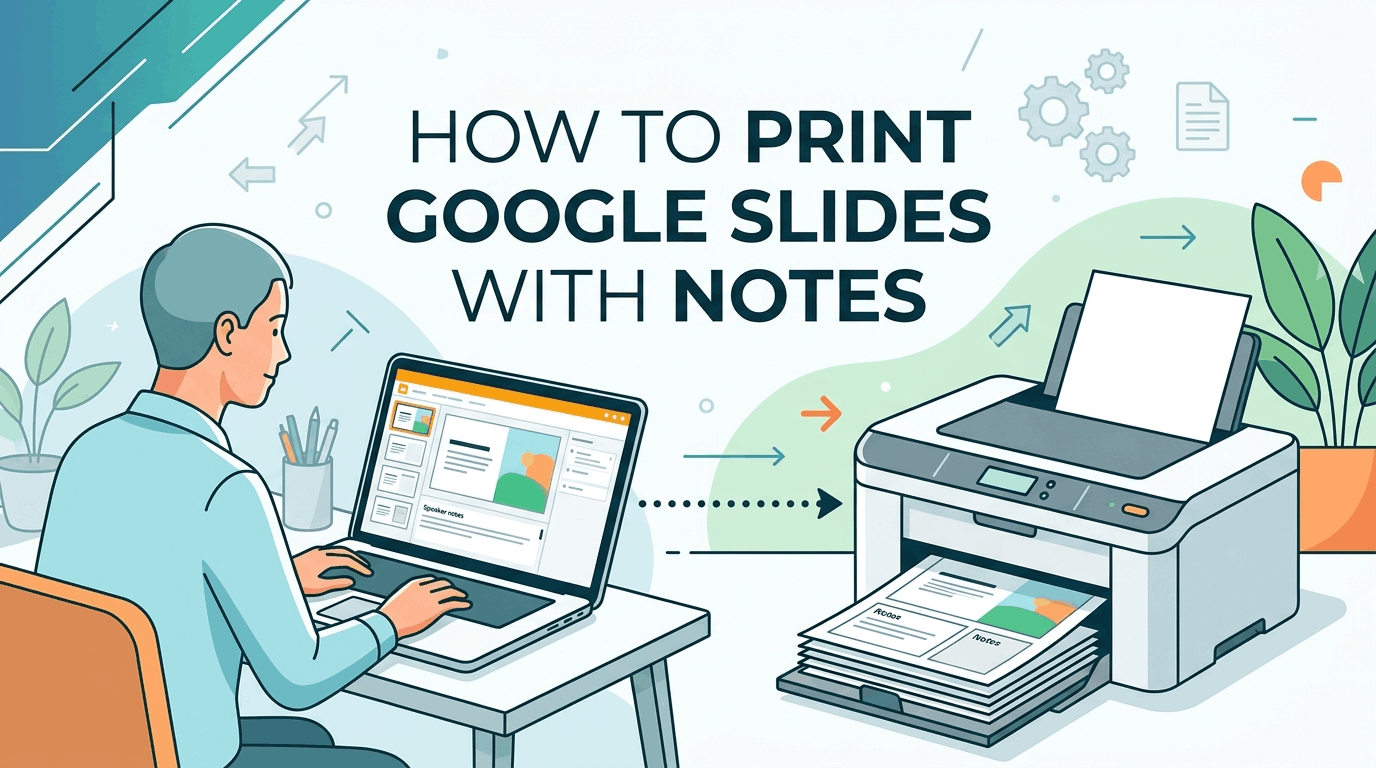
Table of Contents
How to Print Google Slides with Speaker Notes?
Google Slides makes it straightforward to print slides with notes attached, but a few clicks in the right places save you from blank pages or tiny text. Follow these steps, and you will have a perfect handout in no time.
Open Your Presentation
Fire up Google Slides and open the deck you want to print. Make sure you are signed into the correct Google account—nothing’s worse than printing the wrong version. I always double-check the title at the top.
Access the Print Settings
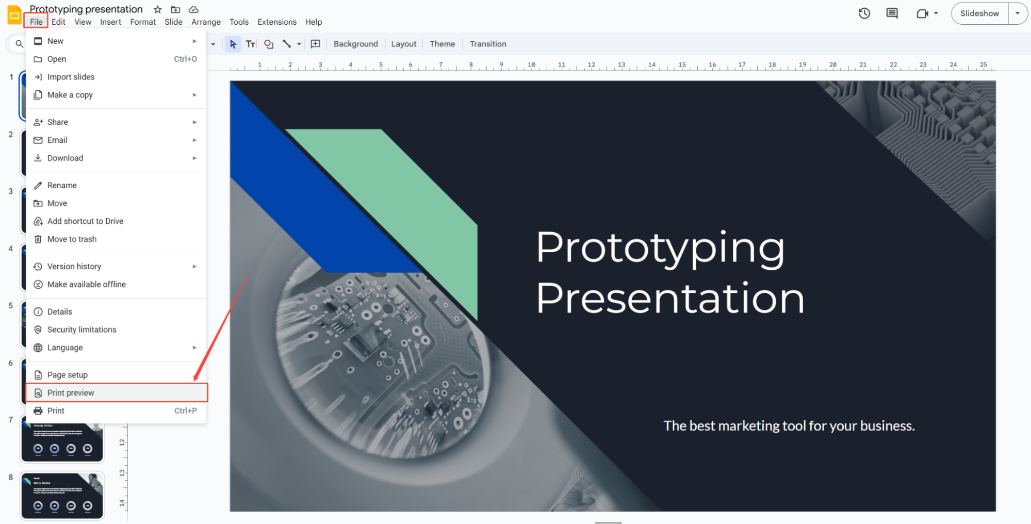
Click File > Print preview. This opens a sidebar where the magic happens. Don’t skip this preview—it’s your safety net against wasted paper.
Select the Right Layout
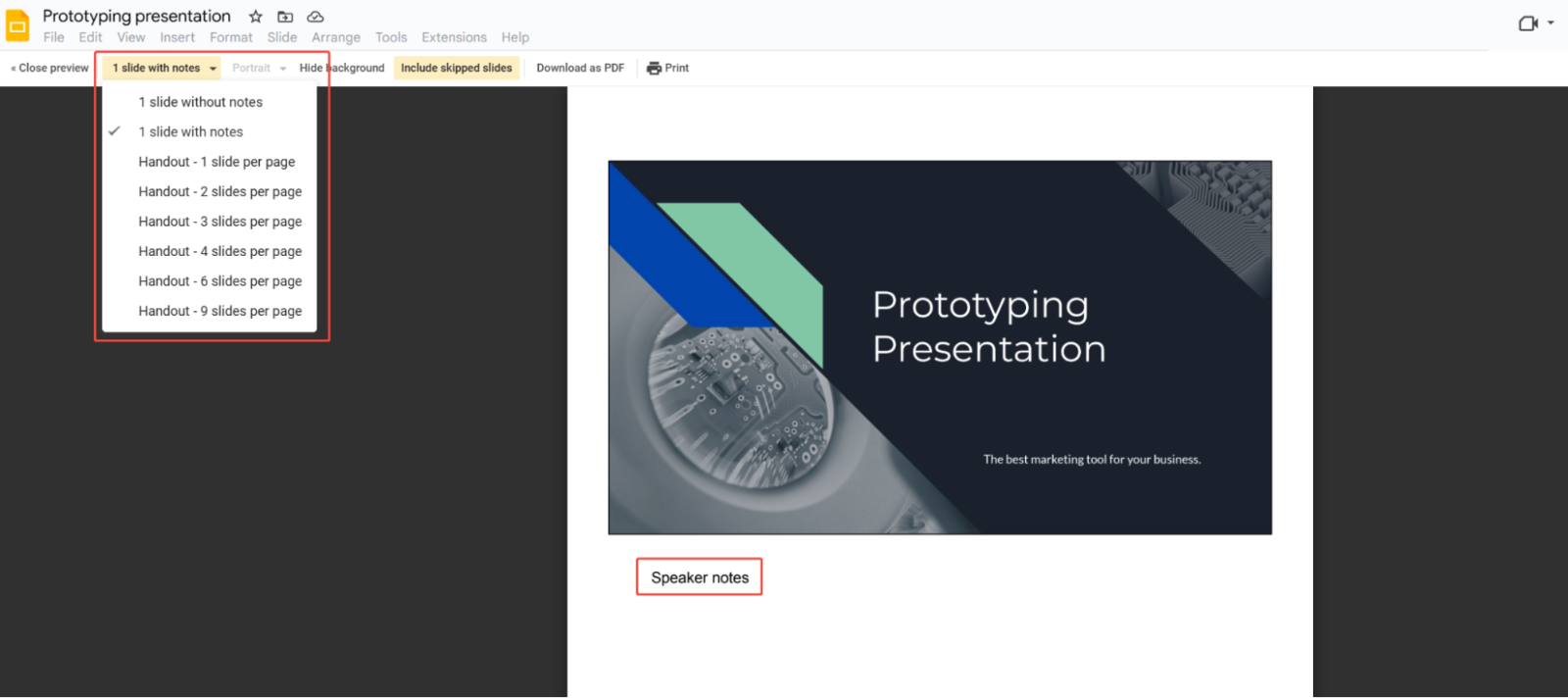
In the preview toolbar, find the 1 slide without notes dropdown (it is usually the first option). Click it and choose 1 slide with notes instead. Now your speaker notes appear under your slide, just like a pro handout.
Customize Pages and Options
While customization is optional, consider:
- Slide Ranges: Pick All slides or type specific page numbers (e.g., 1-5, 8).
- Adjust Color (color, grayscale, or black & white) and tweak margins if your printer’s picky.
- Want to skip the title slide? Uncheck Include skipped slides.
Preview and Print
Hit the Print button at the bottom. A system print dialog pops up—double-check settings like print destination, paper size and quality.
I recommend printing one test page first; tweak font size in your notes if they are cramped. Once you have configured all print options, click the Print button to initiate printing.
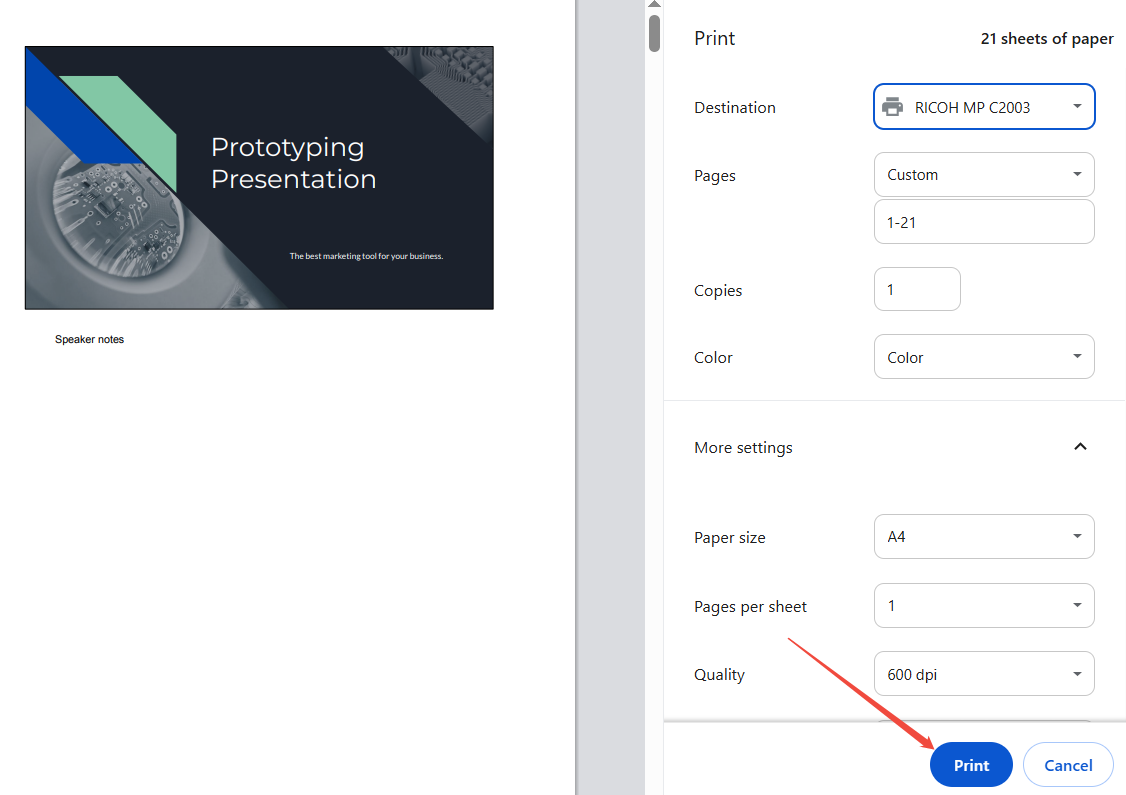
Your Google Slides will now be printed with your speaker notes included, ready to be used for your own projects.
Save as PDF (Optional Backup)
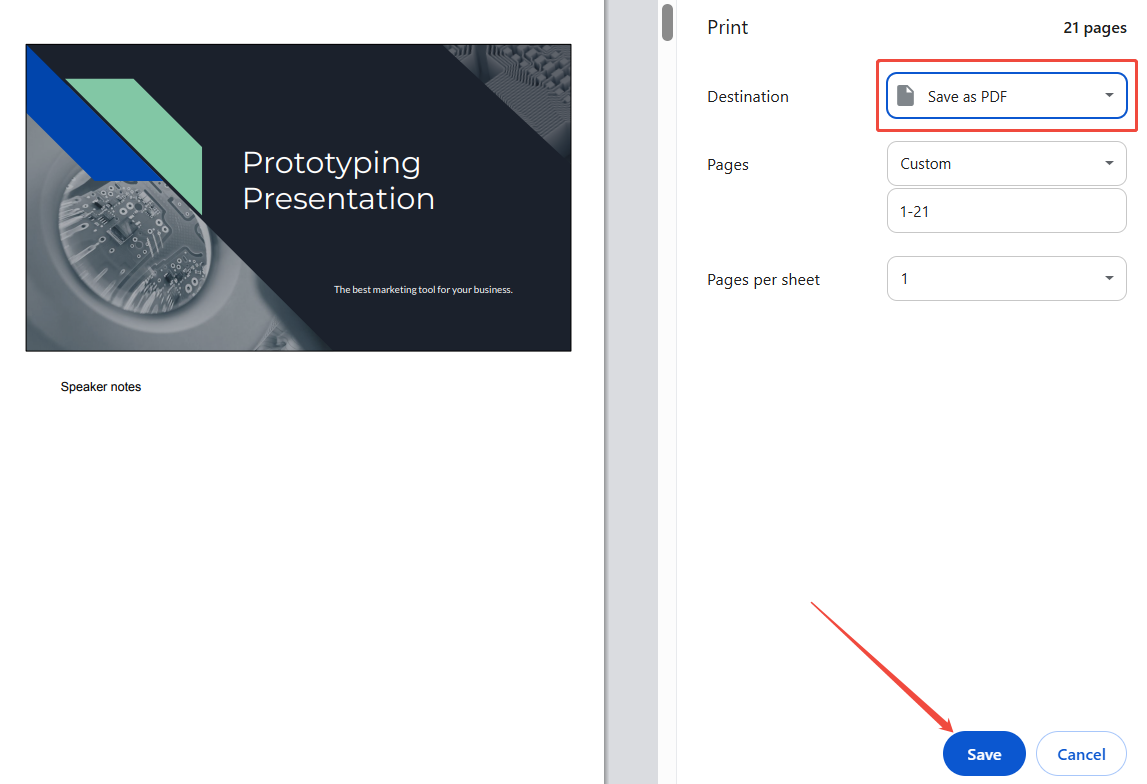
No printer? Select Save as PDF in Destination. You will get a crisp file you can email, print later, or store in the cloud. I always keep a PDF version—insurance against tech glitches.
Creating Stunning Slides Easily with HIX AI
Tired of spending hours creating slides in Google Slides? HIX AI Slides Agent is here to help. It's a smart AI agent that creates pro-level slides from scratch—so you spend less time fighting with templates and more time on what matters.
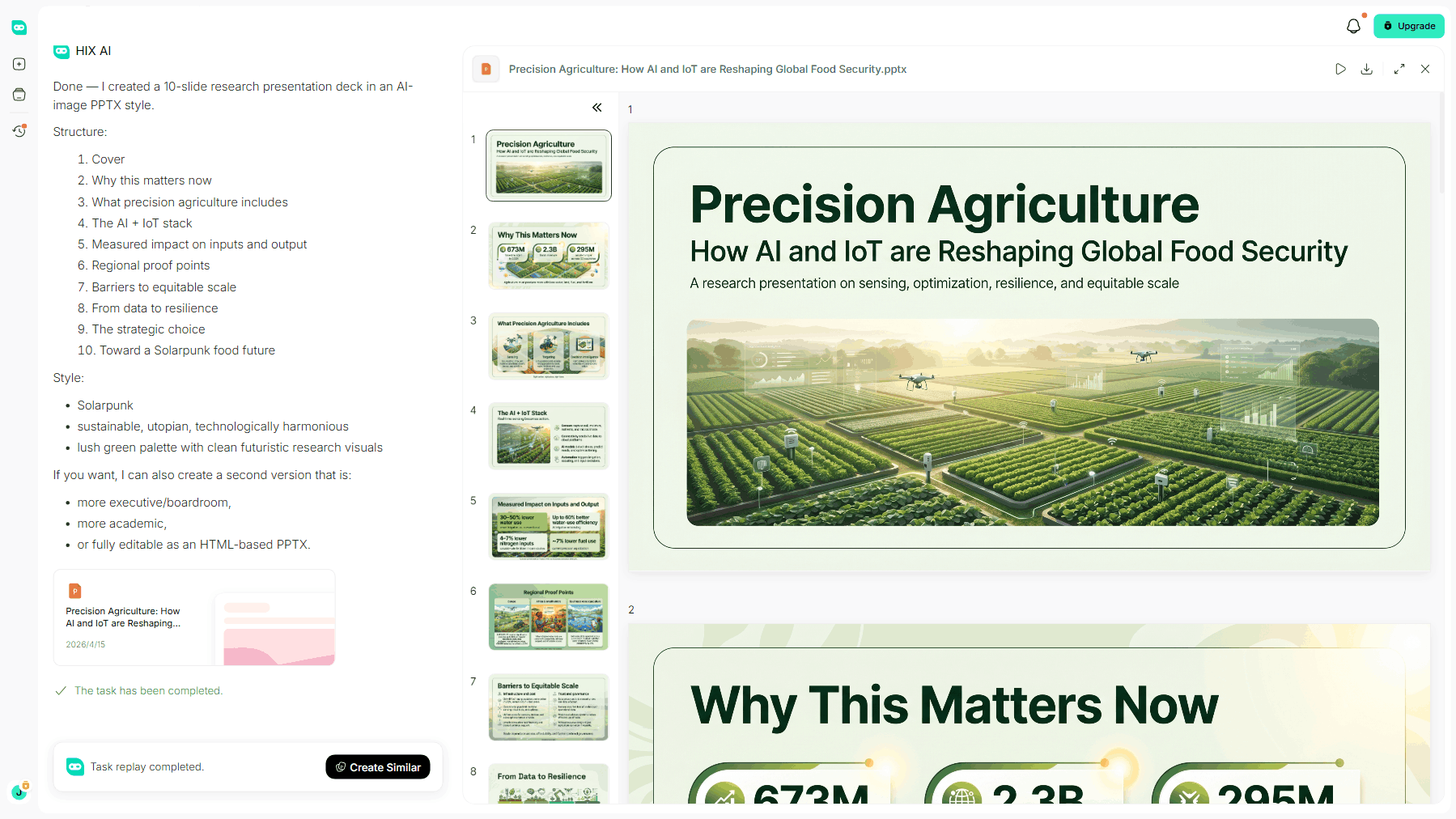
Here's how it works. Just give it a topic, and it will research, organize, and turn messy information into a clean, polished deck with a clear story. Whether you're prepping a class project, a client proposal, or a research report, it handles the heavy lifting for you.
The slides HIX AI creates stay on-brand and fully editable. You can upload your own brand colors and fonts, and the tool keeps every slide looking consistent. After it generates your deck, you can still tweak the text, move visuals, or refresh charts however you like.
When you're done, just export to Google Slides with all your layouts and spacing perfectly preserved. Then you're ready to add your speaker notes and print using the steps above!
Try HIX AI Slides Now!
Conclusion
There you have it—you’re now equipped to print Google Slides with speaker notes like a pro. With just a few clicks, you’ve turned a digital deck into a polished, note-packed handout that keeps you confident and on track. No more squinting at your screen or scribbling last-minute cues.
And if you're looking for a tool to relieve your slides creation stress, HIX AI Slides is the AI agent you can rely on. Let it save you hours and help you create professional, polished presentation decks.
🆓Free to Try • 📑Create Any Slides • ⭐4.9/5 Rating