💡 Abstract
If you want to add videos to your Google Slides, you can easily use the methods we share here, like connecting directly to your Drive or YouTube account. However, if you want the ultimate solution, you must try HIX AI slides agent as the best choice for making quality presentations.
Adding dynamic videos is the ultimate way to instantly boost engagement and bring static presentations to life, effectively breaking up the monotony of text-heavy decks.
In this tutorial on how to put a video in Google Slides, I’ll walk you through exactly how to insert clips directly from YouTube and Google Drive.
Table of Contents
How to Put a Video in Google Slides from YouTube
Found the perfect public video on YouTube and can't wait to share it with your audience? Don't worry, it's super easy! Let’s walk through six simple, stress-free steps to embed it directly into your Google Slides right now.
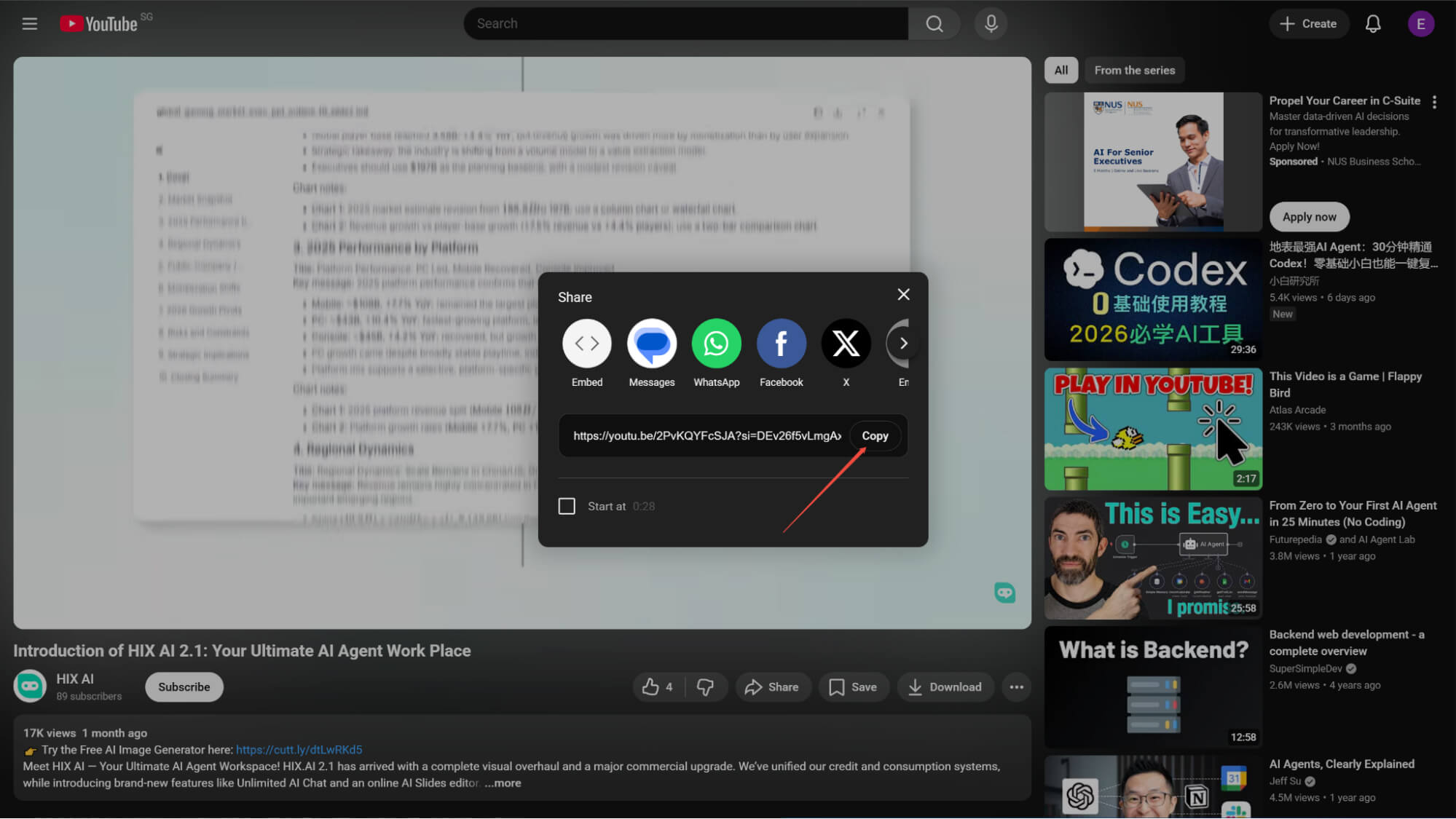
Find Your Video and Click 'Share'
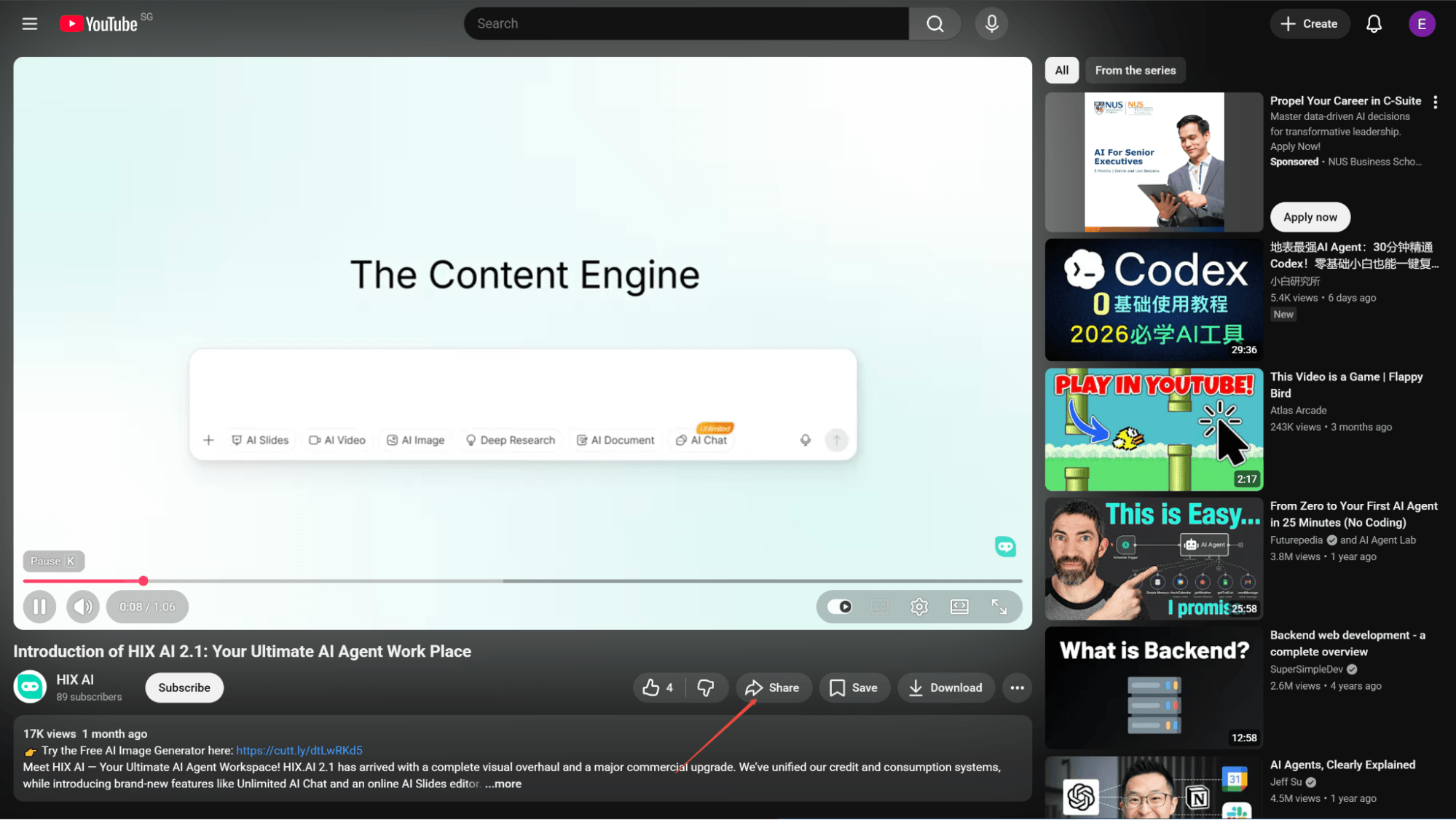
Open YouTube, find your chosen video for Google Slides, and click the "Share" button at the bottom right corner of the video screen.
Copy the Video Link
In the appearing share window, simply click the "Copy" button located on the right side of the video link to copy it to your clipboard.
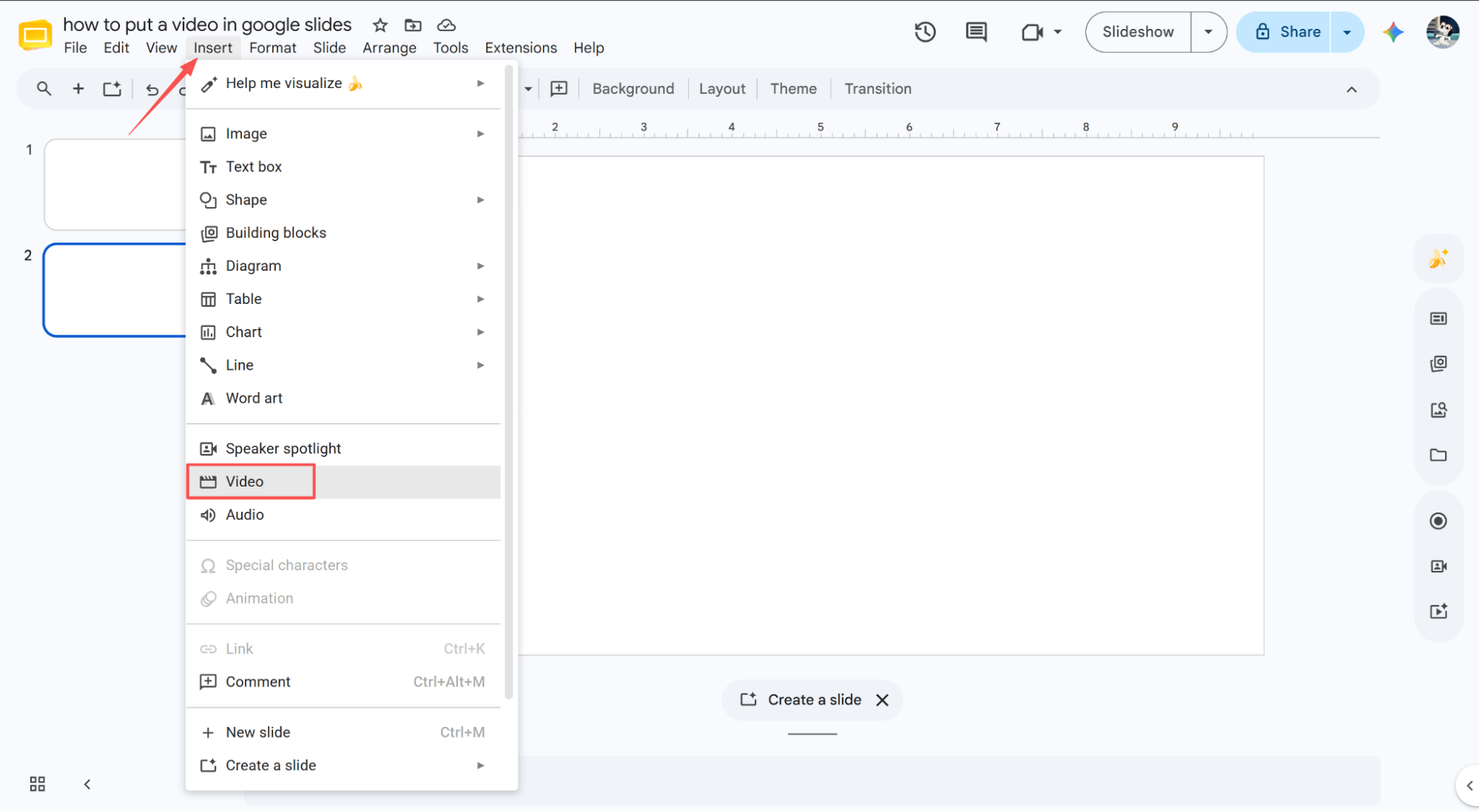
Navigate to 'Insert' > 'Video'
Open your Google Slides file, select the exact slide where you want to embed the video, click the "Insert" menu at the top, and choose "Video" from the list.
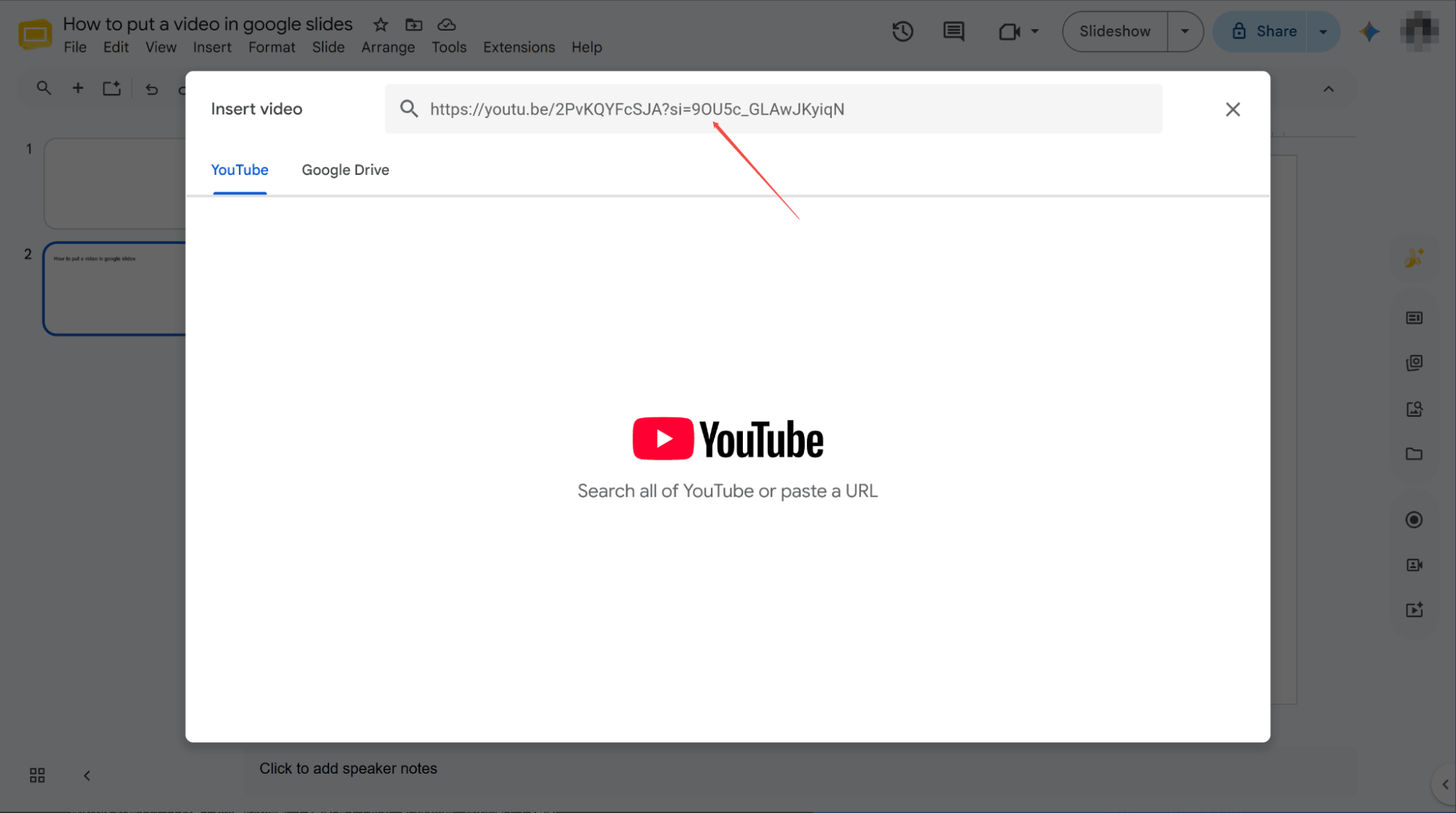
Paste the YouTube Link
Paste the copied YouTube video link into the input box of the newly opened pop-up window.
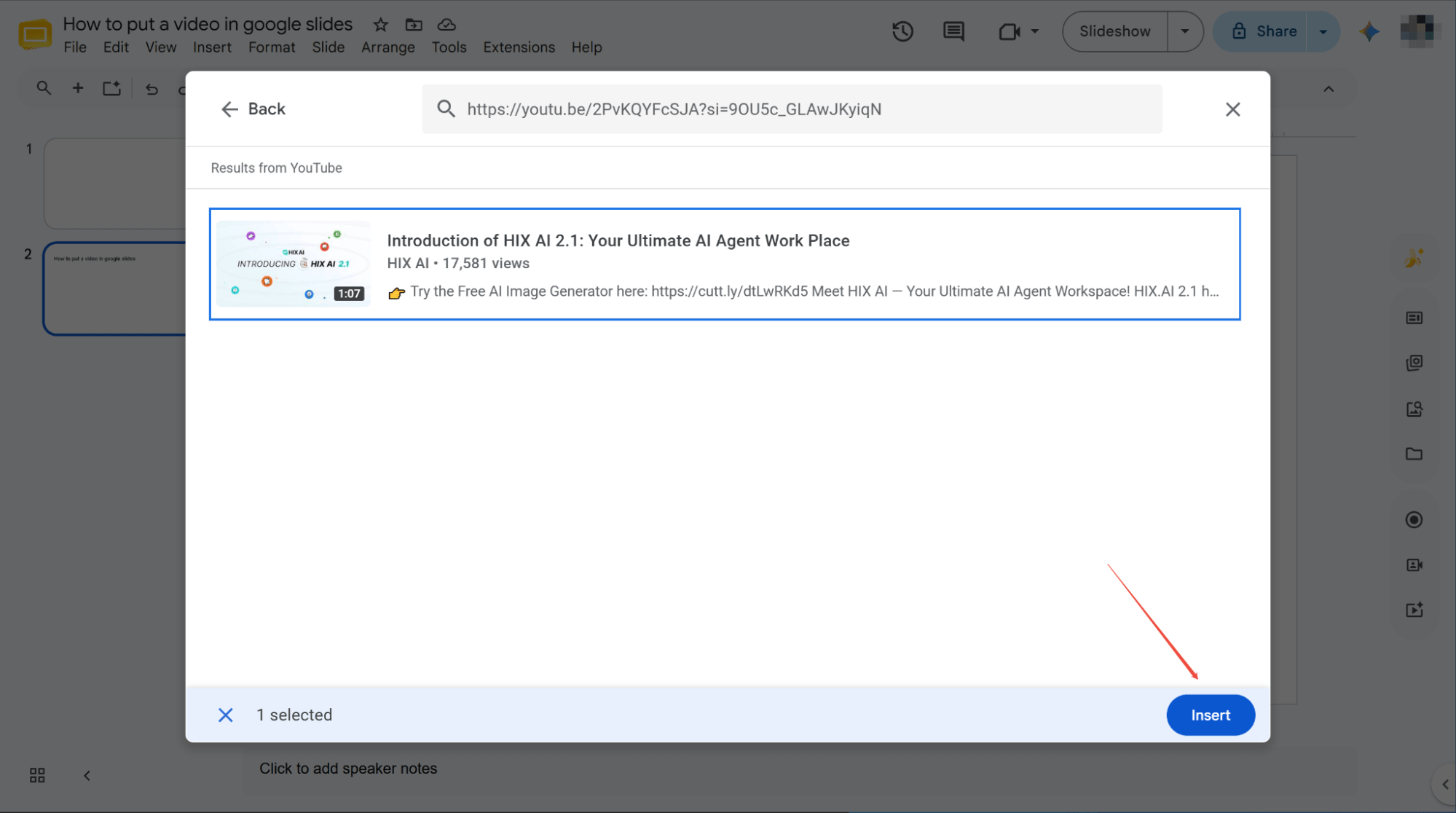
Search and Select the Video
Hit enter to search for your video. Once you click on the preferred video from the search results, the "Insert" button will show up at the bottom of this window.
Click 'Insert' to Finish
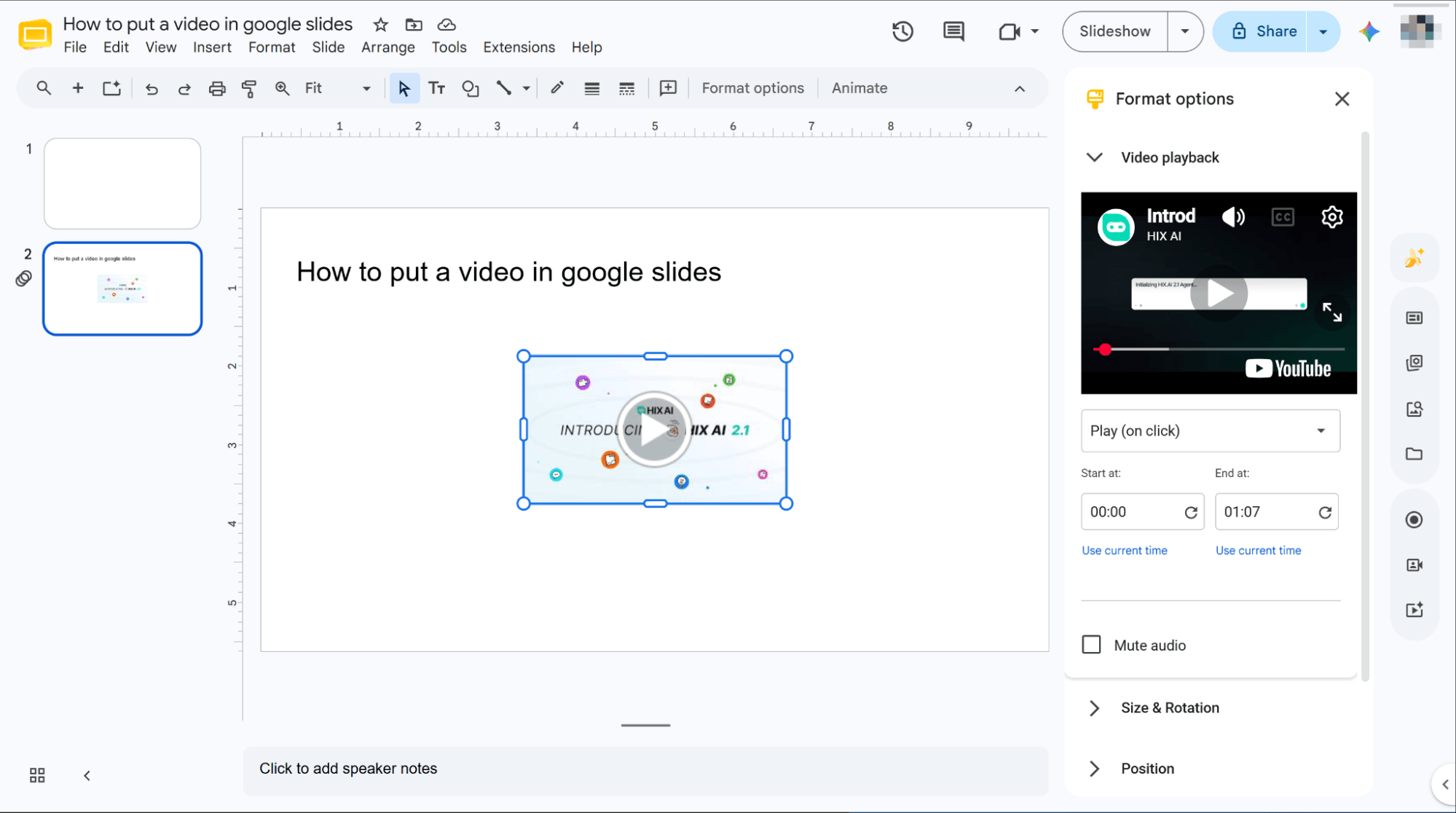
Click the "Insert" button, wait for a few seconds, and you will see that the video has been successfully embedded directly into your selected slide.
How to Put a Video in Google Slides from Google Drive
Now, let’s tackle your own cloud files. Think it’s going to be a complicated tech headache? Think again! Follow along as we break down exactly how to insert any Google Drive video into your Google Slides in just 3 simple, stress-free steps.
Navigate to 'Insert' > 'Video'
Open your target Google Slides presentation, select the exact slide for your video, click the "Insert" menu at the top, and choose "Video" from the resulting dropdown list to begin.
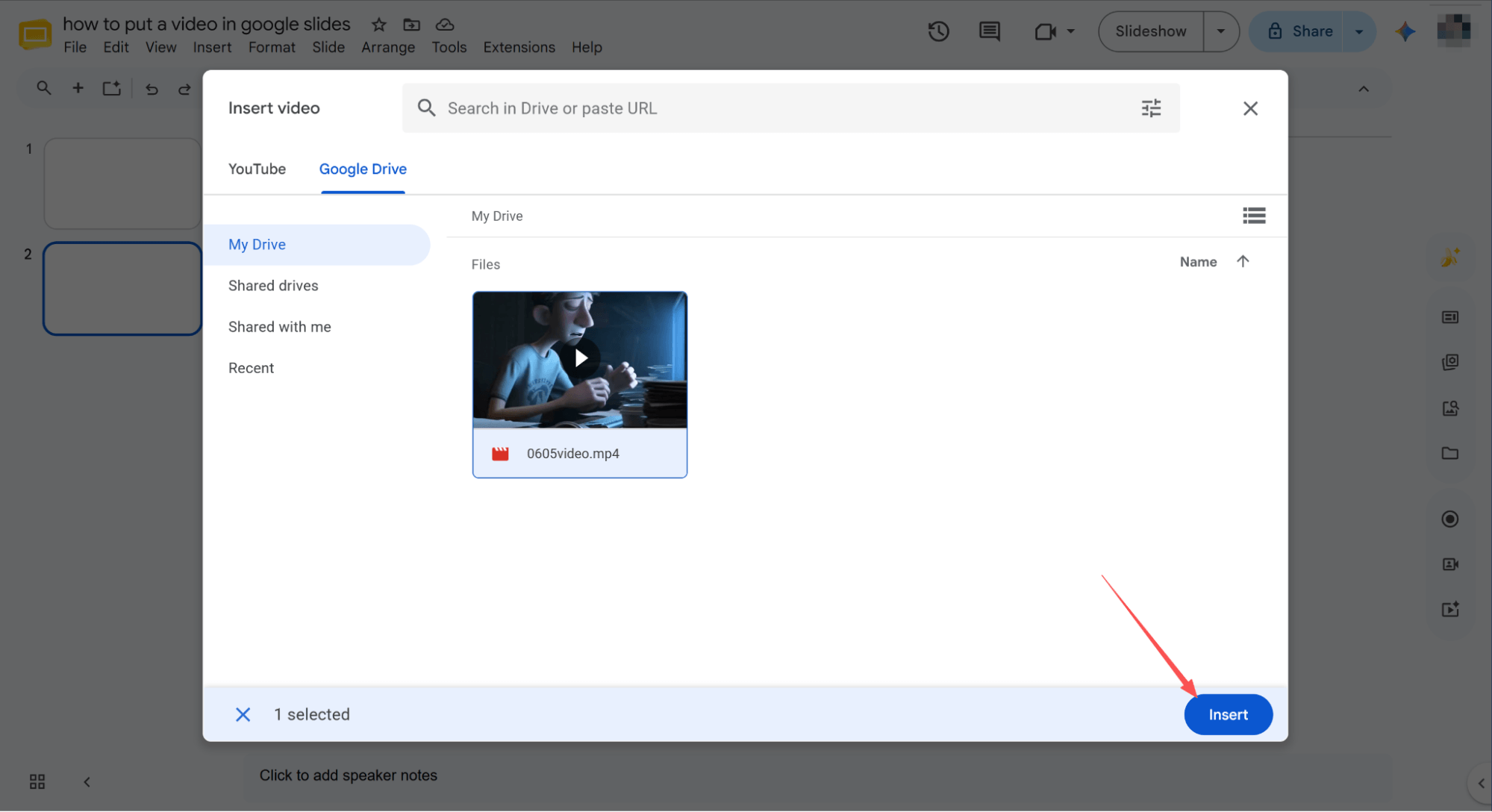
Insert the Video via Google Drive
Switch to the Google Drive tab, locate and select your target video, and finally click the "Insert" button located at the bottom right corner of the screen to proceed further.
Finish the Embedding Process
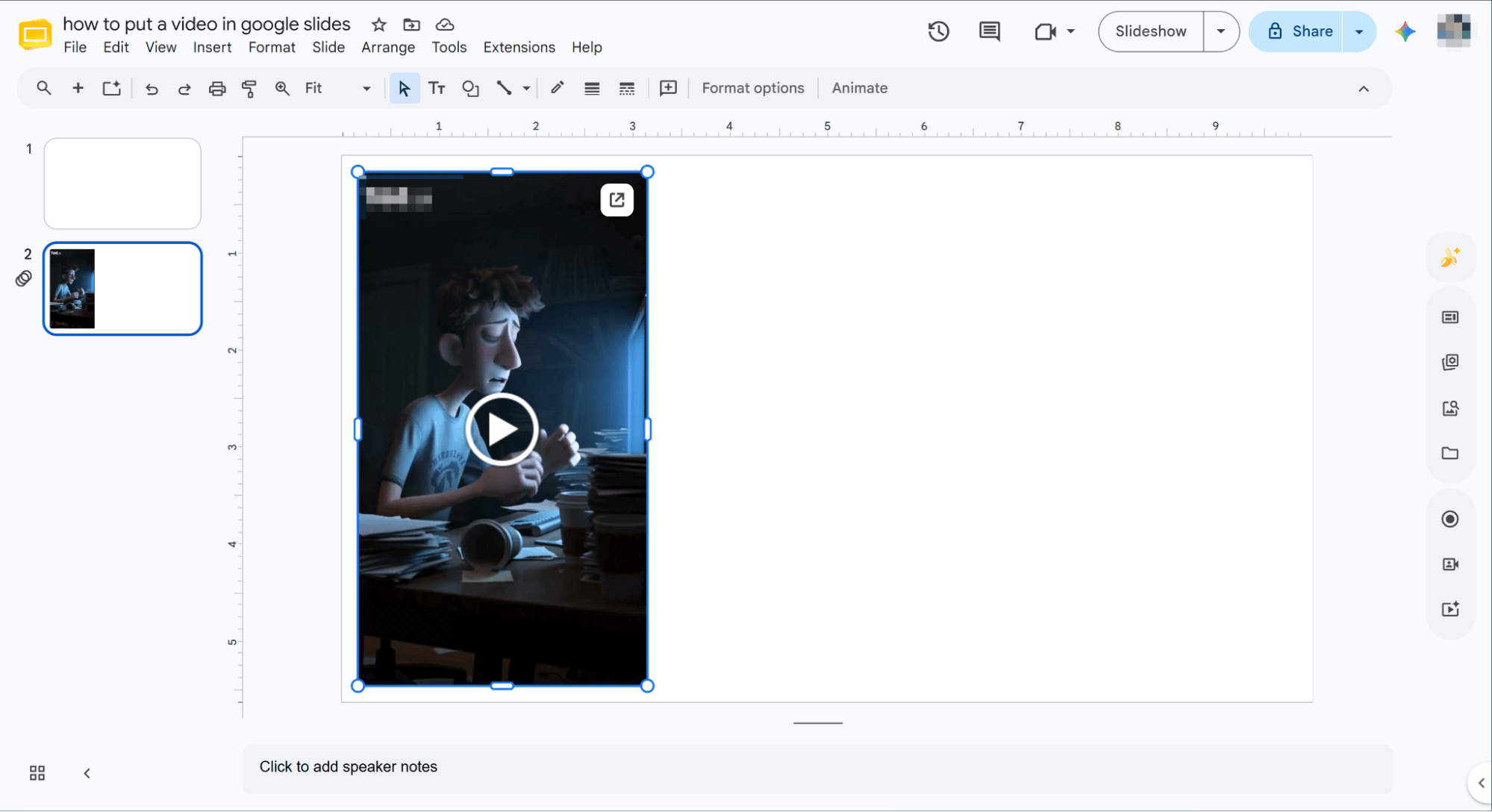
After waiting for a few seconds, you will see that the target slide page has successfully embedded your video file.
HIX AI Slides Agent: Say Goodbye to Tedious Presentation Prep
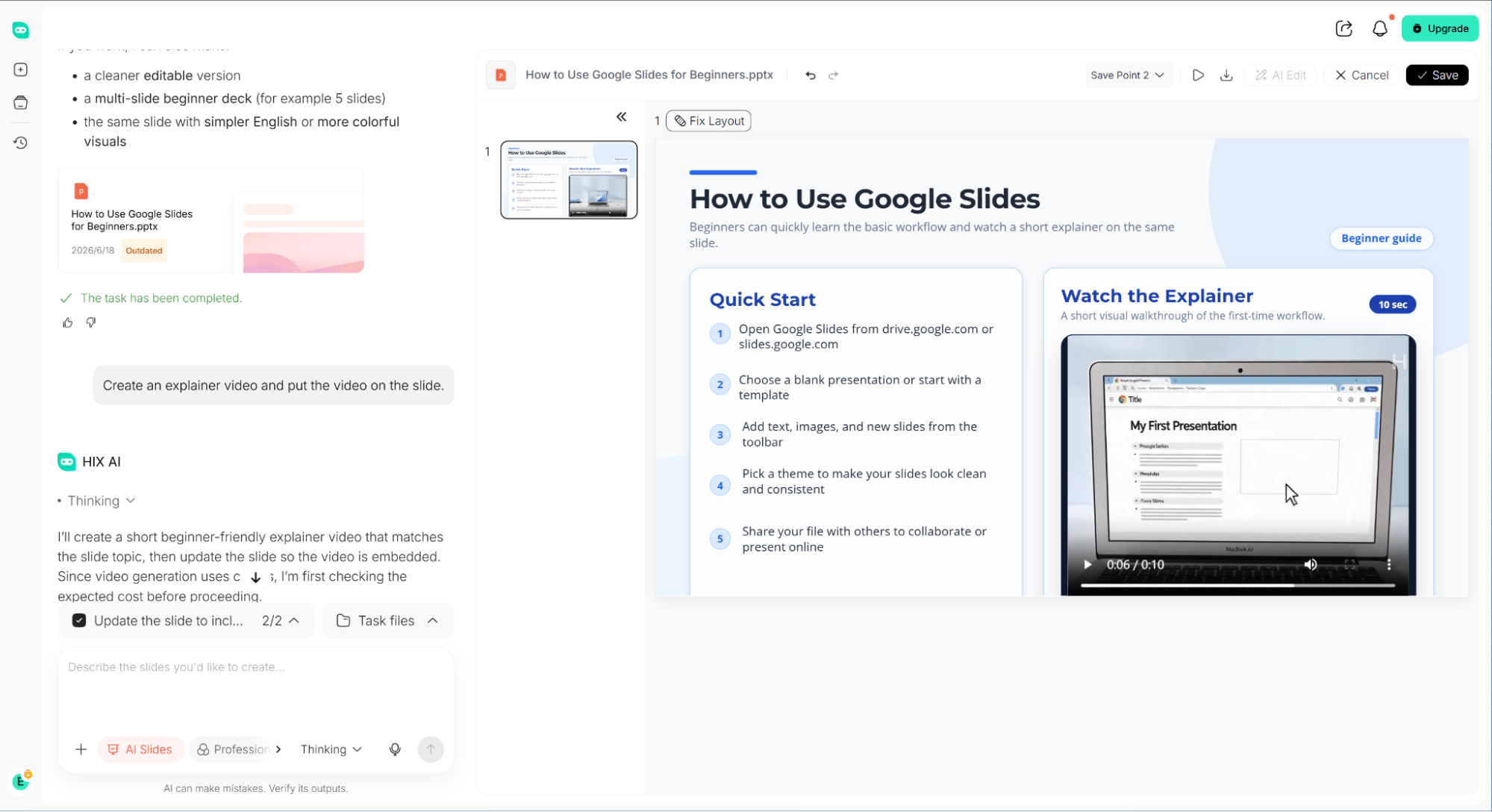
Ever struggled with tedious presentation prep? You really need to check out HIX AI slides agent. With just a simple prompt, it automatically generates and embeds relevant videos right into your slides, saving you hours of searching.
Once generated, you can freely resize and reposition any element. It also handles all your copywriting in one stop, conducting deep research to write logically flawless, ready-to-deliver slide text that perfectly captures your topic.
It makes presentation creation effortless through quick shortcuts for instant slides optimization and conversion. This agent also supports built-in templates for instant use, as well as custom uploads so you can design slides with your own template files.
To top it off, you can set your brand style for fully customized, cohesive visuals. Trust me, this smart AI slides agent is an absolute game-changer that will completely transform your daily workflow!
Try HIX AI Slides Agent
Conclusion
Whether you’re embedding YouTube videos or pulling files from Google Drive, mastering video integration is the ultimate way to elevate your Google Slides.
However, if you want to skip the manual hassle entirely, we highly recommend HIX AI slides agent. Through simple conversational prompts, this powerful tool automatically crafts stunning slide designs, generates custom videos, and formats them perfectly. It completely eliminates layout headaches, offering a seamless, one-stop solution to supercharge your presentations!
🆓Free to Try • 📑Create Any Slides • ⭐4.9/5 Rating