Have you ever watched someone give a presentation and wondered how they remembered everything they wanted to say? You can use speaker notes to help you stay on track. And if you're using Google Slides, adding these notes is super easy!
In this article, I'll offer everything you need to know about how to add speaker notes in Google Slides. Whether you're getting ready for a class presentation, a school project, or just want to feel more confident when you talk in front of people, this guide has got you covered.
Table of Contents
How to Add Speaker Notes in Google Slides
Adding speaker notes is really simple. Just follow these steps and you'll be a pro in no time.
Find the Speaker Notes Box
Look at the bottom of your screen, right below your slide. You should see a box or a bar that says something like "Click to add speaker notes". This is where all your speaker notes will go!
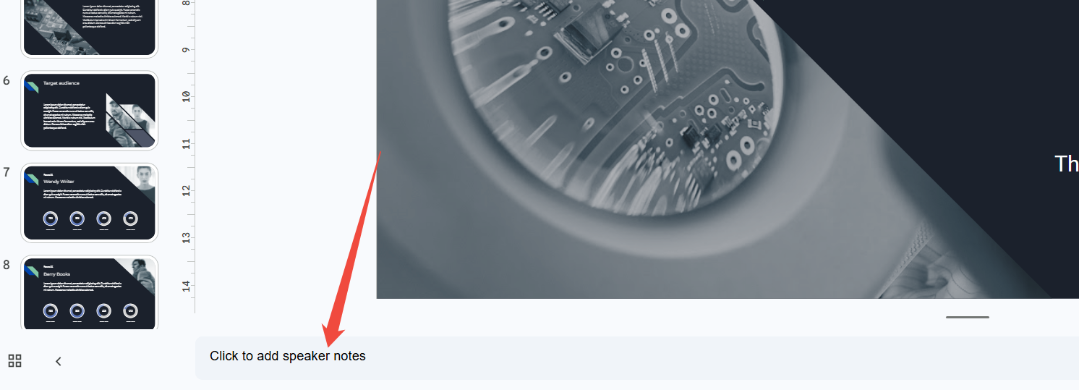
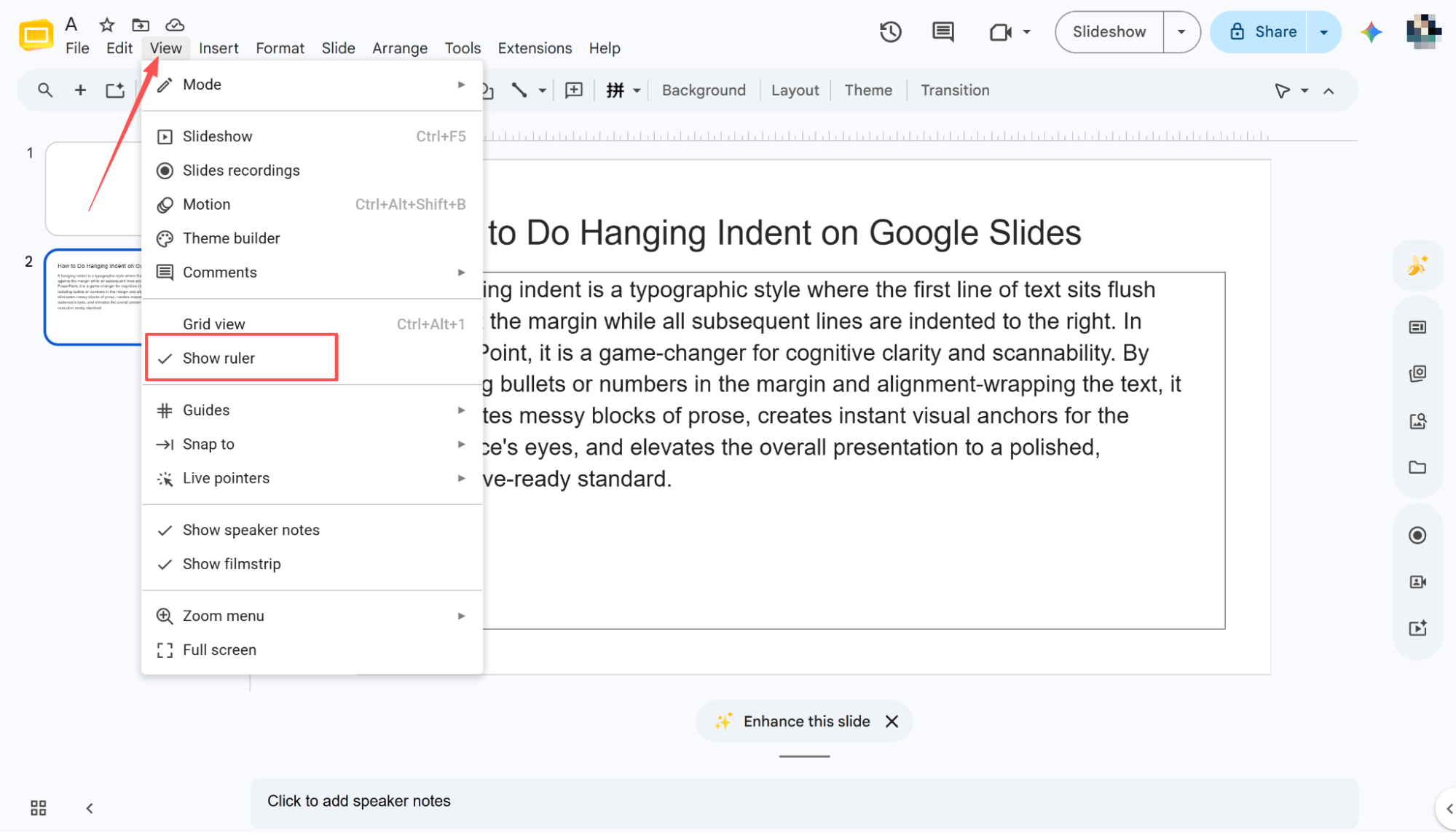
If you don't see this box, don't worry. Sometimes it's hidden. Just go to the top menu, click on View, and then click on Show speaker notes. The box should pop right up.
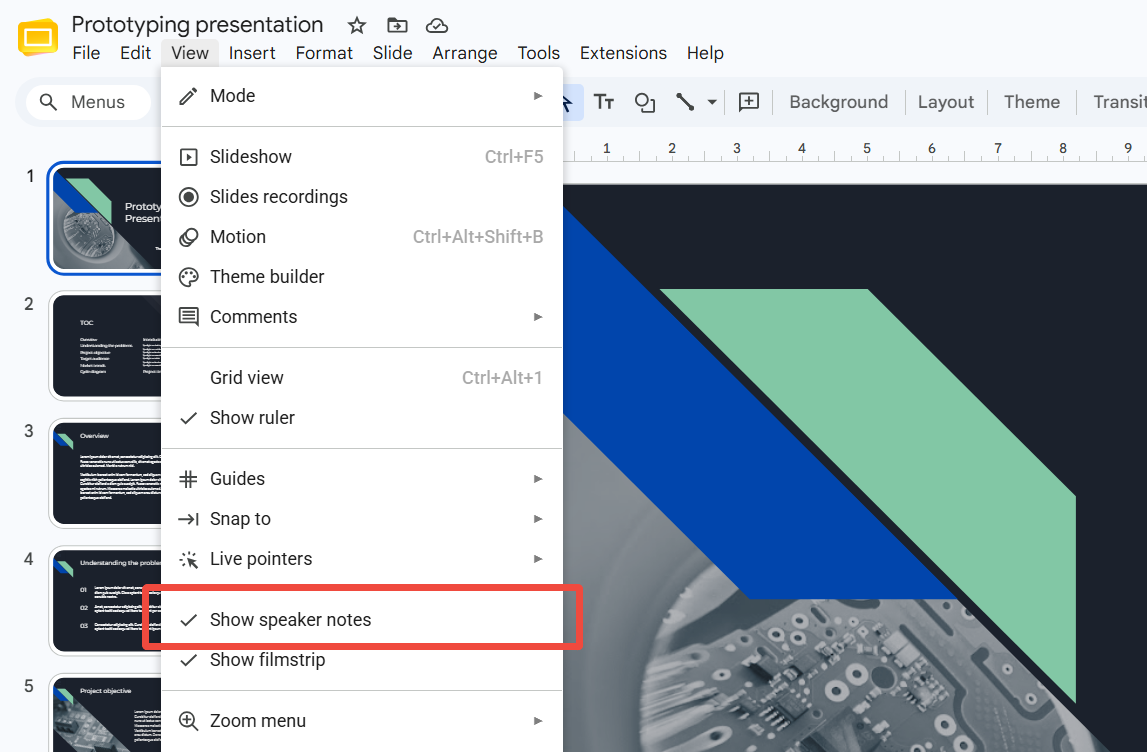
Add Notes to Each Slide
Each slide has its own speaker notes box. So when you move to a different slide, you'll need to add new notes for that one. Just click on the next slide, and then click in the notes box at the bottom to add your reminders.
How to View Your Speaker Notes While Presenting
Now you might be wondering, "How do I actually see these notes when I'm presenting?" Great question! Here's how it works.
Look for the Slideshow button at the top right of your screen. But instead of just clicking it, click the little arrow next to it. A menu will pop up, and you should see an option that says Presenter view.
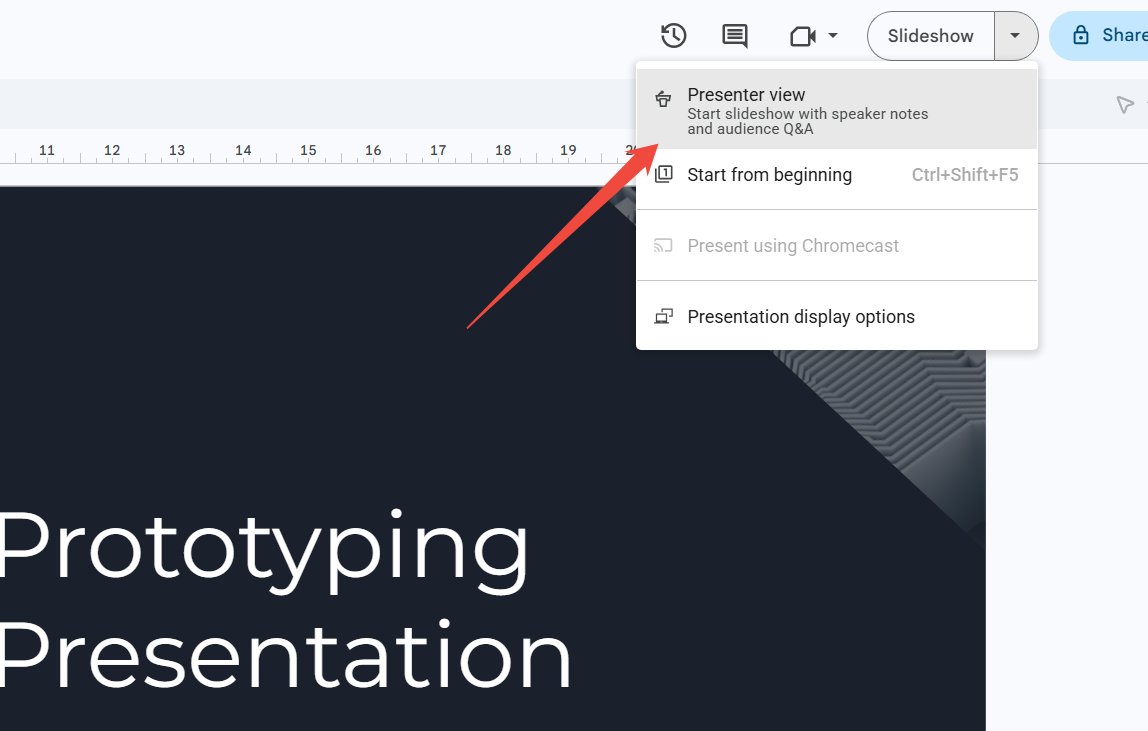
When you choose the Presenter view, your audience will see your slides on the big screen, but you will see a special view on your own device. This view shows your current slide, the next slide coming up, and—you guessed it—your speaker notes!
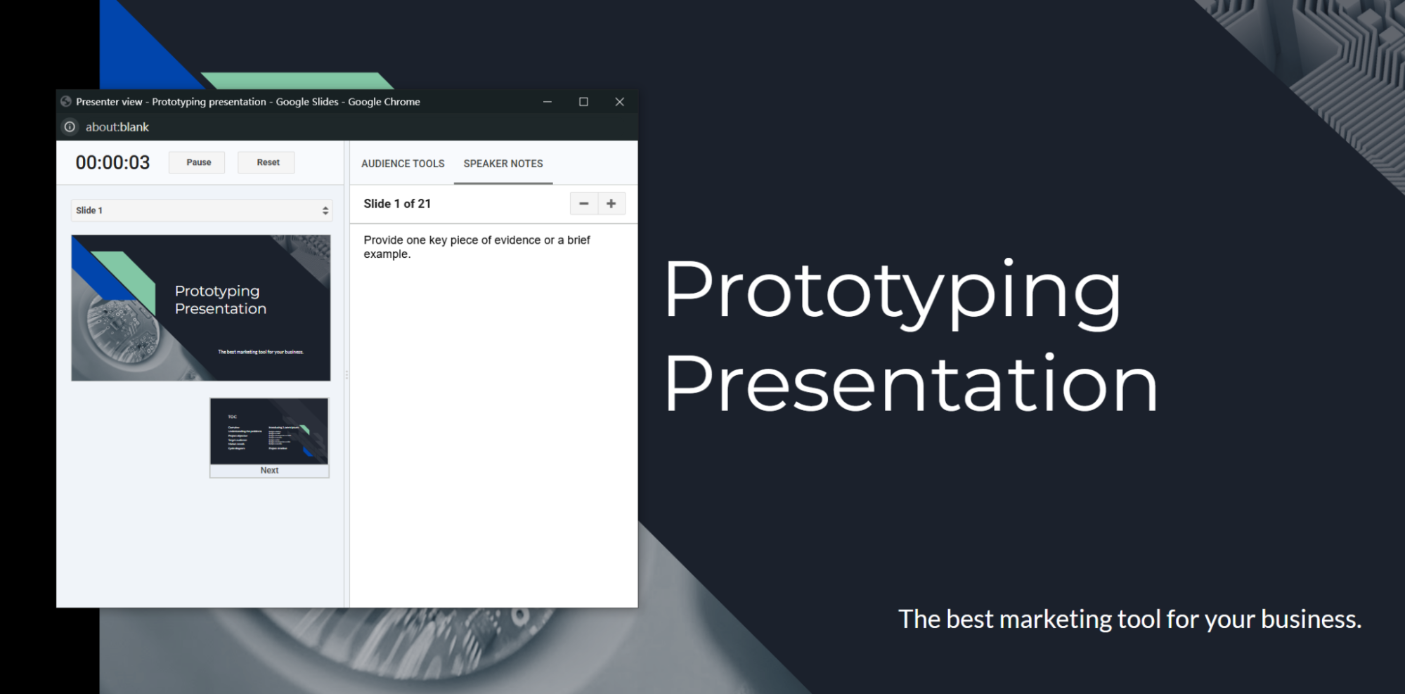
This is super helpful because you can glance at your notes whenever you need a little reminder, and your audience will never know.
Tips for Writing Great Speaker Notes
Now that you know how to add speaker notes, let me share some tips to make them even better.
-
Keep them short and simple.
You don't want to read a whole essay off your screen. Use short phrases or bullet points that jump out at you quickly.
-
Don't write word for word.
Here's a mistake a lot of people make: they write down exactly what they want to say, word for word. The problem is, this makes you sound like a robot reading a script. Instead, just write the main ideas and let yourself talk naturally.
-
Use them as a guide, not a crutch.
Speaker notes are there to help you, but try not to stare at them the whole time. Practice enough so that you only need to glance at them once in a while.
-
Add reminders to yourself.
You can write little notes like "Slow down!" or "Smile here!" or "Pause for questions." These help you remember not just what to say, but how to say it.
Want to Make Your Slides Even Easier? Try HIX AI
Need a quick way to create insightful, presentation-ready slides? Try HIX AI Slides! It's like having a super smart helper that builds your slides for you!
Just give HIX AI Slides a prompt, and optionally upload an image or document, and it does the hard work for you. It researches the topic, organizes the information, and turns it all into a polished presentation with a clear story. So if you're working on a school report or a big project, you don't have to start from a blank page.
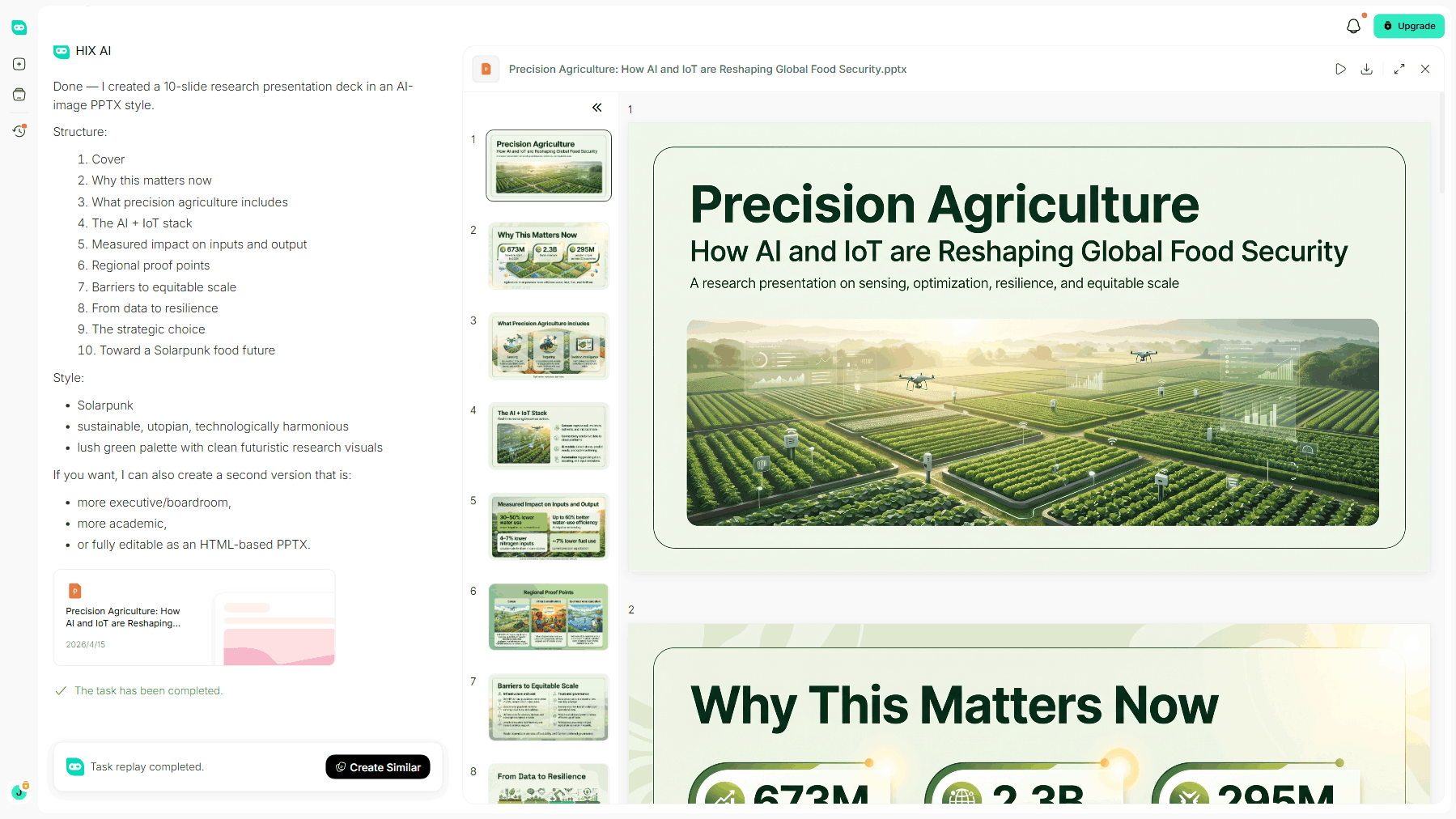
HIX AI Slides keeps everything looking neat and matching. You can pick a template or upload your own colors and fonts, and it makes sure every slide looks clean and put together. No more slides that look messy or all over the place!
After HIX AI creates your slides, you can change anything you want. You can move pictures, edit text, resize stuff, or even let HIX AI rewrite parts for you. When you're done, you can even export it to Google Slides or PowerPoint. It's a great way to save time and feel confident about your presentation!
Try HIX AI Slides Now!
Wrapping It Up
And there you have it! Now you know exactly how to add speaker notes in Google Slides, how to view them while presenting, and how to write notes that actually help you.
Adding speaker notes is one of the easiest ways to feel more prepared and confident during a presentation. So next time you have a big project or class talk coming up, give it a try. I promise you'll be glad you did.
You're fully equipped to ace your next presentation. And for your next big project, let HIX AI Slides make the entire creation process a breeze.
🆓Free to Try • 👍 Professional Slides • ⭐4.9/5 Rating